Troubleshooting Missing Plugins in Your WordPress Dashboard: A Step-by-Step Guide
By WordPress Expert |
Logging into your WordPress dashboard only to discover that a crucial plugin has vanished can be a frustrating experience. This situation can interrupt your workflow, particularly if the missing plugin manages essential functions like contact forms or sales pages.
Many WordPress experts have assisted numerous users in resolving this exact issue. Frequently, the plugin hasn't been removed; instead, it becomes hidden due to permission settings or conflicts with other components.
This guide provides practical steps to help you locate and restore missing plugins to your dashboard.
Understanding Why Plugins Vanish From the WordPress Dashboard
When a plugin disappears from your dashboard without warning, it can disable important site features. You might not notice the problem until a form stops functioning or a section of your website becomes inaccessible.
This issue can occur for various reasons. Before taking further action, check your Plugins » Installed Plugins list as a first step.
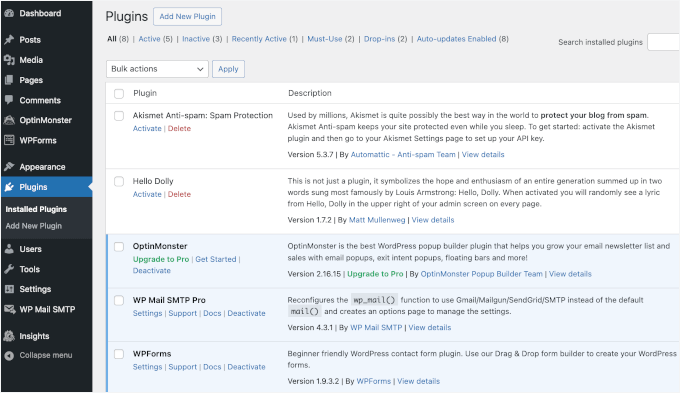
Sometimes the plugin is merely deactivated rather than missing. If it appears in the list but shows as inactive, you can simply click "Activate." If the plugin doesn't appear at all, or if the entire "Plugins" menu is absent, these are the most likely causes:
- Plugin Conflicts: A plugin may become hidden or malfunction if its files become corrupted, or if it conflicts with another plugin or your current WordPress version.
- Security Concerns: In some instances, malware or unauthorized access to your site can forcibly remove or conceal plugins. This typically occurs when core files have been modified.
The following sections will guide you through resolving each of these potential issues to restore your plugins:
- Verify User Role Permissions in WordPress
- Deactivate All WordPress Plugins to Identify Conflicts
- Clear Browser and WordPress Cache
- Conduct a Security Scan of Your WordPress Site
- Common Questions About Missing WordPress Plugins
- Additional Assistance With WordPress Plugin Issues
1. Verify User Role Permissions in WordPress
Website administrators sometimes restrict other users from viewing or modifying plugin settings to prevent accidental changes that could disrupt the site or create security vulnerabilities.
This practice is common on multi-author websites or multisite networks.
Begin by confirming your user role. A user role defines the permissions associated with your account, determining what you can view and modify on the site.
If the Plugins menu doesn't appear in your sidebar, look for the Users menu. If you can access Users » All Users, check the 'Role' column next to your username.
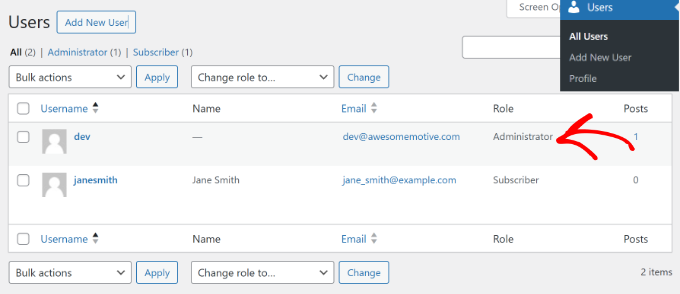
If neither the Users menu nor the Plugins menu is visible, this indicates you lack Administrator permissions. In this case, contact the site administrator to adjust your access levels.
If you are the administrator and your permissions are correctly set, the problem likely originates from a conflict or error. The next section addresses this scenario.
2. Deactivate All WordPress Plugins to Identify Conflicts
Plugin conflicts represent another common reason plugins may disappear from the WordPress dashboard.
Experienced developers often recommend deactivating all plugins on your website to identify conflicts. Before proceeding, create a complete backup of your site using a reliable backup solution.
To deactivate all plugins, navigate to Plugins » Installed Plugins from the WordPress dashboard and select all plugins by clicking the checkbox.
From the 'Bulk actions' dropdown menu at the top, choose the 'Deactivate' option.
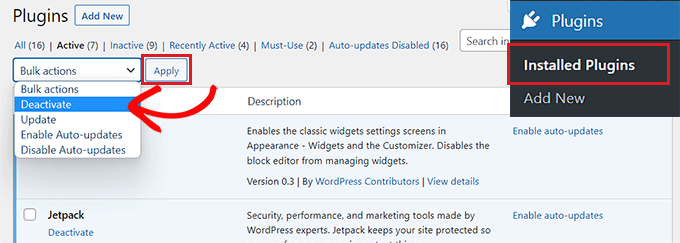
If the missing plugin or its menu item reappears after deactivation, this confirms a conflict was causing the issue. You can then reactivate plugins individually to identify the specific one causing problems.
If you cannot access the WordPress admin panel, connect via FTP client or File Manager in your hosting control panel to manually deactivate plugins.
3. Clear Browser and WordPress Cache
Another troubleshooting step involves logging out of your WordPress site and clearing your browser cache to address disappearing plugins.
Browser cache stores website data on your computer to accelerate page loading. Occasionally, your browser may load an outdated cached version where plugin menu links aren't visible.
Clearing the browser cache forces your browser to load a fresh copy of the website. In Google Chrome, click the three-dot menu icon in the top right corner and select 'Clear browsing data.'
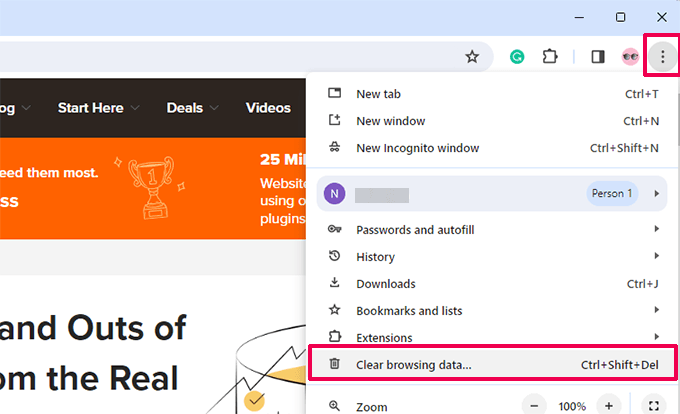
The Clear browsing data settings page will appear.
Switch to the 'Basic' tab and select the 'Cached images and files' checkbox. You can also choose the time range, clear browsing history, and select cookies and other site data.
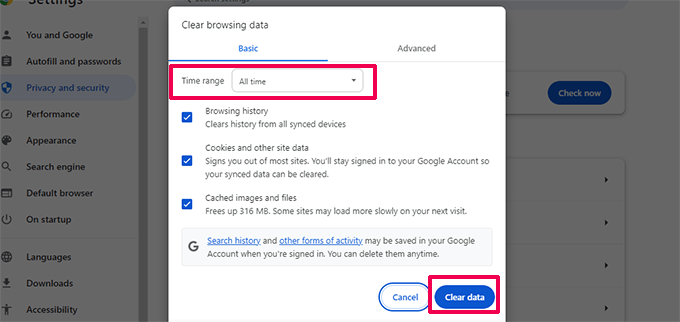
After selecting your options, click the 'Clear data' button.
Then log back into your website and check the WordPress dashboard to see if the missing plugin has returned.
If this approach doesn't work, clear the cache in WordPress using your caching plugin or through your hosting provider.
WordPress caching operates similarly to browser caching, storing a static version of your site for faster delivery to visitors, which enhances site speed and performance.
Most sites utilize caching solutions. Some WordPress hosting providers include built-in caching systems.
If plugins aren't displaying in the WordPress dashboard, clear the WordPress cache. For example, if using a popular caching plugin, navigate to its settings and click the 'Clear Cache' button.
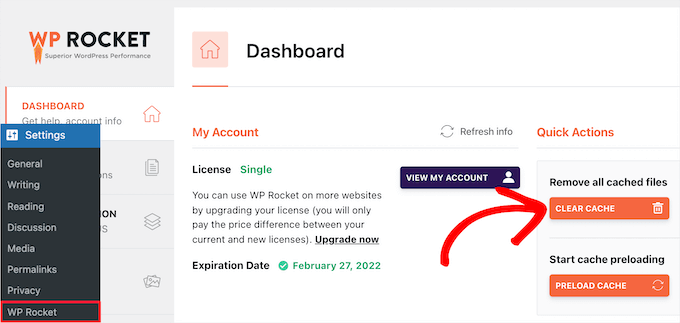
If your hosting provider includes caching features, you may see a 'Caching' option in the top admin toolbar.
Hover over it and select the 'Purge All' option.


