Troubleshooting Missing Plugins in Your WordPress Admin Dashboard
Discovering that essential plugins have vanished from your WordPress dashboard can be alarming, especially when they power critical functions like contact forms or e-commerce features.
Many WordPress experts have encountered this situation repeatedly. Often, the plugin hasn't been removed entirely but has become hidden due to permission settings or compatibility issues.
This guide provides systematic solutions to locate and restore missing plugins to your administrative interface.
Common Reasons Plugins Disappear From the Dashboard
When plugins silently vanish from view, essential website functionality can break without immediate detection. You might only notice the problem when forms malfunction or site sections become inaccessible.
Experienced developers have identified several potential causes. Before taking extensive action, first verify your plugin status by navigating to Plugins » Installed Plugins.
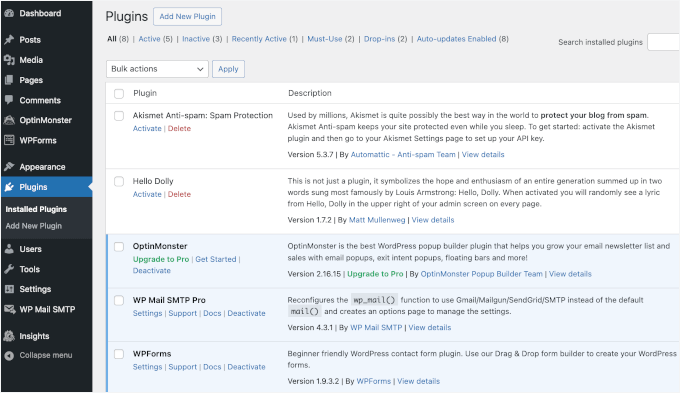
Sometimes plugins are merely deactivated rather than missing. If present but inactive, simply activate them. If completely absent or the entire Plugins menu has disappeared, consider these primary causes:
- Plugin Compatibility Issues: Plugins can become invisible or non-functional when their files become corrupted or when they conflict with other plugins or WordPress core updates.
- Security Concerns: In uncommon situations, malware or unauthorized site access can forcibly remove or conceal plugins, typically when core files have been modified.
The following sections detail resolution methods for each scenario:
- Verify User Role Permissions in WordPress
- Disable All WordPress Plugins to Identify Conflicts
- Clear Browser and WordPress Cache
- Conduct a Security Scan of Your WordPress Installation
1. Verify User Role Permissions in WordPress
Website administrators sometimes restrict plugin access for certain users to prevent accidental modifications that could compromise site functionality or security.
This practice frequently occurs on multi-author websites or multisite networks.
Begin by confirming your assigned user role. User roles determine precisely what administrative capabilities your account possesses.
If the Plugins menu is missing from your sidebar, check for the Users menu. Access Users » All Users and examine the 'Role' column adjacent to your username.
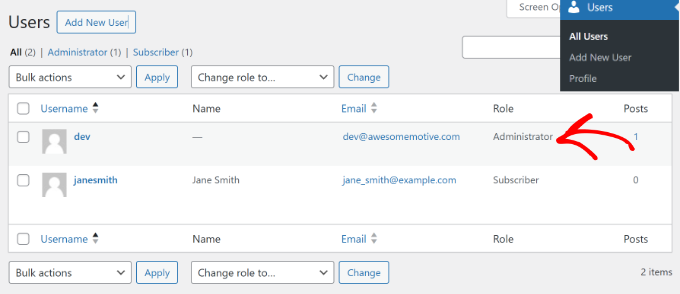
If both Users and Plugins menus are inaccessible, this confirms non-administrator permissions. Contact your site administrator to adjust your access levels.
Administrators with correct permissions should investigate potential conflicts or errors as the underlying cause.
2. Disable All WordPress Plugins to Identify Conflicts
Plugin conflicts represent another common reason plugins may disappear from the administrative interface.
The most reliable troubleshooting approach involves deactivating all installed plugins. Before proceeding, create a complete website backup using a reliable backup solution.
Navigate to Plugins » Installed Plugins and select all plugins using the checkbox. Choose 'Deactivate' from the 'Bulk actions' dropdown menu.
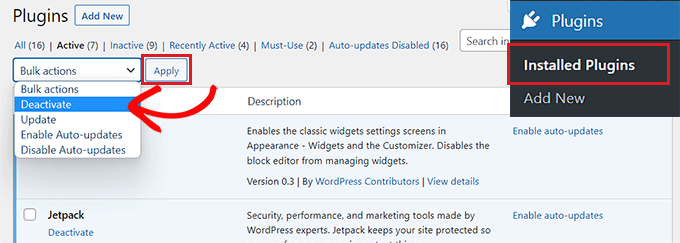
If missing plugins reappear after deactivation, this confirms a conflict. Reactivate plugins individually to identify the specific problematic extension.
When administrative access is unavailable, use FTP or your hosting control panel's File Manager to manually deactivate plugins by renaming plugin directories.
3. Clear Browser and WordPress Cache
Logging out and clearing browser cache can sometimes resolve disappearing plugin issues.
Browser caching stores website data locally to accelerate page loading. Occasionally, browsers may load outdated cached versions where plugin menus remain invisible.
Clearing cache forces browsers to retrieve fresh website copies. In Google Chrome, click the three-dot menu icon and select 'Clear browsing data.'
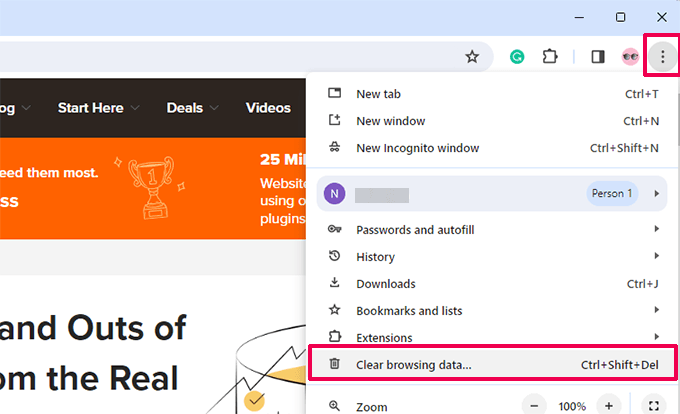
The Clear browsing data settings page will appear. Select the 'Basic' tab and check 'Cached images and files.' You may also adjust time ranges and include browsing history or cookies.
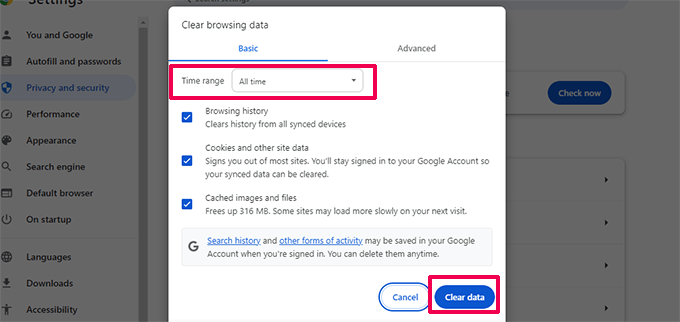
After selecting appropriate options, click 'Clear data.' Then log back into your website and check if missing plugins have returned.
If browser cache clearing proves ineffective, clear WordPress cache through your caching plugin or hosting provider.
WordPress caching stores static site versions to enhance speed and performance. Many sites utilize caching plugins, while some hosting providers include built-in caching solutions.
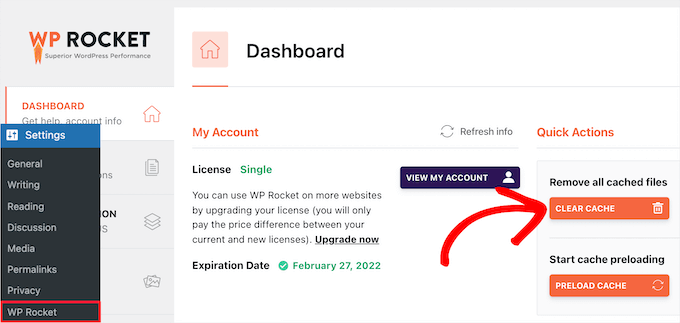
Clear WordPress cache through your caching plugin's settings. For example, with WP Rocket, navigate to its settings and select 'Clear Cache.'
Some hosting providers like Bluehost include caching options in the admin toolbar. Hover over 'Caching' and select 'Purge All.'


