A Step-by-Step Guide to Integrating Giropay Payments on Your WordPress Site
When selling to customers in Germany, understanding their preferred payment methods is essential for business success. German shoppers often expect to see Giropay as an available option during checkout, as it represents the country's most trusted online banking payment system.
Fortunately, implementing Giropay on a WordPress website is simpler than many merchants anticipate. After evaluating numerous payment processing solutions, several reliable plugins have emerged that streamline the integration process without requiring extensive technical knowledge.
This comprehensive tutorial will walk you through the complete setup process using one of the most straightforward plugins available.
The Benefits of Offering Giropay on Your WordPress Site
Whether you're selling physical goods, digital products, or services through your WordPress platform, accommodating customer payment preferences directly impacts conversion rates. While credit cards and PayPal dominate many markets, approximately 10% of German online transactions utilize Giropay.
For businesses targeting German and Austrian customers, adding Giropay as a payment option represents a straightforward strategy to increase sales. This banking-based payment system transfers funds directly from customer accounts upon checkout completion, typically with lower processing fees than alternative methods.
Additionally, German and Austrian financial institutions employ sophisticated fraud detection systems that provide enhanced security for both merchants and consumers.
Implementing Giropay Payments in WordPress
Begin by installing and activating a suitable payment processing plugin. Many WordPress experts recommend WP Simple Pay for its simplicity and comprehensive feature set, particularly for small to medium-sized businesses seeking uncomplicated payment solutions.
This plugin enables Giropay acceptance without requiring a full shopping cart system and operates without additional transaction fees beyond standard payment processor charges.
After activation, the plugin's setup wizard will launch automatically. Click the 'Let's Get Started' button to proceed.

The initial step requires entering your license key, which you can locate in your account section on the plugin provider's website.

After entering the license key, click 'Activate and Continue' to advance to the next configuration stage.
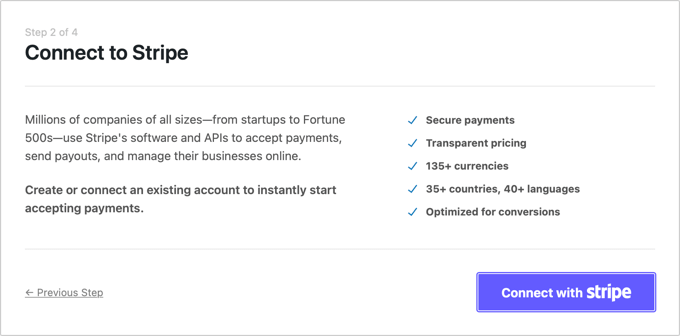
Now you'll need to connect the plugin to Stripe, a widely-used payment gateway that supports Giropay alongside major credit cards, digital wallets, and other payment methods. Click 'Connect with Stripe' and either log into your existing Stripe account or create a new one.
Following Stripe authentication, you'll configure email notifications for payment activities.

The system automatically enables three email types: customer receipts, invoice reminders, and merchant payment notifications. Simply specify the email address where you wish to receive notifications, then click 'Save and Continue.'
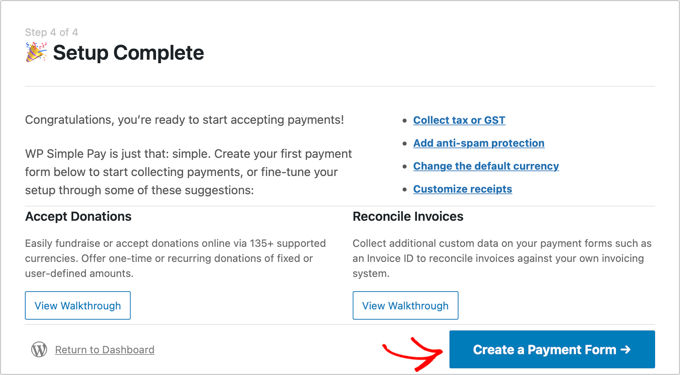
The final setup step involves creating your first payment form. Click 'Create a Payment Form' to proceed.
Building a Payment Form in WordPress
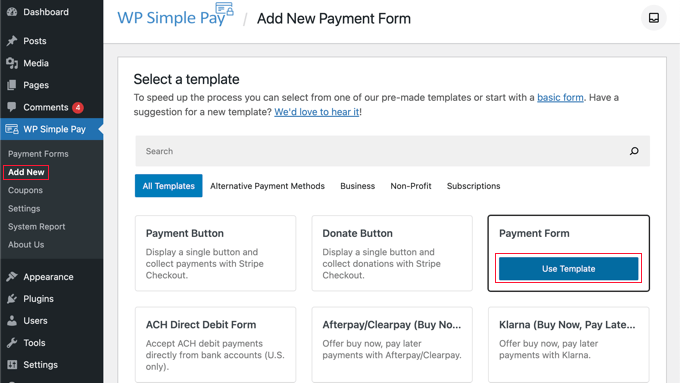
The 'Add New Payment Form' screen presents several template options. Hover over the 'Payment Form' template and click the 'Use Template' button that appears.
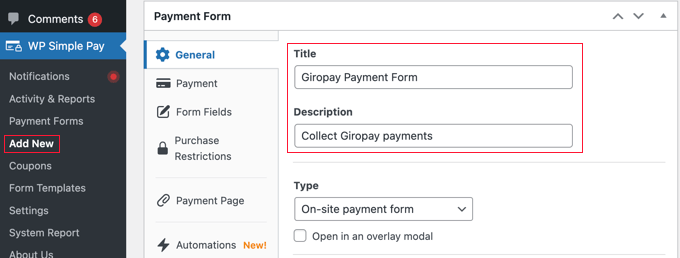
You'll now access the form customization interface. In the General tab, you can modify the form title and description. Maintain 'On-site payment form' as the form type.
Navigate to the Payment tab and select either 'Live Mode' or 'Test Mode.' Test Mode allows you to simulate transactions without actual charges, enabling thorough form testing and email verification.
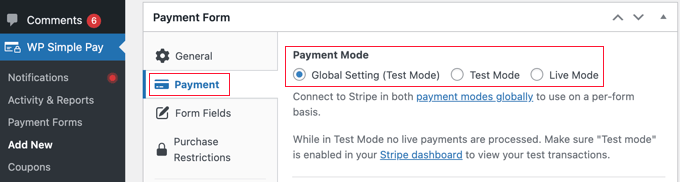
Remember to switch to 'Live Mode' after completing tests to begin accepting actual customer payments.
In the Price Options section, configure multiple pricing tiers with distinct labels. Specify product costs, select appropriate currencies, and define whether payments should be one-time or recurring.
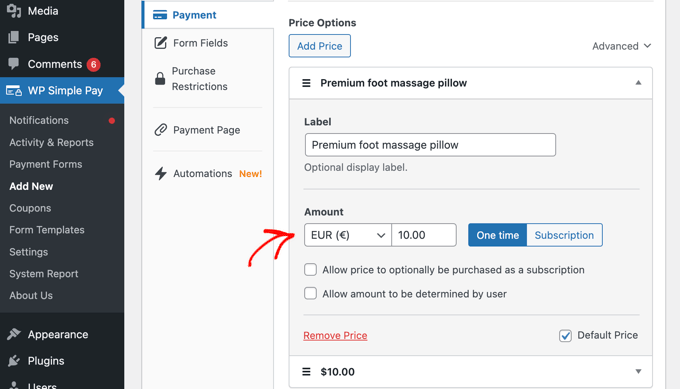
Since Giropay transactions require Euros, ensure you select 'EUR' from the currency dropdown menu in the Amount section.
Scroll to the Payment Methods section and select all desired payment options. To locate Giropay, change the display filter from 'Popular' to 'All' using the dropdown selector.
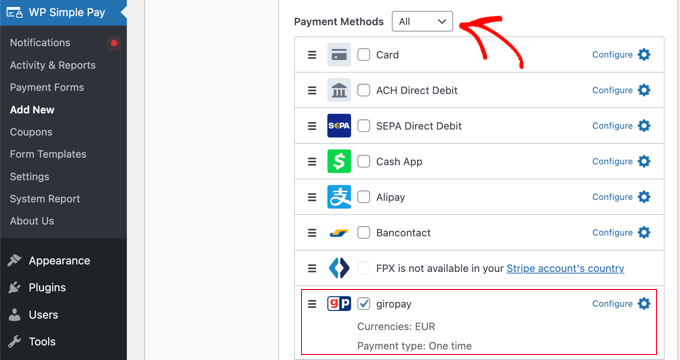
Once you locate the 'giropay' option, check the corresponding box. You may also enable additional payment methods like credit cards, ACH transfers, Alipay, or Klarna based on your business requirements.
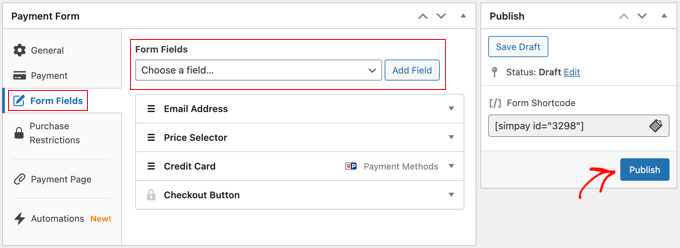
Switch to the Form Fields tab to customize which information fields appear on your payment form.