A Complete Guide to Backing Up WordPress Sites to Microsoft OneDrive
By Editorial Team |
For WordPress site owners seeking a dependable method to store backups on Microsoft OneDrive, this guide provides practical solutions. Many Windows users prefer OneDrive for cloud storage, and we've identified two straightforward approaches for integrating it with WordPress backup systems.
While numerous cloud storage platforms exist, including Google Drive and Dropbox, OneDrive offers distinct advantages that make it particularly suitable for WordPress backups. Its pricing structure often proves more economical than competing services, and its permission management capabilities are notably robust.
This article demonstrates how to configure WordPress backups to OneDrive, including both free and premium options, ensuring your website data remains protected.
Advantages of Using Microsoft OneDrive for WordPress Backups
Storing WordPress backups on Microsoft OneDrive represents a strategic choice, especially for users already invested in the Microsoft ecosystem.
This approach centralizes your website backup files alongside other important documents, eliminating the need to manage multiple storage services separately.
OneDrive provides several benefits that distinguish it from alternative cloud storage providers.
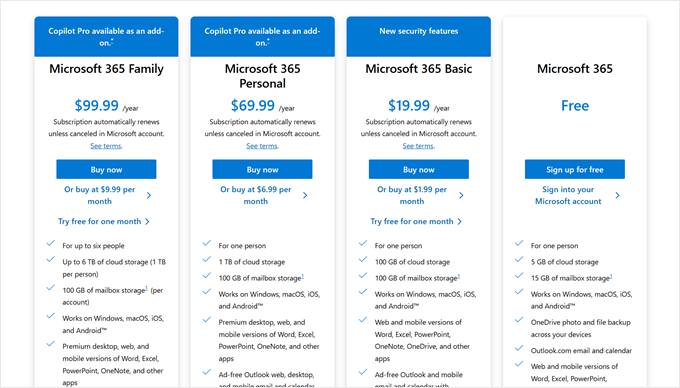
First, the service offers cost-effective pricing. OneDrive's entry-level plan costs $19.99 annually, which compares favorably to Google Drive's $1.99 monthly rate. Over extended periods, this pricing difference can result in significant savings for backup storage.
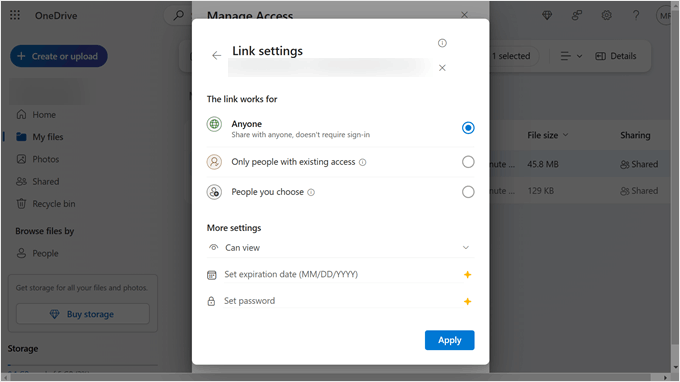
OneDrive also excels in security and access control features. Beyond basic file sharing, users can implement access expiration dates and password protection for shared files. These capabilities help maintain the security of WordPress backups, ensuring only authorized individuals can access them.
Several WordPress backup plugins support OneDrive integration. After evaluating available options, we've selected two reliable solutions that cater to different needs and budgets.
This guide covers both complimentary and commercial WordPress backup solutions compatible with OneDrive, allowing you to select the approach that best fits your requirements.
Below are quick navigation links to specific sections of this tutorial:
- Method 1: Configure Duplicator for OneDrive Backups (Enhanced Customization)
- Method 2: Implement WPvivid for OneDrive Backups (Free Solution)
Method 1: Configure Duplicator for OneDrive Backups (Enhanced Customization)
This first method represents our primary recommendation. It utilizes Duplicator, a backup plugin that many experienced WordPress developers employ for both client projects and personal websites.
We recommend Duplicator because it includes sophisticated features for managing WordPress backups, such as automated scheduling, website migration tools, and integration with various cloud storage services including Dropbox.
The limitation of this approach is that Duplicator's premium version is required for OneDrive integration. However, you can explore the free version to familiarize yourself with the plugin's functionality before considering an upgrade.
Follow these steps to establish Duplicator for OneDrive backups.
Step 1: Install and Activate Duplicator
Begin by installing Duplicator on your WordPress site. If you need guidance with plugin installation, consult general WordPress documentation on adding plugins.
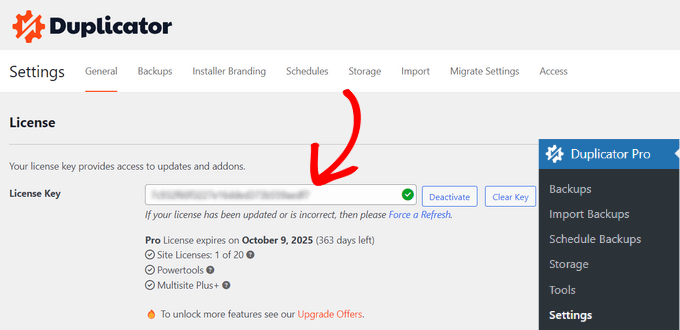
Next, activate your Duplicator Pro license key. Navigate to Duplicator Pro » Settings in your WordPress administration panel. Enter your license key in the designated field and select the 'Activate' button.
Step 2: Configure OneDrive as Remote Storage
The subsequent step involves connecting your WordPress installation to OneDrive through Duplicator.
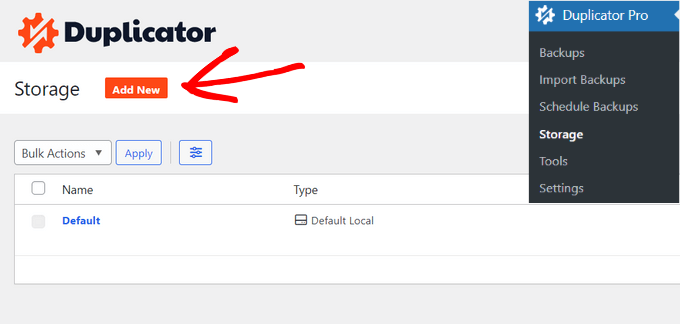
Access Duplicator Pro » Storage in your WordPress administration area and click the 'Add New' button.
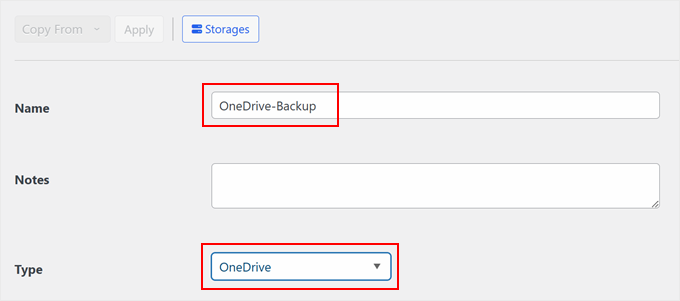
Assign a descriptive name to your new OneDrive backup configuration, such as 'OneDrive-Backup.'
From the 'Type' dropdown menu, choose 'OneDrive.'
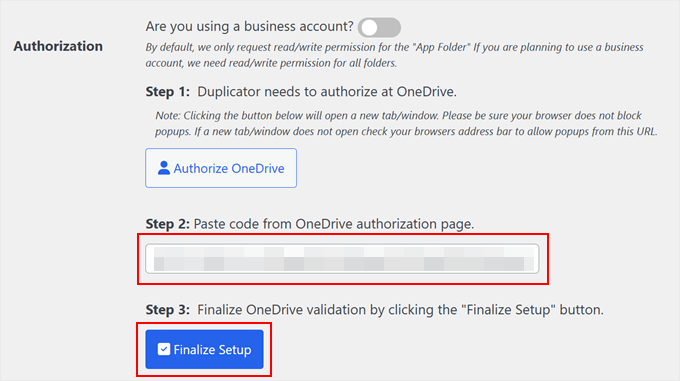
Scroll down the page until you locate the 'Authorization' section.
Here, select the 'Connect to OneDrive' option. You may enable the 'Are you using a business account?' setting if applicable, though we'll proceed with it disabled for this demonstration.
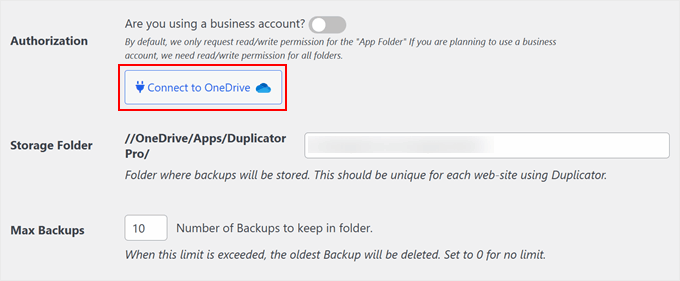
You will now see an authorization button and a field for pasting authentication code from the following step.
Click the 'Authorize OneDrive' button.
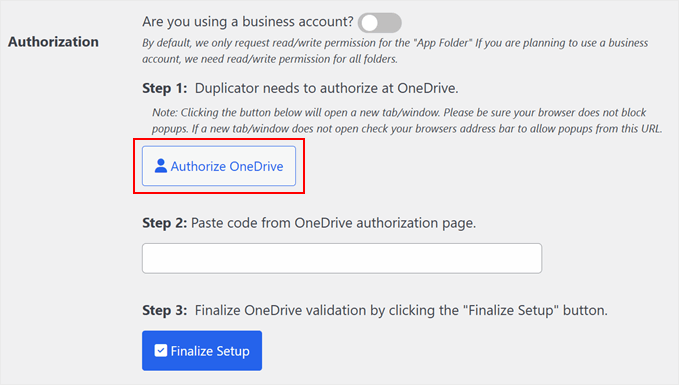
Your browser will open a new tab directing you to the OneDrive website. Ensure you're logged into your Microsoft account.
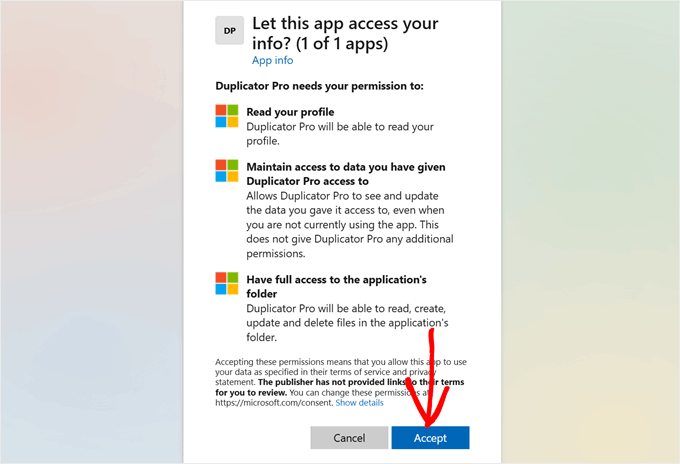
You'll encounter a permission request for connecting Duplicator with OneDrive. Select 'Accept.'
A page containing authentication code will appear. Copy this code to your clipboard.
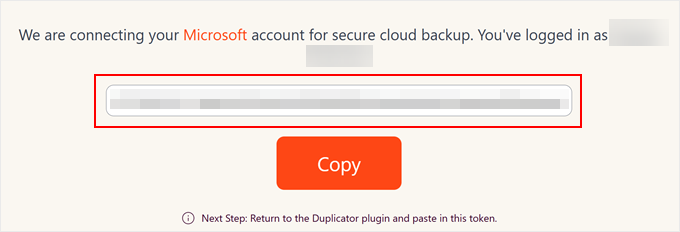
Return to the Duplicator-OneDrive configuration page in your WordPress dashboard.
Paste the copied code into the appropriate field and select 'Finalize Setup.'