A Step-by-Step Guide to Implementing Shipment Tracking in WooCommerce
By Editorial Team |
Providing customers with the ability to monitor their packages directly from your online store significantly enhances satisfaction and encourages repeat business.
The implementation process is straightforward. Based on experience assisting numerous WooCommerce store operators, we've identified an efficient method for establishing shipment tracking that simplifies the entire process.
Whether you process a handful of orders weekly or manage hundreds daily, an appropriate tracking solution can substantially improve your post-purchase customer experience.
This guide provides detailed, sequential instructions for integrating shipment tracking functionality into your WooCommerce store.
Benefits of Adding Shipment Tracking to Your WooCommerce Store
Implementing shipment tracking provides customers with reassurance and builds confidence that their purchases are securely en route.
This transforms potential anxiety or uncertainty into trust toward your business.
Additionally, as a store administrator, having tracking details within your WooCommerce order management system helps you monitor package locations at any moment.
Should any issues or delays arise, you can promptly contact the shipping provider and inform your customer about the situation, thereby improving your customer service capabilities.
Overall, WooCommerce shipment tracking represents a simple method to keep all parties informed and enhance customer satisfaction, which positively influences your sales performance.
With these advantages in mind, let's examine how to incorporate tracking information into your WooCommerce website. Below is a brief overview of the steps covered in this tutorial:
- Step 1: Install the Advanced Shipment Tracking Plugin
- Step 2: Configure General Plugin Settings
- Step 3: Configure Your Shipping Carriers
- Step 4: Add Tracking Information to Individual Orders
- Step 5: Bulk Import Tracking Data (Optional)
- Step 6: Test Order Tracking Email Notifications
- Additional Recommendation: Enhancing the Complete Customer Experience
Step 1: Install the Advanced Shipment Tracking Plugin
For this tutorial, we will utilize the Advanced Shipment Tracking for WooCommerce extension. This is among the highest-rated WooCommerce shipment tracking plugins available, capable of seamlessly adding tracking numbers to customer account pages and order confirmation emails.
Furthermore, this complimentary plugin includes built-in compatibility with more than 300 shipping services, including FedEx, DHL, and USPS. International carriers such as DPD, Canada Post, and Australia Post are also supported.
Begin by installing and activating the Advanced Shipment Tracking for WooCommerce plugin. For detailed installation instructions, consult resources on installing WordPress plugins.
Step 2: Configure General Plugin Settings
Next, we will adjust the WooCommerce shipment tracking plugin's configuration options.
You will now notice a 'Shipment Tracking' option within your WooCommerce menu. Click this to access the plugin's configuration page.
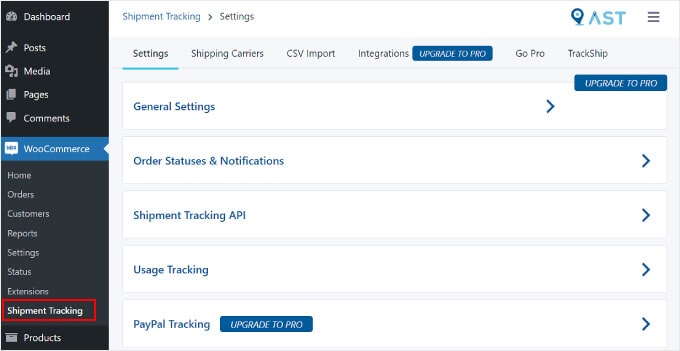
This page contains several configuration areas requiring attention.
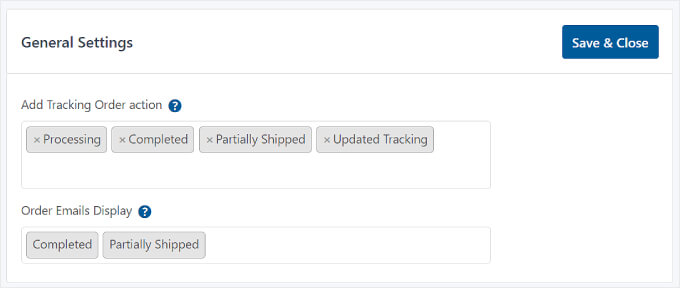
The 'General Settings' tab includes multiple options to personalize your WooCommerce order tracking features. Within the 'Add Tracking Order action' section, you can specify which order status types appear on your WooCommerce Order page.
Using the 'Order Emails Display' setting, you can select which order status emails will include a tracking URL sent to customers. Tracking information will also be accessible on the customer's View Order or My Account page.
Premium version users can create customized order statuses.
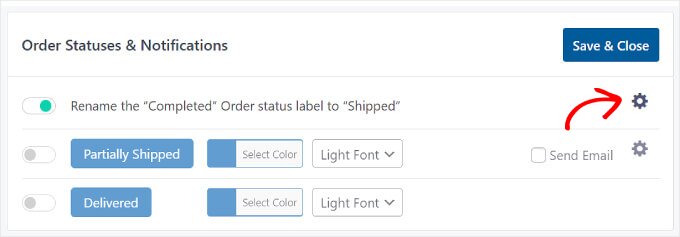
Scroll downward to locate 'Order Statuses & Notifications.' Many store administrators modify the status label from 'Completed' to 'Shipped' here, as this terminology is more precise for customers.
You can also click the gear icon to customize the design and content of your shipping notification email templates.
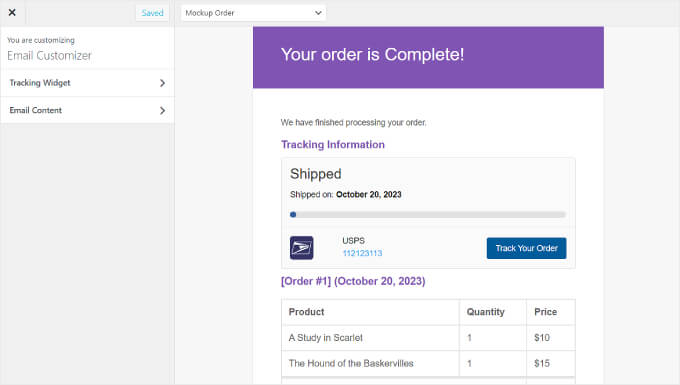
You will then reach the 'Email Customizer,' which resembles the WordPress Theme Customizer interface.
Here, you can adjust the design and content of WooCommerce order and shipping email templates.
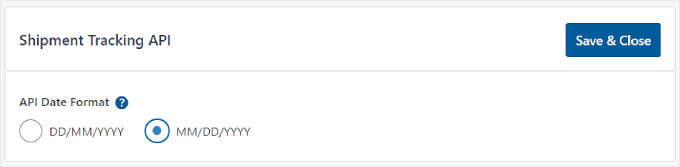
Next is the 'Shipment Tracking API' section.
This functionality enables you to update tracking numbers from third-party services and finalize orders from external systems. It permits adjustment of shipping date formats when tracking information is updated from other platforms.
Below that setting, you will find the 'Usage Tracking' menu.
In this section, you can opt to receive email notifications regarding security and feature updates, and share basic WordPress environment information with the plugin developers.
Unless you are connecting your store to an external system such as warehouse management software, you can safely disregard the 'Shipment Tracking API' and 'Usage Tracking' settings, as these cater to more advanced implementations.
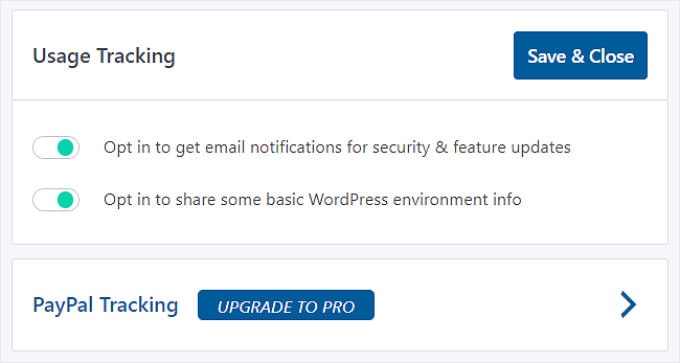
At the bottom, you will notice that you can also enable PayPal order tracking by upgrading to the premium version of Advanced Shipment Tracking.
This feature automatically transmits order tracking codes and statuses from WooCommerce to PayPal when orders are marked as 'Shipped' or 'Completed'.
After completing adjustments to each shipment tracking setting, click the 'Save & Close' button.
Step 3: Configure Your Shipping Carriers
Next, navigate to the 'Shipping Carriers' tab. Here you will find over 300 shipping providers integrated with the Advanced Shipment Tracking plugin.
To incorporate a shipping service into WooCommerce, simply click 'Add Shipping Carriers'.

A window will appear where you can select and configure your preferred shipping carriers for integration with your tracking system.