A Step-by-Step Guide to Implementing Event Schema Markup in WordPress
By Editorial Team |
After investing significant time organizing your event—securing the venue, finalizing speakers, and preparing promotional materials—you publish the details on your WordPress site. Yet, there remains a concern that potential attendees might not discover it through search engines.
This common frustration often stems from a missing technical element known as event schema markup. Consider this structured data as a direct communication channel with search engines, providing them with essential event details like dates, times, and locations in a format they can easily process. Implementing this markup can help your events appear in enhanced search results that attract more attention.
This guide provides clear instructions for adding event schema to your WordPress site using a straightforward plugin, requiring no coding knowledge.
Understanding the Value of Event Schema in WordPress
Event schema markup is specialized code that enables search engines to comprehend the specifics of your event. It functions like a detailed digital flyer, presenting key information such as dates, times, locations, and ticket details in a structured format that search algorithms can interpret efficiently.
This markup operates behind the scenes, leaving your website's visual appearance unchanged for visitors while significantly altering how search engines perceive and present your content. By adding structured data, you effectively inform search engines that a particular page contains event-specific information that users might be seeking.
Implementing event schema offers several practical advantages:
Increased Search Visibility: Your events may appear in specialized event listings, rich snippets, and knowledge panels within search results. These enhanced displays often appear above standard listings and present key details directly in the search interface.
More Relevant Traffic: When users search for events within your geographic area or industry, schema markup helps search engines match your content to their specific queries. This alignment improves search relevance and attracts visitors genuinely interested in attending rather than casual browsers.
Higher Click-Through Rates: Rich snippets containing event details typically generate more engagement than plain text links. When potential attendees can immediately see essential information like dates and locations, they are more likely to click through to your site.
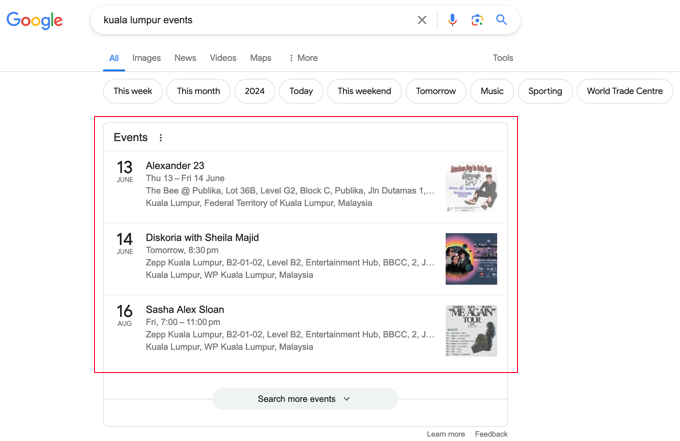
Many experienced WordPress developers have observed that events with proper schema markup consistently achieve better visibility than those without it. The structured data provides search engines with confidence to display your content more prominently, potentially leading to increased attendance.
Now let's examine the practical steps for adding event schema to your WordPress site:
- How to Add Event Schema in WordPress
- How to Test Your Event Schema Implementation
- Additional Considerations: Schema Markup for Local Search Optimization
- Common Questions About Event Schema
- Further Resources on Schema Markup Implementation
How to Add Event Schema in WordPress
The most straightforward method for implementing event schema markup involves using a comprehensive SEO plugin. Many WordPress professionals recommend this approach as it supports various schema types to help search engines better understand your content.
Begin by installing and activating your chosen SEO plugin. If you need assistance with this process, numerous tutorials are available that explain plugin installation in WordPress.
After activation, the plugin typically launches a setup wizard. Proceed through the configuration steps according to the plugin's documentation to ensure proper setup.
Adding Event Schema to WordPress Content
Once your SEO plugin is configured, navigate to the specific post or page where you want to add event schema. According to search engine guidelines, this should be a page dedicated to promoting a single event, as each event requires a unique URL.
Within the WordPress editor, locate the SEO settings section, typically found toward the bottom of the editing interface. Click on the schema tab to view currently enabled schema types, such as the default article schema.
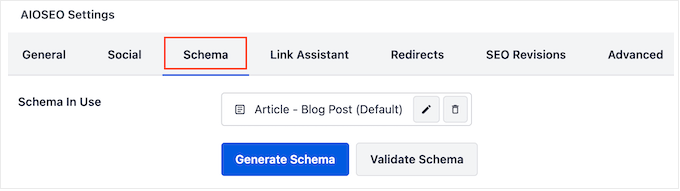
To add event schema, click the appropriate button to generate new schema markup. You'll typically find a schema catalog offering various schema types. Locate the event option and select it to add to your content.
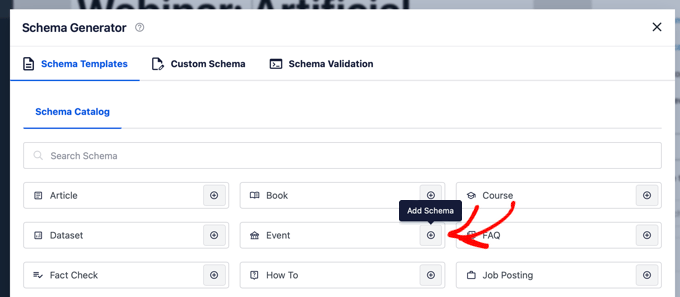
This action opens a form where you can enter specific details about your event. Providing comprehensive and accurate information helps search engines better understand and potentially feature your event more prominently.
Completing the Event Schema Form
Begin by naming your event. Most SEO plugins automatically populate this field with your post title, but you can modify it if desired.
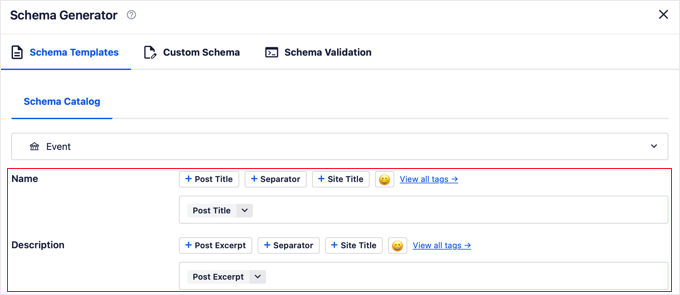
Next, create a concise and compelling event description. This text often appears directly in search results, so craft it to encourage user engagement. While plugins may use the post excerpt by default, consider writing a more targeted description specifically for search visibility.
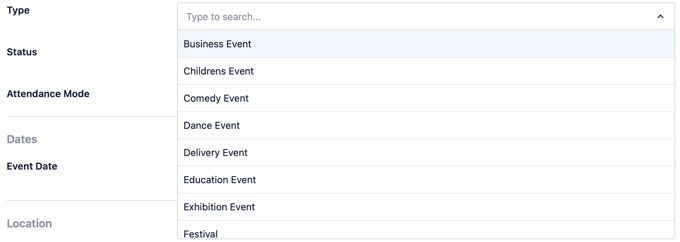
Select your event type from the available dropdown menu, choosing the category that best represents your event.
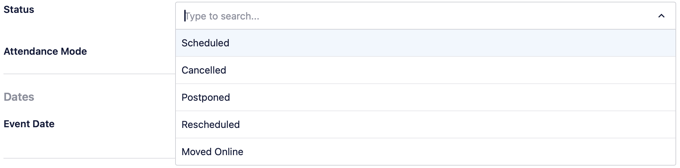
Specify the current event status. Initially, select "Scheduled" for upcoming events. You can update this status later if the event is canceled, postponed, or rescheduled.
Indicate the attendance mode for your event. Options typically include online, offline, or mixed attendance formats.
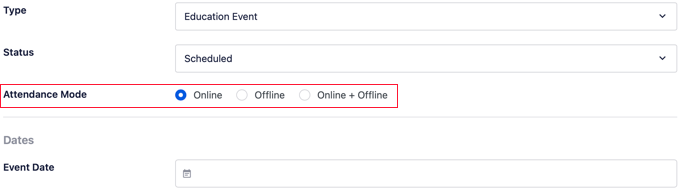
Set the event dates by clicking the date field to open a calendar interface. Select both start and end dates, using the same date twice for single-day events.


