Step-by-Step Guide to Implementing Event Schema in WordPress
By WordPress Experts |
After investing significant time organizing an event—from venue selection to speaker coordination—you might discover that your WordPress page struggles to appear in search results. This common challenge often stems from a technical oversight rather than content quality or promotional efforts.
Event schema markup serves as a direct communication method with search engines, providing them with structured details about dates, times, and locations in a format they can easily process. This structured data helps your events appear in enhanced search listings that attract more attention.
This tutorial will demonstrate how to implement event schema on your website using a straightforward plugin approach, requiring no coding knowledge.
Understanding the Value of Event Schema Implementation
Event schema markup represents specialized code that enables search engines to comprehend the specific details of your event. Consider it as providing Google with a comprehensive event summary containing all essential information—date, time, location, and ticket availability—in a format optimized for machine reading.
This structured data operates behind the scenes, invisible to website visitors but significantly influencing how search engines interpret and present your content. When you incorporate this markup into your WordPress site, you're essentially signaling to Google that your page contains specific event information that users might be searching for.
Implementing event schema offers several practical advantages:
Enhanced Search Presence: Your events may appear in Google's specialized event displays, rich snippets, and knowledge panels. These prominent placements typically appear above standard search results and showcase key details like dates, venues, and pricing directly within search listings.
More Relevant Traffic: When users search for events within your geographic area or industry, schema markup helps Google match your content to their specific queries. This improves your search optimization and attracts genuinely interested attendees rather than casual browsers.
Increased Click-Through Performance: Rich snippets containing event details prove more compelling than plain text links. When potential attendees can immediately view your event date, location, and other essential information, they're more likely to click through for additional details.
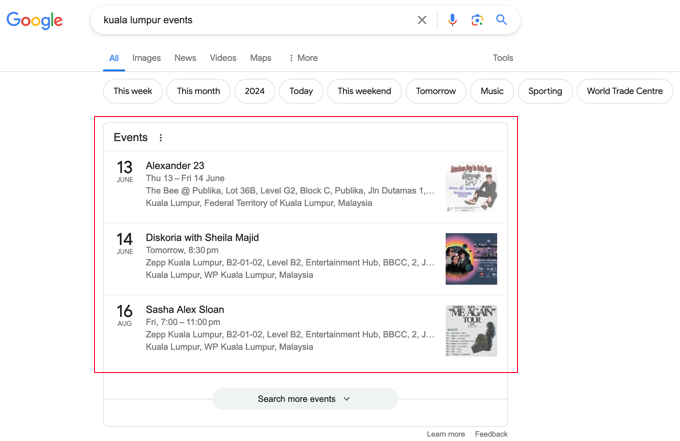
Many experienced developers have observed that events with proper schema markup consistently achieve better visibility than those without it. The structured data provides search engines with confidence to display your content more prominently, which directly translates to increased awareness and attendance for your events.
With this foundation established, let's examine the practical steps for implementing event schema in WordPress. This guide will cover the following procedures:
- Implementing Event Schema in WordPress
- Validating Your Event Schema Implementation
- Additional Considerations: Schema Markup for Local Search Optimization
- Common Questions About Event Schema
- Further Resources on Schema Markup Implementation
Implementing Event Schema in WordPress
The most straightforward method for adding event schema markup in WordPress involves using a comprehensive SEO plugin. Many WordPress professionals recommend this approach as it supports numerous schema types to help search engines better understand your content.
Begin by installing and activating your chosen SEO plugin on your website. If you require assistance with this process, numerous tutorials exist that explain plugin installation procedures.
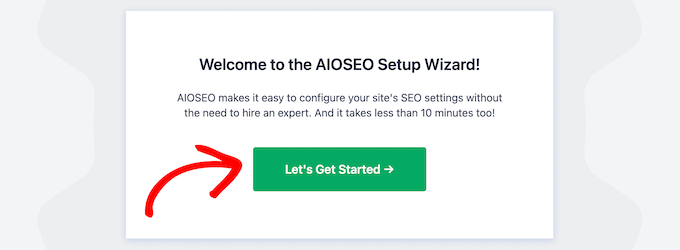
After activation, the plugin typically launches a configuration wizard. Proceed by selecting the initial setup option, then follow the standard configuration process for your selected SEO plugin.
Adding Event Schema to WordPress Content
Once you've completed the basic plugin configuration, navigate to the specific post or page where you want to implement event schema.
According to standard event schema requirements, this should be a dedicated webpage promoting a single event, as each event typically requires a unique URL.
Within the WordPress content editor, locate the SEO settings section, usually found toward the bottom of the editing interface.
Select the schema configuration tab. Here, you can view any existing schema types already enabled, such as standard article schema.
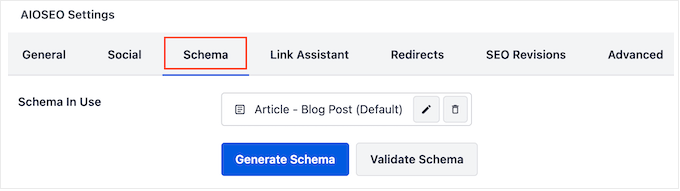
Now you can implement event schema for your content. Click the option to generate new schema markup.
You'll typically have access to various schema types through the plugin's schema library. Locate the event schema option and select the appropriate button to add it to your content.
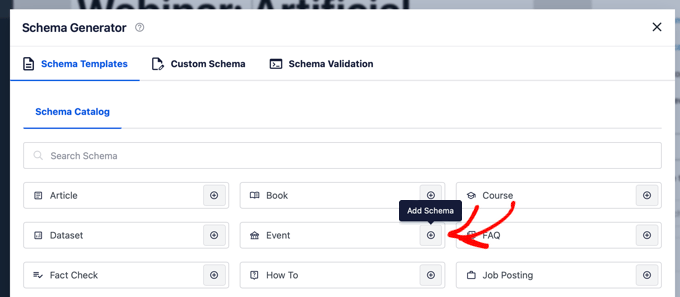
This action will display a form where you can enter specific details about your event.
As you complete the form, remember that providing comprehensive and accurate information helps search engines better understand and feature your event. Complete as many relevant fields as possible for your particular event.
Completing the Event Schema Form
Begin by specifying your event name. Most plugins automatically populate this field with your post title using dynamic tags. You can modify this by removing the automatic tag and entering a customized title.
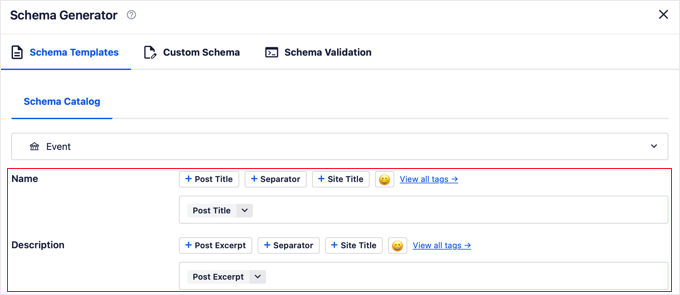
Next, include a concise and engaging event description. This text often appears directly in Google's search results, so ensure it encourages user interaction. While plugins typically use post excerpts by default, consider replacing this with a more compelling description.
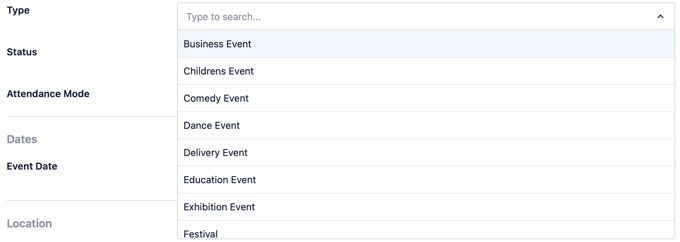
Proceed by selecting your event type from the available dropdown menu.
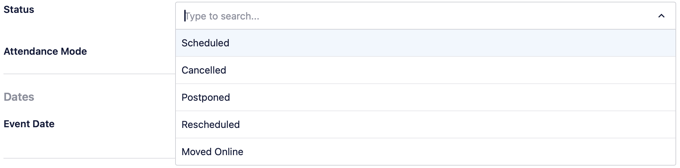
Following this, specify the current event status.
Initially, select the scheduled status option. You can modify this later if the event experiences cancellations, postponements, or rescheduling.
Next, define the attendance format.
Options typically include online, in-person, and hybrid events that support both attendance methods.
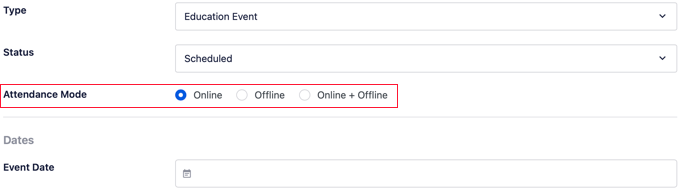
Proceed to specify the event date.
When you select the date field, a calendar interface typically appears. Use this to select both start and end dates, then confirm your selection. For single-day events, choose the same date for both fields.


