A Comprehensive Guide to Upgrading PHP for WordPress Sites
By WordPress Experts |
Are you considering upgrading the PHP version powering your WordPress website?
Implementing the most recent PHP release can substantially enhance your site's speed and overall functionality. While numerous hosting companies simplify this process, certain preparatory steps are essential before proceeding.
This guide will walk you through the straightforward process of updating PHP for your WordPress installation.
The Importance of PHP Updates for WordPress
Upgrading your website's PHP version can lead to noticeable performance improvements.
WordPress is built on PHP, an open-source scripting language. Currently, WordPress requires PHP 7.4 or higher to operate correctly.
Newer PHP releases typically address security flaws and resolve bugs, offering better protection against malicious attacks. They also introduce optimizations that accelerate processing and decrease memory consumption.
Consequently, experienced developers strongly advise maintaining the latest stable PHP version. As of this writing, PHP 8.3.2 represents the current stable release.
Operating on outdated PHP versions may compromise security, reduce speed, and trigger compatibility errors with WordPress core, plugins, or themes. Many WordPress experts have documented how PHP updates from hosting providers influence WordPress functionality.
Fortunately, most WordPress hosting services aim to provide recent PHP versions to align with platform requirements. Some may even perform automatic PHP updates without requiring user intervention.
Nevertheless, staying informed about PHP developments remains advisable. Understanding potential feature changes helps anticipate how they might affect your website. Occasionally, certain plugins, themes, or software may become incompatible following an update, temporarily necessitating a rollback to an older PHP version.
With these considerations in mind, let's examine how to identify your current PHP version in WordPress. We'll also provide detailed instructions for updating PHP across various hosting platforms.
- Identifying Your Current PHP Version in WordPress
- Essential Preparations Before PHP Updates
- PHP Version Updates in Bluehost
- PHP Version Updates in Hostinger
- PHP Version Updates in SiteGround
- PHP Version Updates in HostGator
- PHP Version Updates in DreamHost
- PHP Version Updates in WP Engine
- PHP Version Updates in Other Hosting Services
- Common Questions About PHP Version Changes
Identifying Your Current PHP Version in WordPress
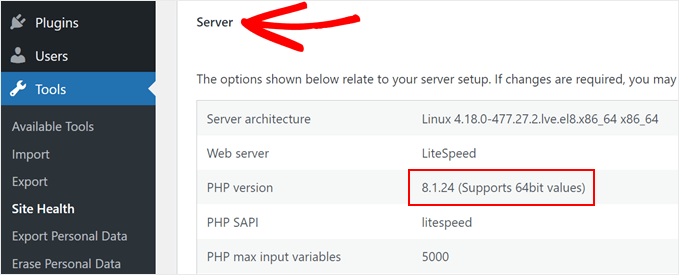
WordPress provides a simple method to check your hosting provider's PHP version. Begin by accessing your administrative dashboard and navigating to Tools » Site Health.
Next, select the 'Info' tab.
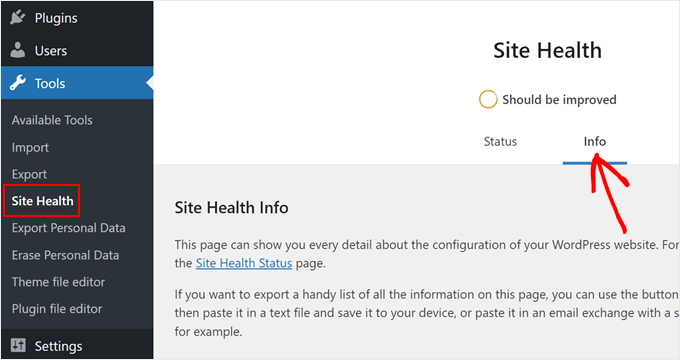
Scroll downward and expand the 'Server' section. This area displays your server's technical specifications, including the active PHP version.
As illustrated below, our demonstration site operates on PHP version 8.1.
Essential Preparations Before PHP Updates
As with any system modification, ensuring your live website remains error-free requires careful preparation. Consider these essential steps before updating your PHP version:
- Update WordPress core, themes, and plugins– This ensures compatibility with newer PHP versions. Reputable plugin developers typically maintain compatibility with recent PHP releases.
- Create website backups – Utilize backup solutions to generate complete website copies. This allows restoration to a stable version if complications arise.
- Establish a staging environment – Testing PHP updates in a staging site prevents potential errors from affecting your production website.
- Utilize PHP compatibility assessment tools– Specialized plugins can identify potential conflicts that might emerge with new PHP versions.
PHP Version Updates in Bluehost
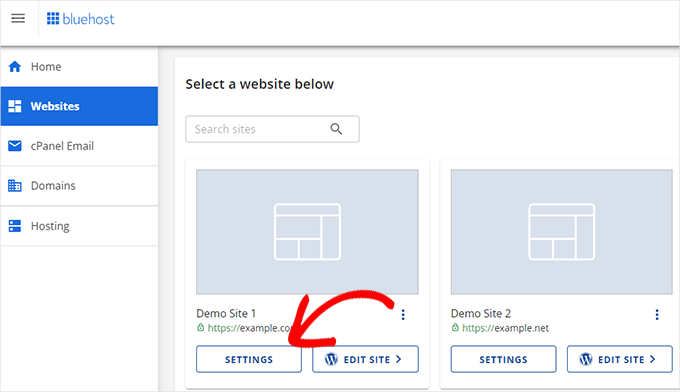
Begin by logging into your Bluehost control panel and selecting the 'Websites' tab from the left navigation.
Choose the website requiring PHP updates, then click the 'Settings' button.
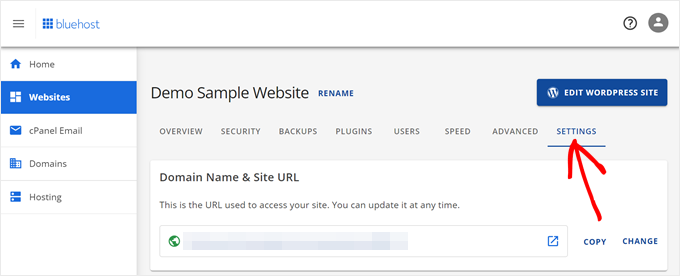
Navigate to the 'Settings' tab.
This section contains advanced configuration options for your WordPress website.
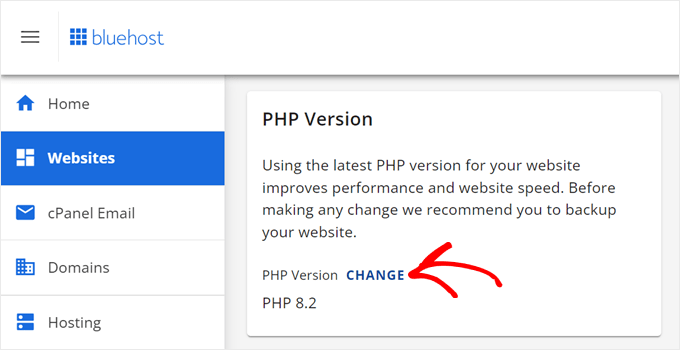
Scroll to the PHP Version section.
Click 'Change' adjacent to your current PHP version.
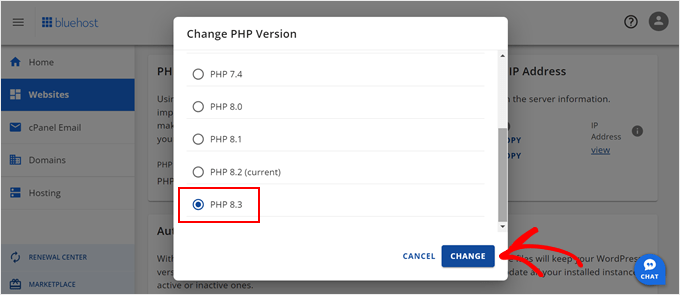
Select your desired PHP version, then click the 'Change' button.
Bluehost will immediately apply the selected PHP version to your website.
PHP Version Updates in Hostinger
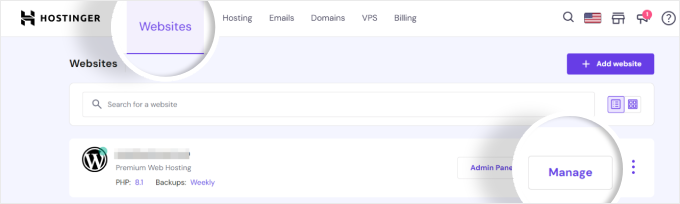
First, access your Hostinger dashboard and select the 'Websites' tab.
Click the 'Manage' button corresponding to the website requiring PHP version changes.
This action opens the specific website's management dashboard.
Locate the 'PHP Configuration' option within the Advanced menu in the left sidebar.
Hostinger displays available and supported PHP versions for selection.
Choose your preferred PHP version and click 'Update' to save configuration changes.