6 Practical Methods to Fix and Repair Your WordPress Database
Maintaining a properly functioning WordPress database is essential for website stability. When database corruption occurs, it can result in various issues including error messages, blank screens, and loss of site functionality.
Many WordPress administrators encounter database problems at some point, and knowing how to address these issues can save significant time and frustration. This guide presents several effective approaches to restore your database to proper working order.
This comprehensive guide covers multiple techniques for database repair. You can navigate directly to any section using the links below:
- Identifying Database Problems
- Common Causes of Database Corruption
- Verify Database Credentials
- Use phpMyAdmin for Repairs
- Database Repair Plugins
- Built-in WordPress Repair Tool
- Hosting Control Panel Solutions
- WP-CLI Database Commands
Identifying Database Problems
The WordPress database stores all critical website information including posts, pages, user accounts, media files, and configuration settings. When this database becomes corrupted, several symptoms may appear:
- White Screen of Death: A completely blank white page instead of your website content often indicates database issues.
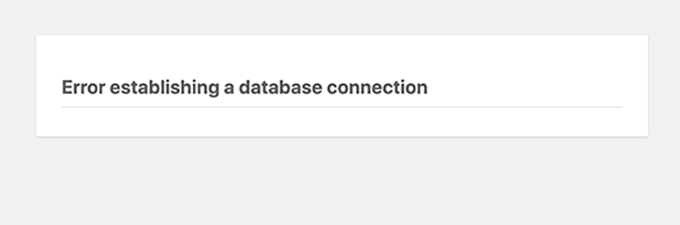
- Database Connection Errors: Messages like 'Error establishing a database connection' or 'Unable to select database' directly point to database problems.
- Missing or Malformed Content: When posts, pages, or media files disappear or display incorrectly, database corruption may be the cause.
- Plugin and Theme Failures: Unexpected malfunctions in previously working plugins or themes can result from underlying database issues.
Common Causes of Database Corruption
Understanding what typically damages WordPress databases helps with both prevention and repair. Several factors can contribute to database problems:
Server-related issues such as power failures, hardware malfunctions, or unexpected shutdowns during database operations can corrupt data. Security breaches targeting your database may also cause corruption.
Incorrect database credentials stored in the wp-config.php file frequently lead to connection problems. Additionally, exceeding PHP memory limits on your server can generate database errors and potential corruption.
1. Verify Database Credentials
Checking database credentials represents one of the simplest initial troubleshooting steps, particularly after migrating your site to a new hosting environment. Incorrect usernames or passwords commonly cause database connection errors.
WordPress stores database credentials in the wp-config.php file. Access this file using FTP client software or your hosting provider's file manager. If you need guidance on editing this file, many WordPress tutorials provide detailed instructions.
Within the file, locate these configuration lines:
// ** MySQL settings - You can get this info from your web host ** // /** The name of the database for WordPress */ define( 'DB_NAME', 'database_name_here' ); /** MySQL database username */ define( 'DB_USER', 'username_here' ); /** MySQL database password */ define( 'DB_PASSWORD', 'password_here' ); /** MySQL hostname */ define( 'DB_HOST', 'localhost' );
Verify that the database name, username, password, and host information match the credentials provided by your hosting service. Most hosting providers offer access to this information through their control panels or account dashboards.
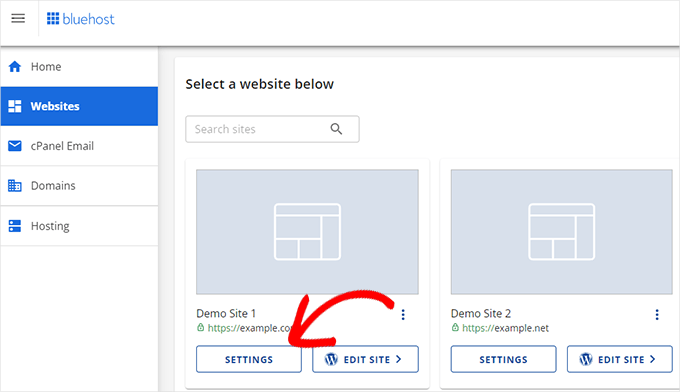
Navigate to the advanced settings section and locate the database management area. Click the management button to proceed to database administration.
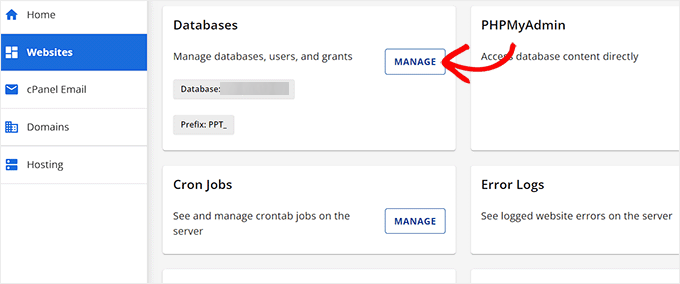
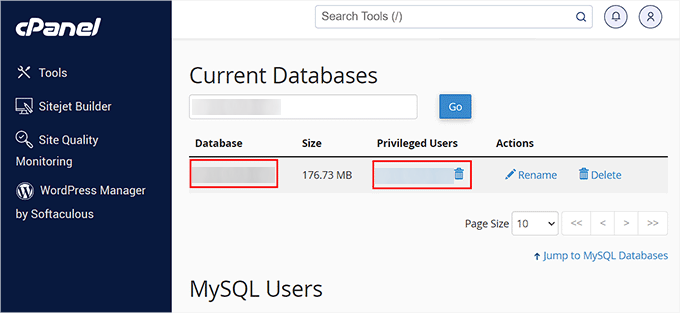
This action typically opens the MySQL database management interface within your hosting control panel. Current database information appears in the appropriate section. If credentials require updating, copy the correct information to a text file for reference when editing your wp-config.php file.
2. Use phpMyAdmin for Repairs
For users comfortable with database management, phpMyAdmin provides direct access to repair WordPress databases. This web-based interface manages MySQL databases through a graphical interface.
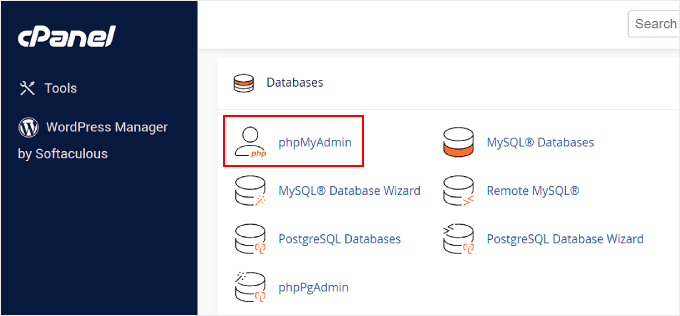
Begin by accessing your hosting provider's control panel. Navigate to the database management section and locate the phpMyAdmin application.
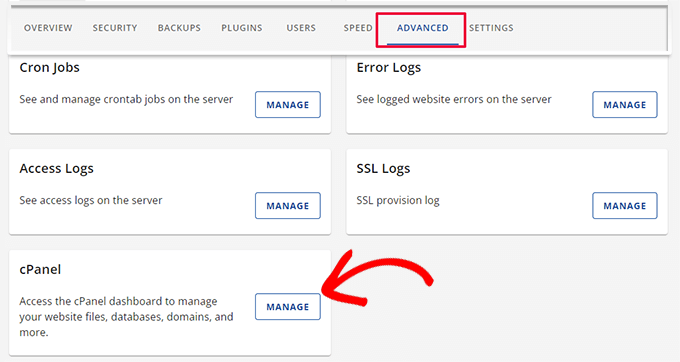
After entering the control panel, find and select the phpMyAdmin option to launch the database management interface.
The phpMyAdmin interface displays available databases. Select the database requiring repair from the navigation panel or use the database selection menu.
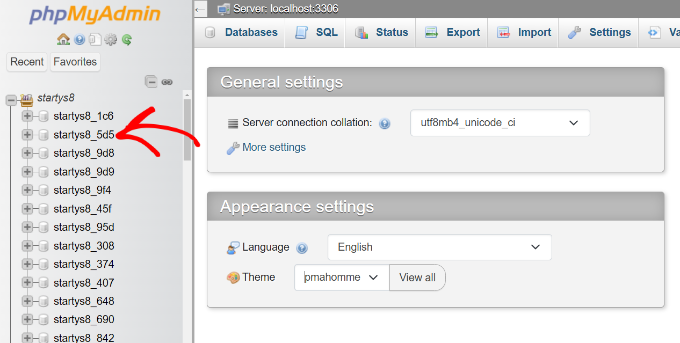
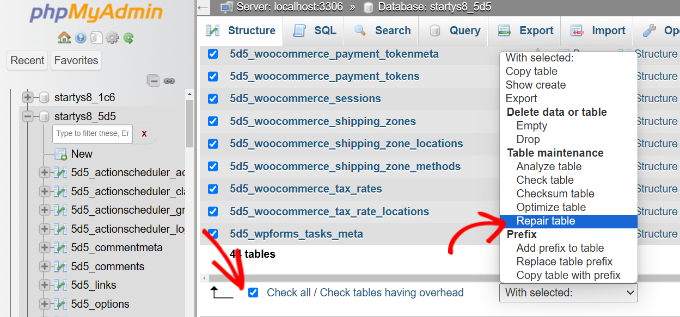
Database tables appear in the main interface. Select all tables using the 'Check All' option, then choose 'Repair table' from the action dropdown menu to initiate the repair process.