Two Simple Methods to Implement a 'Jump to Recipe' Button on Your WordPress Food Blog
Food bloggers frequently inquire about features that significantly enhance their readers' experience. Based on observations across numerous culinary websites, implementing a jump to recipe button stands out as one of the most impactful improvements you can make.
This minor adjustment provides substantial benefits by helping visitors quickly locate essential information. Fortunately, adding this functionality to any WordPress site is straightforward.
After evaluating various approaches, we've identified two reliable techniques that consistently deliver results. Both methods are accessible to beginners and can be implemented within minutes.
The Benefits of Adding a Jump to Recipe Button to Food Blog Posts
A "Jump to Recipe" button functions as a navigational element positioned near the beginning of blog posts. Technically, it operates as an HTML anchor that immediately scrolls the browser window to the recipe section, bypassing introductory content.
Many readers express frustration when navigating through lengthy narratives and advertisements to find cooking instructions. While comprehensive content supports monetization strategies, numerous visitors require immediate access to ingredients and preparation steps while cooking or shopping.
Incorporating this button enables you to accommodate both audience segments. You can maintain engaging storytelling for dedicated followers while offering a rapid shortcut for users seeking immediate information.
This enhancement improves overall user experience on your website. When visitors can efficiently find what they need, they're less likely to return to search results.
With these considerations in mind, we'll demonstrate two straightforward approaches to add a Jump to Recipe button to your food blog: using a specialized recipe plugin and implementing custom code. You can use the following quick links to navigate to your preferred method:
- Method 1: Implement Using a Recipe Plugin (Recommended)
- Method 2: Implement Using Custom Code (Free)
- Additional Suggestions to Enhance Your Food Blog's User Experience
- Common Questions About WordPress Button Implementation
Method 1: Implement Using a Recipe Plugin (Recommended)
The simplest approach to add a Jump to Recipe button in WordPress involves using a dedicated recipe card plugin.
Many experienced food bloggers prefer comprehensive recipe plugins that have been thoroughly tested and offer numerous beneficial features beyond basic functionality.
In addition to the Jump to Recipe button, premium recipe plugins typically enable printable recipes, automatic unit conversion, nutritional information display, cooking time specifications, serving size details, and user rating systems—all presented in an organized format.
While these plugins generally require a paid subscription, they represent a valuable investment for serious food bloggers focused on building their online presence.
To begin using such a plugin, you'll need to purchase an appropriate plan. After completing your purchase, download the plugin and install it on your WordPress website.
Following installation, navigate to the plugin's dashboard section within your WordPress admin area and locate the license activation option.
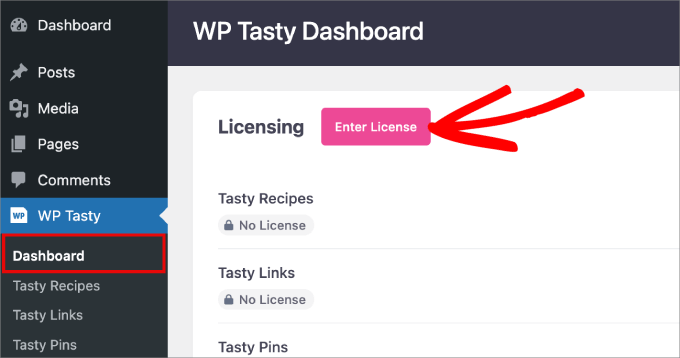
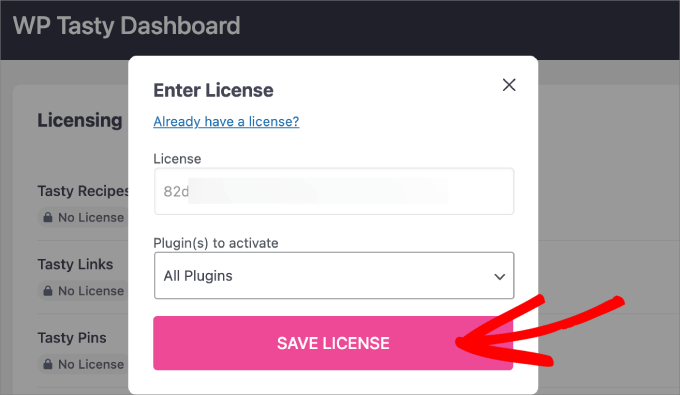
Next, enter your license key, which should have been provided via email after your purchase. Select the appropriate plugin option in the activation menu and save your license information.
Once activated, access the plugin's settings page from your WordPress dashboard and switch to the configuration tab.
Typically, options for both Jump to Recipe and Print Recipe buttons will be enabled by default. You can maintain these settings as provided.
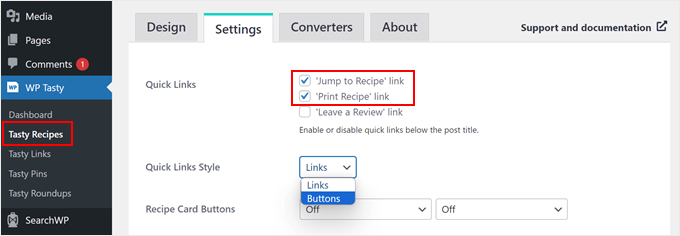
Many plugins offer customization options for button presentation. Some allow displaying the Jump to Recipe option as a standard text link rather than a button. If you prefer this approach, select the 'Links' option.
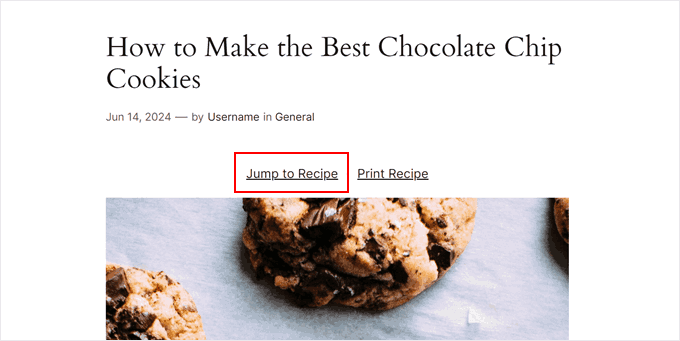
Alternatively, you can choose the button format if that better suits your design preferences. Buttons typically attract more visual attention, making them easier for readers to identify.

Most recipe plugins include numerous additional settings, such as ingredient checklist functionality and recipe scaling options. Review all available configurations and select those that best align with your blog's requirements.
After adjusting your preferences, scroll to the bottom of the settings page and save your changes.
Once configured, whenever you utilize the plugin's recipe card functionality, both Jump to Recipe and Print Recipe buttons will appear at the appropriate location.
To implement the recipe card, create a new recipe post or edit an existing one using the block editor. Many experienced bloggers recommend following structured guidelines for adding recipe card blocks to ensure optimal presentation.
A significant advantage of using dedicated recipe plugins is the smooth scrolling effect they typically provide. This allows readers to navigate directly to recipe instructions without abrupt page jumps.

Recreating this smooth scrolling effect with custom code can be complex, often requiring JavaScript implementation or theme file modifications. Therefore, the plugin method remains the recommended approach for most users.
However, if you prefer a cost-free solution, the following method provides an alternative approach.
Method 2: Implement Using Custom Code (Free)
Manually adding a Jump to Recipe button might seem challenging for beginners, but we'll guide you through each step systematically.
If this represents your first experience with custom code implementation in WordPress, consider using a dedicated code snippet management plugin. These tools provide a secure method for inserting code without directly editing theme files, reducing the risk of disrupting your website's functionality or appearance.
To begin, install your chosen code snippet plugin through your WordPress admin dashboard. Many developers recommend following established installation procedures for WordPress plugins.


