Two Effective Methods to Restrict Page Access to Logged-In Users in WordPress
Many website administrators frequently ask how to make specific pages available only to registered members. This common requirement arises when managing exclusive content or sensitive information.
Fortunately, WordPress provides straightforward solutions for restricting page access to authenticated users. You can implement these protections without extensive technical knowledge or custom development work.
Based on practical experience with various WordPress implementations, two reliable approaches consistently deliver results for different website needs.
When Should You Restrict Page Access to Logged-In Users?
While not every page requires protection, certain scenarios benefit from access restrictions. Implementing login requirements can enhance security and content exclusivity.
Consider these situations where requiring user authentication proves beneficial:
- Membership Platforms and Educational Content– Exclusive tutorials, training materials, or premium resources should remain accessible only to subscribed members.
- Confidential Client Areas– Secure portals containing sensitive documents, project updates, or financial information require restricted access.
- Premium Articles and Research– Specialized content reserved for registered users or subscribers can help build engagement and grow your audience.
- Private Community Spaces– Members-only forums and discussion boards maintain privacy and relevance through access controls.
- Internal Business Resources– Company documents, training materials, and internal announcements should remain secure within organizational boundaries.
If your website serves any of these purposes, implementing access restrictions represents a practical security measure.
Let's examine two effective approaches for requiring user authentication before granting page access in WordPress.
Method 1: Restricting Specific Pages with Membership Plugins
For precise control over individual pages or posts, specialized membership plugins offer comprehensive solutions. These tools enable detailed access management for different user groups, including members, subscribers, or paying customers.
Many WordPress professionals consider membership plugins among the most effective content protection solutions available. They simplify the process of requiring authentication before displaying protected content.
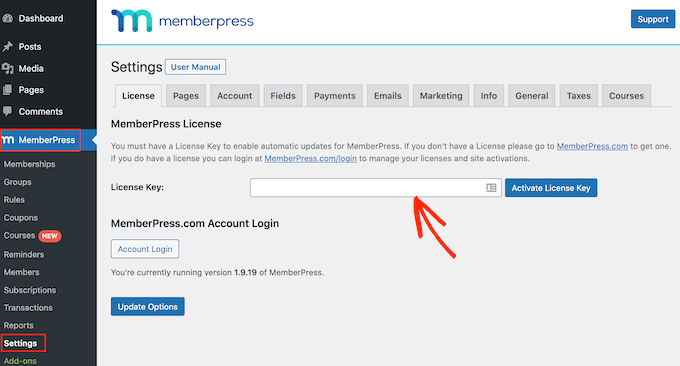
To begin, install and activate your chosen membership plugin. After activation, navigate to the plugin settings area to configure your license information, typically found in your account dashboard on the plugin provider's website.
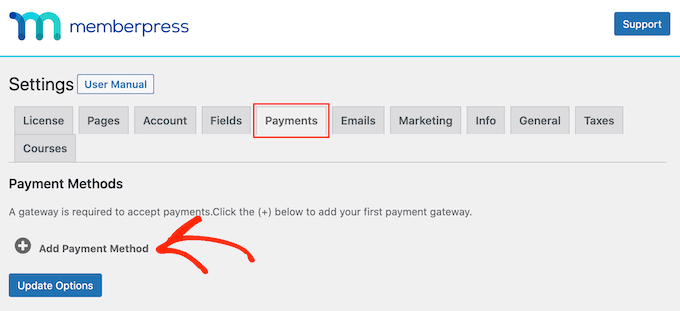
Next, configure payment processing options if your membership includes paid tiers. Most plugins support popular payment gateways like PayPal and Stripe. Select your preferred payment method and complete the necessary configuration steps.
After establishing payment methods, create membership levels that define access permissions for different user groups. Each membership tier can specify which restricted content users may access.
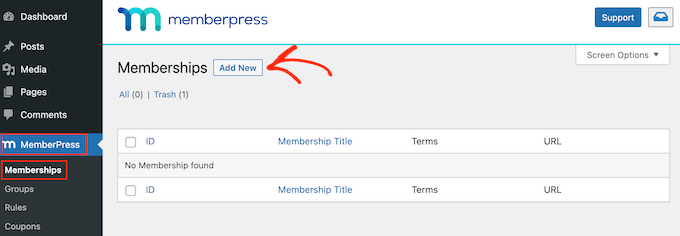
Navigate to the membership management section within your WordPress dashboard and select the option to create a new membership level.
The membership editor will appear, allowing you to define the membership name, description, pricing structure, and duration. You can configure billing as recurring or one-time with intervals ranging from weekly to annual periods.
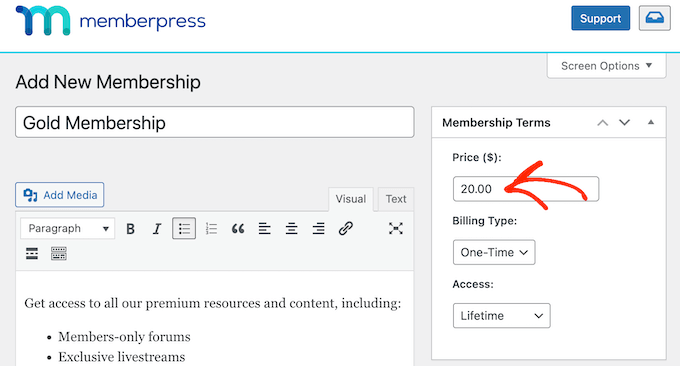
Once satisfied with your membership configuration, publish the settings. You can repeat this process to establish multiple membership levels as needed.
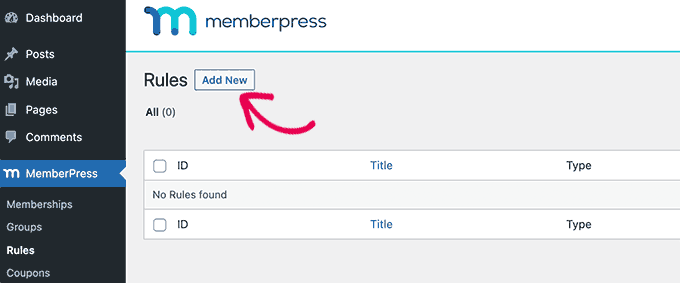
Now implement access restrictions by navigating to the rules management section within your WordPress dashboard. Create a new rule to define protection parameters.
Select the specific page you wish to protect from the content selection dropdown. Begin typing the page title, and the system will automatically search and display matching results.
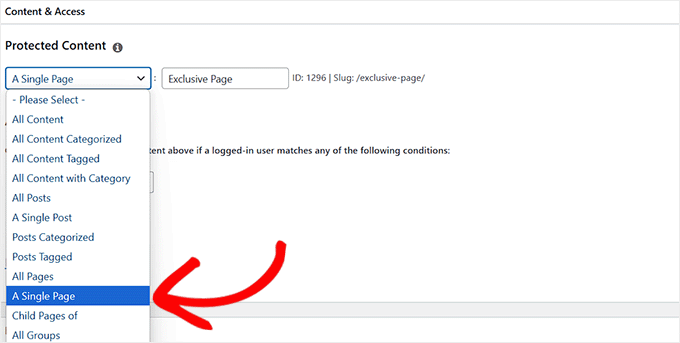
Note that while this method excels at granular content control, you can also select the option to protect all pages simultaneously if needed.
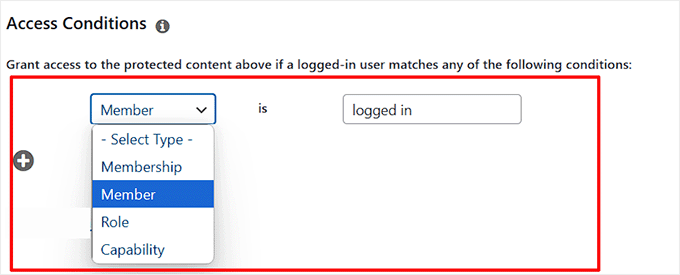
Define access conditions by specifying which user roles may view the protected content. Select appropriate user roles and configure authentication requirements.
Configure how unauthorized access attempts should be handled. Typically, you'll want to display a login form when users attempt to access restricted content without proper authentication.
Save your rule configuration and publish the changes to activate the protection.


