Two Effective Methods to Restrict Page Access in WordPress
Many WordPress users frequently ask how to make specific pages accessible only to registered members. This common requirement arises when building various types of websites that need content protection.
Fortunately, implementing login requirements for page viewing in WordPress is straightforward and doesn't require advanced technical skills. With the appropriate tools, website administrators can quickly establish access restrictions.
Based on practical experience helping numerous site owners, two reliable approaches have proven effective across different WordPress installations.
This guide demonstrates how to require user authentication for viewing individual pages or your entire website.
When Should You Implement Login Requirements for Page Access?
While not every page needs protection, certain scenarios benefit significantly from requiring user authentication before granting access.
Here are several situations where implementing login requirements is advisable:
- Membership Platforms & Educational Content– When offering exclusive materials, tutorials, or training resources, requiring login ensures that only authorized members can access premium content.
- Confidential Client Areas– For sharing sensitive documents, project updates, or financial information in client portals, access restrictions help maintain security and privacy.
- Premium Articles & Research– Websites that provide specialized articles, comprehensive guides, or detailed reports to registered users can use login requirements to manage access while building their audience.
- Private Community Platforms– Members-only forums and discussion boards benefit from login requirements to maintain relevant conversations and protect community privacy.
- Internal Business Resources– Organizations using WordPress for internal documentation, training materials, or company announcements can secure this information through login requirements.
If any of these situations apply to your website, implementing access controls represents a practical security measure.
Now, let's examine two straightforward methods for requiring login authentication to view WordPress pages. These approaches work for both individual pages and entire websites.
Use these quick navigation links to jump to your preferred method:
- Method 1: Restrict Access to Specific Pages Using MemberPress
- Method 2: Require Login for All Pages Using My Private Site
- Common Questions About WordPress Login Requirements
- Additional Resources for Membership Sites & User Authentication
Method 1: Restrict Access to Specific Pages Using MemberPress
For precise control over which pages require authentication, MemberPress offers a comprehensive solution. This plugin enables administrators to manage content access for different user groups, including members, subscribers, and customers.
Many WordPress professionals consider MemberPress among the most effective content protection solutions available. It simplifies the process of requiring user authentication before granting page access.
To begin, install and activate the MemberPress plugin on your WordPress site. Detailed installation instructions are available in standard WordPress documentation.
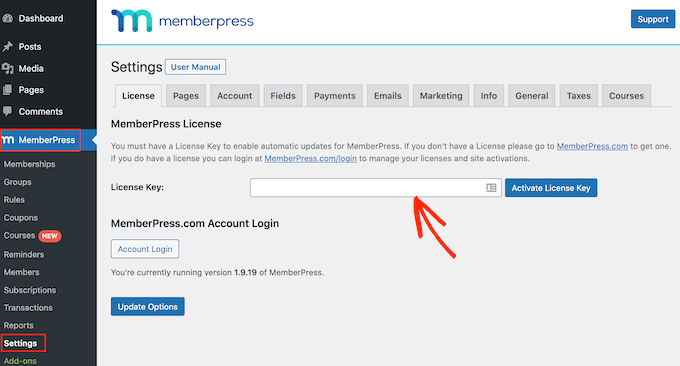
After activation, navigate to the MemberPress » Settings page to enter your license information, which you can obtain from the MemberPress website.
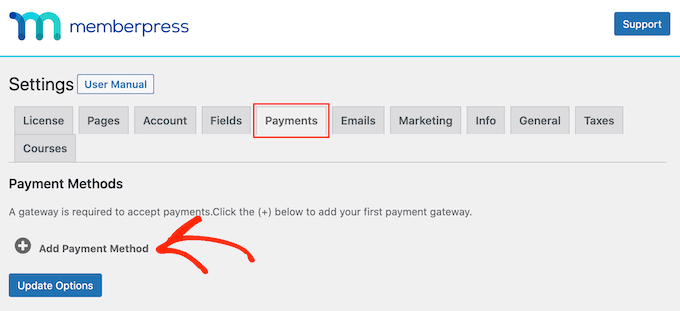
Next, configure payment options by switching to the 'Payments' tab. The plugin supports multiple payment gateways including PayPal and Stripe integration.
Click the '+ Add Payment Method' button and select your preferred gateway. Standard payment gateway setup procedures apply here.
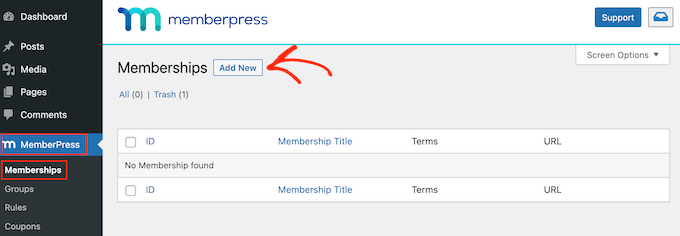
After establishing payment methods, create membership levels that define access permissions for different user groups. Each membership level determines which restricted content users can view.
Navigate to MemberPress » Memberships from your WordPress dashboard and click 'Add New' to begin creating membership tiers.
The membership editor allows you to define names, descriptions, pricing structures, and expiration settings for each membership plan. You can configure billing as recurring or one-time with intervals ranging from weekly to yearly.
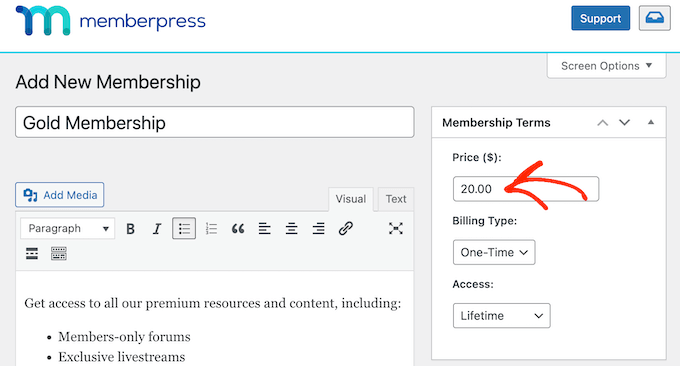
Once satisfied with your membership configuration, click 'Publish' to save your settings. You can repeat this process to create multiple membership levels as needed.
To implement access restrictions, navigate to MemberPress » Rules from your WordPress dashboard and click 'Add New.'
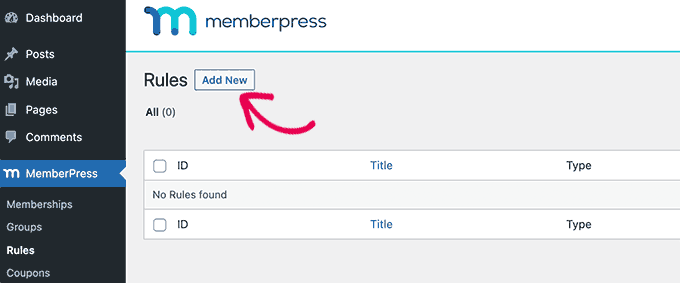
On the rule creation screen, select 'A Single Page' from the 'Protected Content' dropdown menu.
Begin typing the title of the page you wish to protect. The plugin will search for matching pages, allowing you to select the appropriate one from the results.
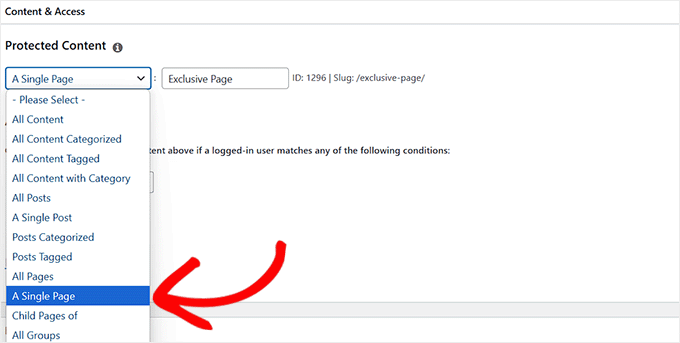
Note: While MemberPress excels at granular content control, you can also select 'All Pages' from the dropdown menu to require authentication for your entire website.
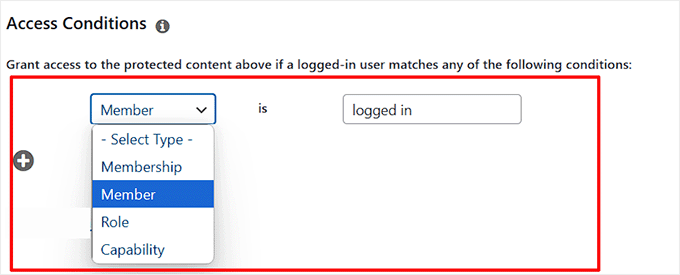
Next, define access conditions by selecting 'Member' from the dropdown menu and typing 'logged in' in the adjacent field. This configuration permits users with Member roles to access the content after authentication.
Scroll to the 'Unauthorized Access' section and choose 'Show' for the login form option from the dropdown menu.
Finally, click both 'Save Rule' and 'Publish' buttons to implement your access restrictions.


