
Two Effective Methods for Setting Up Custom Email Alerts in Google Analytics
By Analytics Team |
Regular monitoring of Google Analytics is essential for tracking WordPress website performance. Given the complexity of the analytics interface, site administrators can easily overlook critical changes such as traffic declines, conversion path issues, or other significant variations that require immediate attention.
For this reason, many WordPress experts recommend implementing custom email alerts within Google Analytics to help website owners save time and maintain awareness of important developments.
These automated notifications inform you when notable changes occur in your traffic or conversion metrics, eliminating the need for constant dashboard refreshes and reducing the risk of missing crucial insights.
This guide presents two straightforward approaches to establishing custom email alerts in Google Analytics, enabling you to monitor site performance efficiently without daily manual checks.
Understanding Custom Email Alerts in Google Analytics: Purpose and Benefits
Custom email alerts, officially designated as Custom Insights in Google Analytics 4, provide automated notifications about significant changes in your website's data patterns. These alerts reduce dependency on manual dashboard monitoring by automatically highlighting important developments.
Within GA4 terminology, these notable changes are classified as anomalies.
Using Custom Insights, you can configure alerts for various types of anomalies, including:
- Declines in overall or organic search traffic
- Unexpected increases in direct traffic
- Sudden reductions in sales or advertising revenue
- Significant surges in traffic or conversion rates
Consider a scenario where you discover an unexpected drop in website traffic upon starting your day. Alternatively, a social media post might gain unexpected traction overnight, generating substantial visitor increases.
Receiving immediate notification about such developments proves valuable for timely response. This demonstrates the practical utility of custom email alerts within Google Analytics.
These notifications facilitate prompt action, whether addressing emerging issues or capitalizing on new opportunities.
Implementing Custom Email Alerts in Google Analytics
Having examined the advantages of custom email alerts, we will now explore two implementation methods.
Here is a brief comparison to assist with selection:
- Method 1 (Analytics Plugin): This represents the most accessible option for beginners. WordPress users preferring simplified setup with integrated dashboard reporting will find this approach suitable. This method requires a premium analytics plugin subscription.
- Method 2 (Manual GA4 Configuration): This free approach works across all website platforms. While offering greater flexibility, including hourly alert options, it requires direct interaction with the Google Analytics interface.
Use these navigation links to proceed directly to your preferred method:
- Method 1. Configure Custom Email Alerts Using a Google Analytics Plugin
- Method 2. Configure Custom Email Alerts Directly in Google Analytics
- Frequently Asked Questions: Custom Email Alerts in Google Analytics 4
- Additional Resources: Analytics and Tracking Documentation
Let's begin the implementation process.
Method 1. Configure Custom Email Alerts Using a Google Analytics Plugin
Navigating Google Analytics can present challenges. This method offers a simplified approach to creating custom email alerts, though it exclusively supports WordPress platforms.
We will utilize a comprehensive Google Analytics plugin that integrates GA4 functionality directly into WordPress dashboards while simplifying report interpretation.
This solution includes an Exceptions addon that automatically detects unusual data fluctuations. With this addon activated, you maintain continuous awareness without additional monitoring effort.
Many experienced developers utilize this approach to track comprehensive website metrics, including form submissions, button interactions, and referral conversions.
Step 1. Install and Activate the Analytics Plugin
Begin by creating an account with your chosen analytics plugin provider. Visit the provider's website and select the appropriate subscription plan for your needs.
Complete the checkout procedure according to the provider's instructions.
Following account creation, install and activate the analytics plugin within your WordPress administration area. Consult standard WordPress plugin installation documentation for detailed guidance.
Step 2. Connect the Plugin to Your Google Analytics Account
After installation, establish connection between the plugin, your website, and Google Analytics.
Access the plugin's menu from your WordPress administration panel, then select the setup wizard initiation option.

Next, identify the category that best represents your website, whether it functions as a blog, business platform, or e-commerce store.
After selecting the appropriate category, save your choice and proceed.

Continue through subsequent prompts to authenticate with your Google Analytics account and designate the specific website for tracking.
When the connection completion option appears, select it to finalize the setup process.
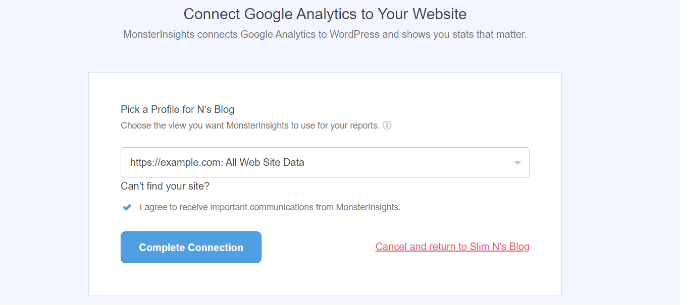
For comprehensive implementation instructions, consult standard documentation for Google Analytics integration with WordPress.
Step 3. Configure the Exceptions Addon
This step involves activating the Exceptions addon to monitor sixteen distinct types of irregular activity, including sudden traffic declines, conversion spikes, unexpected bounce rate variations, and other anomalies.
When exceptional events occur, detailed records populate your Exceptions report. This enables early issue identification and proactive response before problems escalate.
To configure the Exceptions addon, navigate to the plugin's Add-ons section.
Locate the Exceptions module and select the download and activation option. Then toggle the activation switch when it appears.
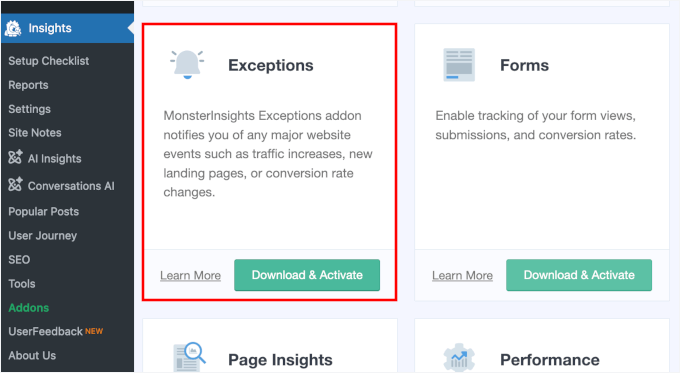
Following activation, the addon immediately begins tracking irregularities.
Access the corresponding report through the dedicated Exceptions tab within your Reports interface.
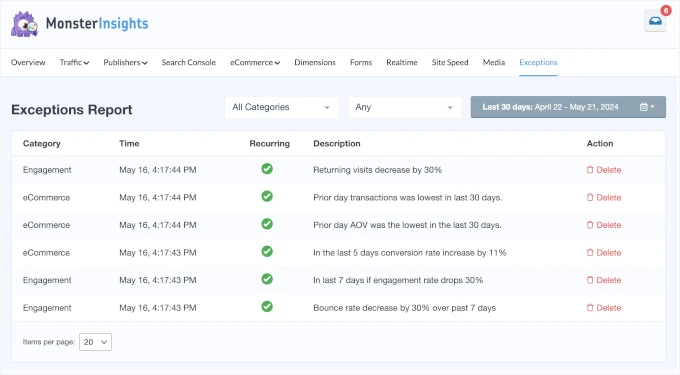
If you utilize a standard subscription rather than an agency account, monitoring capabilities remain available.
You can continue tracking essential metrics directly from your WordPress dashboard.
Navigate to the Reports section, where you'll find comprehensive insights regarding website traffic, campaign performance, and site speed metrics.


