Effective Methods to Prevent Personally Identifiable Information in Google Analytics
By Editorial Team |
During a recent website audit, we encountered a concerning discovery: email addresses and telephone numbers were appearing in Google Analytics reports, revealing visitor details that were never meant to be collected.
Gathering personally identifiable information from users presents significant challenges. It breaches privacy regulations such as GDPR, potentially exposing businesses to substantial penalties. This practice could even lead to the suspension of your Google Analytics account.
Fortunately, preventing personally identifiable information (PII) from entering your analytics data is relatively simple once you understand the proper techniques.
Through extensive experience with Google Analytics across numerous websites, we've established reliable methods to exclude sensitive data from your reports. This guide demonstrates how to safeguard visitor privacy while maintaining access to valuable analytical insights.
Understanding Personally Identifiable Information and Its Protection Importance
Personally Identifiable Information (PII) refers to any data that can identify a specific individual. Protecting this information is essential for compliance with privacy legislation, avoiding financial penalties, and preserving visitor trust.
Common examples of PII include:
- Complete name (including first and last)
- Email address
- Telephone number
- Residential address
- Payment card details
- Login information (usernames and passwords)
- IP addresses (when associated with individuals)
The issue often arises when PII enters Google Analytics through URL parameters. For instance, when users submit information through contact forms, that data can become embedded in subsequent page URLs.
A URL might inadvertently appear like this, revealing a user's email address:
www.example.com/contact-us/thanks?email=personal@information.com.
In this example, the URL clearly displays the user's email address.
It's crucial to recognize that privacy regulations like GDPR strictly govern personal data usage. Google's service terms also prohibit PII collection.
If your analytics account is discovered capturing this information, you risk significant fines or account termination.
Beyond legal considerations, this matter involves trust. Visitors expect their privacy to be respected, and if they perceive their data as insecure, they may seek alternatives.
With these considerations in mind, let's examine two straightforward approaches for excluding PII from Google Analytics:
- Method 1. Utilizing a WordPress Plugin to Exclude PII from Google Analytics (Simplified)
- Method 2. Manual Approach to Excluding PII from Google Analytics
- Additional Recommendations for Website Privacy Compliance
- Frequently Asked Questions About Excluding Personally Identifiable Information from Google Analytics
- Additional Resources About Analytics and Tracking
Ready to begin? Let's proceed.
Method 1. Utilizing a WordPress Plugin to Exclude PII from Google Analytics
The simplest method to prevent PII from entering Google Analytics involves using the Privacy Guard functionality available in MonsterInsights, a widely recognized WordPress analytics solution.
Privacy Guard automatically examines query parameters and form submissions to identify and eliminate potential PII. This assists in maintaining compliance with privacy regulations.
Step 1. Install and Activate the MonsterInsights Plugin
First, you'll require a MonsterInsights account. Begin by visiting their website and selecting the 'Get MonsterInsights Now' option.
Next, choose an appropriate plan. Many WordPress experts recommend the Plus plan or higher, as it includes the Privacy Guard functionality.
After registration, install and activate the MonsterInsights plugin on your WordPress site. For detailed installation instructions, consult standard WordPress plugin installation guides.
Step 2. Connect MonsterInsights to Your Google Analytics Account
Following activation, you'll need to establish a connection between the MonsterInsights plugin and your Google Analytics account.
Within your WordPress administration area, navigate to Insights » Launch the Wizard to initiate setup.

Subsequently, select the category that best describes your website.
MonsterInsights provides three options: business website, publisher (blog), or eCommerce (online store).
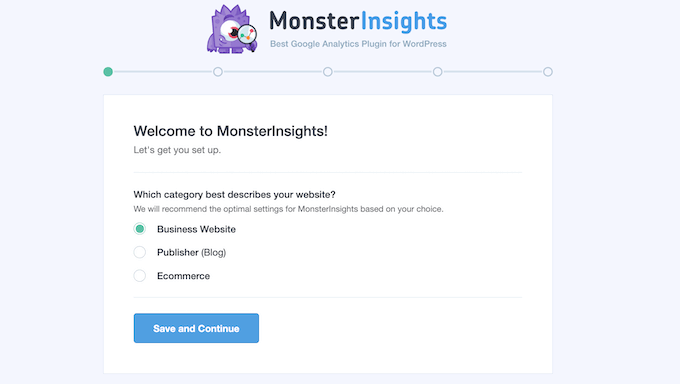
After choosing a category, select 'Save and Continue' to proceed.
On the following screen, click 'Connect MonsterInsights' to begin the connection process.
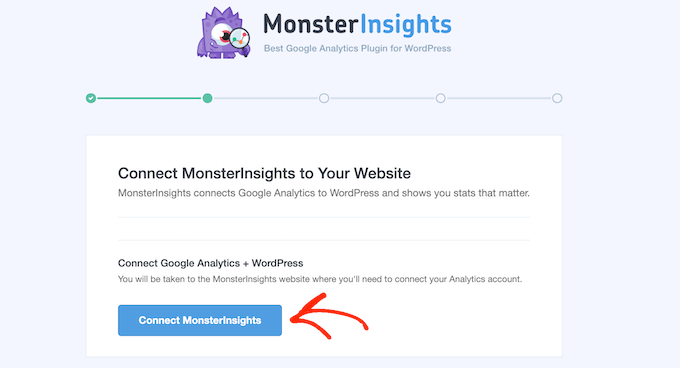
Then, follow the prompts to sign into your Google Analytics account.
After signing in, choose the website you wish to track from the dropdown menu.
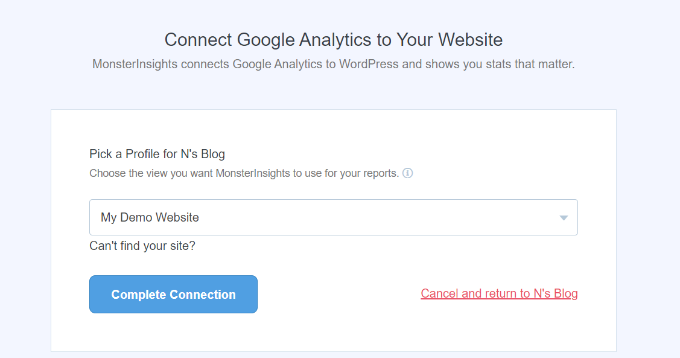
From this point, click the 'Complete Connection' button. MonsterInsights will then automatically configure Google Analytics on your WordPress website.
For comprehensive instructions, consult standard Google Analytics installation guides for WordPress.
Step 3. Enable the Privacy Guard Feature
Preventing Personally Identifiable Information (PII) from entering your tracking data need not be complex.
With MonsterInsights'Privacy Guard, you can accomplish this with minimal effort!
This feature operates by automatically detecting and removing common query parameters that frequently contain sensitive information (such as email,credit_card, and password). This prevents private details from being stored in your analytics reports.
To implement this, navigate to Insights » Settings » Engagement tab.
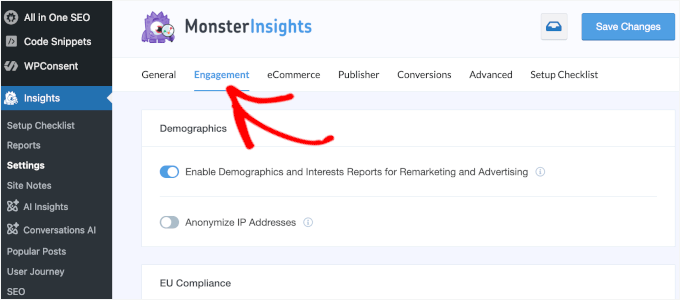
Now, simply activate the 'Privacy Guard' switch, and your configuration is complete!
MonsterInsights will now help protect personally identifiable information and maintain compliance with privacy regulations.


