The Complete Guide to Editing Your WordPress Website: Methods and Techniques
Maintaining an up-to-date website shouldn't require waiting for technical assistance or feeling constrained by outdated content. WordPress was specifically designed to provide users with direct control over their online presence.
Many experienced developers have observed that editing becomes straightforward with the proper approach. Most website modifications are simpler than they initially appear.
This comprehensive guide will walk you through every method for editing your WordPress website, from basic content updates to design modifications. By the conclusion, you'll possess the confidence to keep your site current whenever necessary.
Editing a WordPress Site: Comprehensive Overview
As an open-source content management system, WordPress provides numerous features for building and modifying websites. Here are several approaches you can utilize:
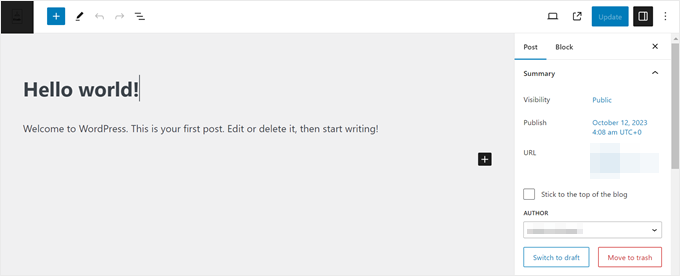
Block Editor (Gutenberg): This serves as the default WordPress editor for creating and editing posts and pages.
It offers a beginner-friendly interface with drag-and-drop functionality and basic customization blocks. Many content creators use this editor for publishing blog articles and web pages.
Full Site Editor (FSE): Consider this an extension of the Gutenberg editor.
It enables you to use block editing capabilities to customize WordPress themes built with blocks.
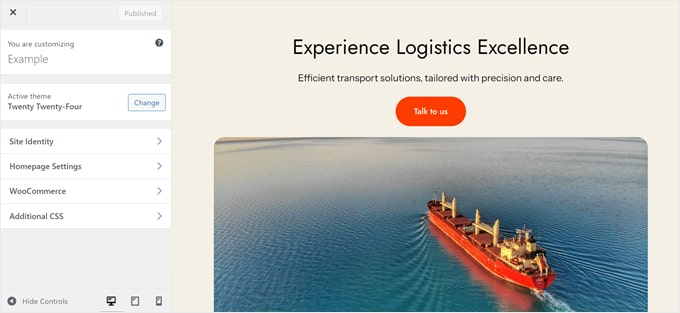
Theme Customizer: If you're using a classic theme, this tool provides access to site-wide modifications.
While not featuring drag-and-drop functionality, it offers straightforward settings for adjusting your WordPress theme's visual appearance.
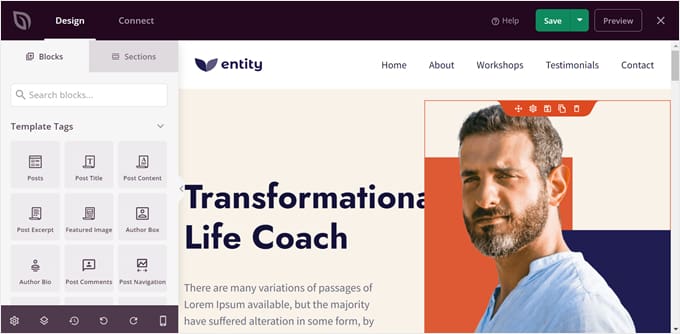
Page Builder Plugins: When greater design flexibility is required, page builders provide enhanced capabilities.
These tools offer advanced features while maintaining user-friendliness. Similar to Gutenberg, they include drag-and-drop functionality but typically provide additional creative options such as animation effects and expanded content block selections for page construction.
Many WordPress professionals recommend these solutions for beginners seeking design versatility.
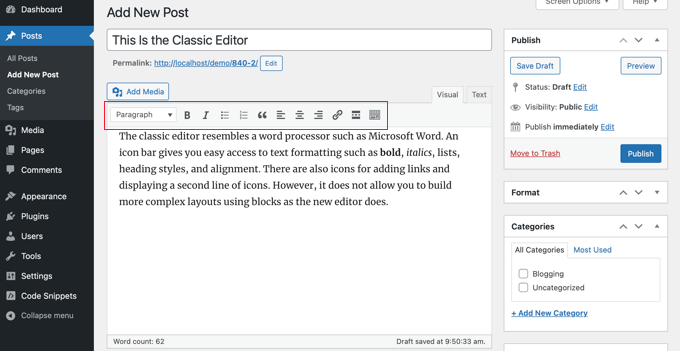
Classic Editor: Although no longer the default option, some users prefer the traditional Classic Editor interface that resembles conventional document editors.
This feature isn't enabled by default in recent WordPress versions but remains available through a dedicated plugin for those who prefer the traditional editing approach.
This article demonstrates how to edit various components of your WordPress website using the editors mentioned above.
We assume you already have WordPress installed and configured. Otherwise, you'll need a WordPress hosting plan, domain name, and WordPress installation.
To navigate directly to specific sections of this tutorial, use these quick links:
- How to Edit a WordPress Theme
- How to Edit Pages or Posts in WordPress
- How to Edit a WordPress Header, Footer, and Other Template Parts
- How to Edit a Navigation Menu in WordPress
- How to Edit a WordPress Site With Code
- What Is the Best Way to Edit a WordPress Site for Beginners?
- Frequently Asked Questions
How to Edit a WordPress Theme
One of the initial tasks after installing WordPress involves selecting and customizing your theme. We'll demonstrate three approaches for accomplishing this.
Customizing a Block Theme With the Full Site Editor
Full Site Editing was introduced in WordPress 5.9, designed to simplify theme customization for block-based themes using the block editor.
Many WordPress experts have noted that the Full Site Editor has significantly streamlined theme customization for beginners, though the feature continues to evolve.
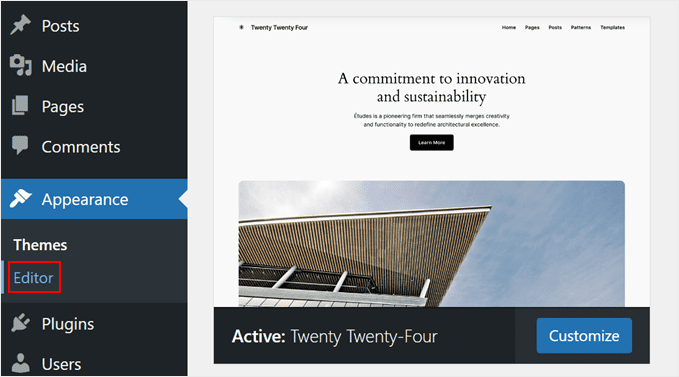
A clear indicator that you're using a block WordPress theme is the presence of Appearance » Editor in your WordPress admin area. If you see Appearance » Customize instead, proceed to the Theme Customizer section.
To utilize the Full Site Editor, you need a block theme installed. Numerous options are available through various theme directories.
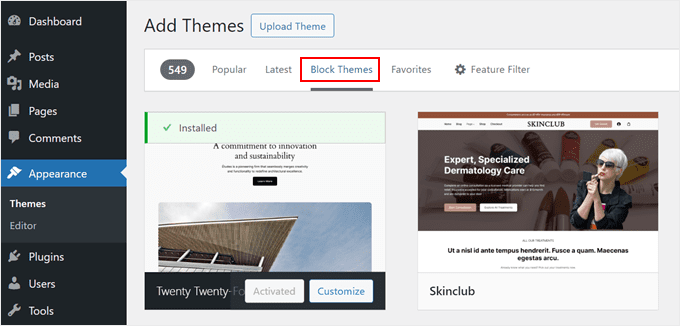
For free alternatives, navigate to Appearance » Themes, then select 'Add New Theme.'
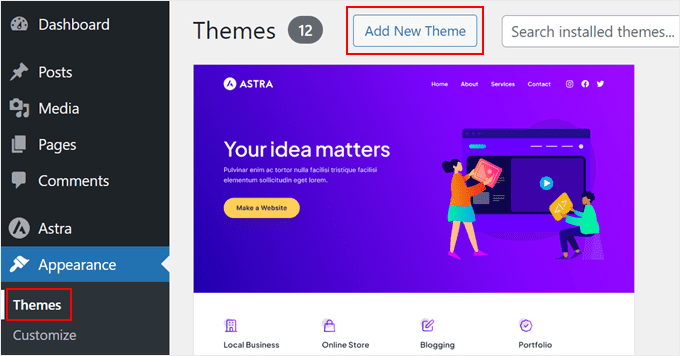
Afterward, switch to the 'Block Themes' tab.
You'll then see numerous block themes displayed. For installation guidance, consult documentation on WordPress theme installation procedures.
Once the theme is installed, access the site editor by going to Appearance » Editor.
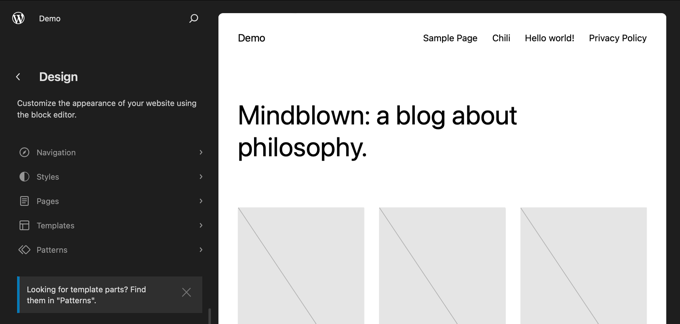
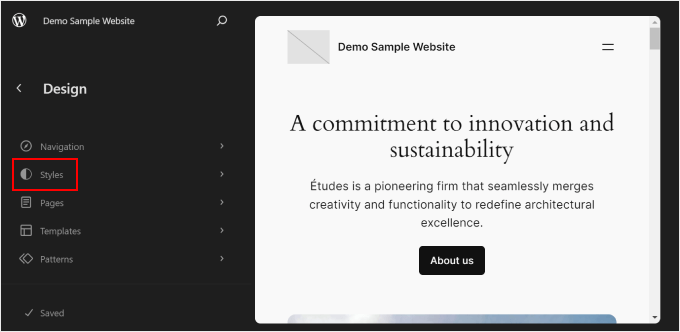
You'll then see the primary Full Site Editing dashboard, where you can modify your theme's navigation menu, styles, pages, templates, and block patterns.
While we'll explore these topics further in subsequent sections, here's a brief demonstration of theme style modification.
To accomplish this, select the 'Styles' menu.
Now, you will


