
Strategies for Transferring Payment Processing Fees to Customers in WordPress
Payment processors typically impose additional charges to maintain secure transactions for both merchants and buyers. By shifting these fees to customers, businesses can potentially increase their net revenue by approximately 3%.
Many experienced WordPress developers have optimized payment workflows across numerous eCommerce sites, leading to the exploration of various approaches for managing processing fees.
This guide will demonstrate practical methods for transferring payment processing fees to customers within WordPress environments, presented through clear, sequential instructions.
Understanding these techniques will enable you to select the most suitable approach for your specific business requirements.
Why Transfer Payment Processing Fees to Customers in WordPress?
Online store operators often observe that payment processors levy various charges, including per-transaction fees, percentage-based commissions, and gateway usage fees.
For example, when a customer purchases a $50 item using Stripe, the merchant receives approximately $48.55 after deducting the standard 2.9% plus $0.30 transaction fee.
Transferring these processing costs to customers allows merchants to receive the full product price without absorbing the expense as operational overhead.
This approach also provides greater control over pricing strategies and enhances transparency by displaying fees clearly during checkout. However, some customers may respond negatively to additional charges, potentially leading to abandoned purchases.
Testing this strategy with your specific audience is recommended to gauge customer acceptance.
Now let's examine practical methods for implementing payment fee transfers in WordPress.
This tutorial covers three primary approaches. Use the navigation links below to jump directly to your preferred method:
- Method 1: Transfer Payment Processing Fees Using Payment Forms
- Method 2: Transfer Payment Processing Fees for Digital Products
- Method 3: Transfer Payment Processing Fees for Donations and Crowdfunding
- Additional Information: Accepting ACH Payments in WordPress
- Common Questions About Payment Processing Fees
Method 1: Transfer Payment Processing Fees Using WP Simple Pay
WP Simple Pay represents a popular Stripe integration solution for WordPress, enabling payment collection without traditional shopping cart implementations. The plugin offers template-based form creation and includes functionality to add processing fees directly to customer invoices.
This solution works particularly well for membership sites, online course platforms, and single-product stores.
Begin by installing and activating the WP Simple Pay plugin. Note that while a free version exists, the fee recovery feature requires the professional edition.
After activation, the setup wizard will appear. Click the 'Let's Get Started' button to proceed.
The first configuration step requires entering your license key, then clicking 'Activate and Continue.'
You can obtain this information from your account dashboard on the plugin provider's website.

Next, establish the connection between your WordPress site and Stripe by clicking 'Connect with Stripe.'
Complete the authentication process by logging into your Stripe account and following the remaining setup instructions.
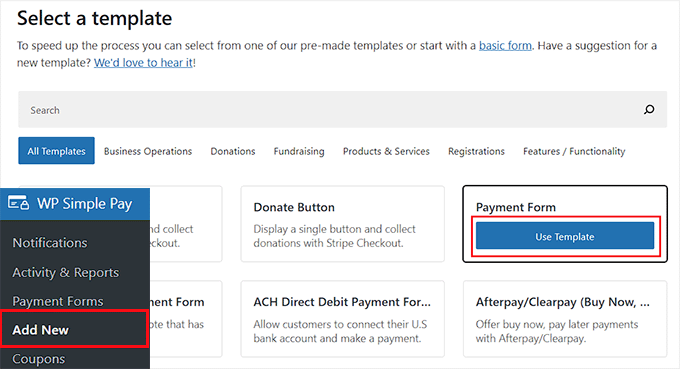
Navigate to WP Simple Pay » Add New from the WordPress administration menu. This directs you to the template selection interface where you can choose an appropriate form template.
For demonstration purposes, we'll create a basic payment form.
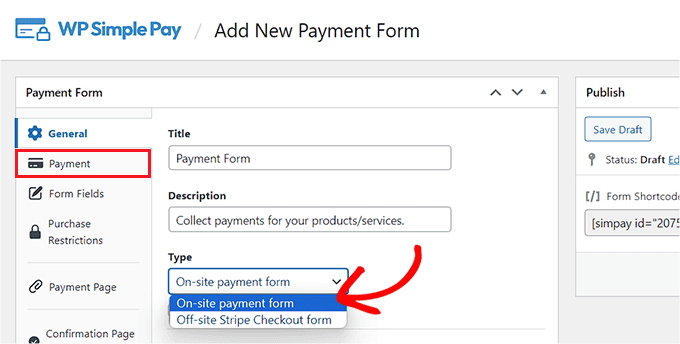
The form builder interface will appear. Provide a descriptive name and explanation for your form, select 'On-site payment form' as the form type, then switch to the 'Payment' configuration tab.
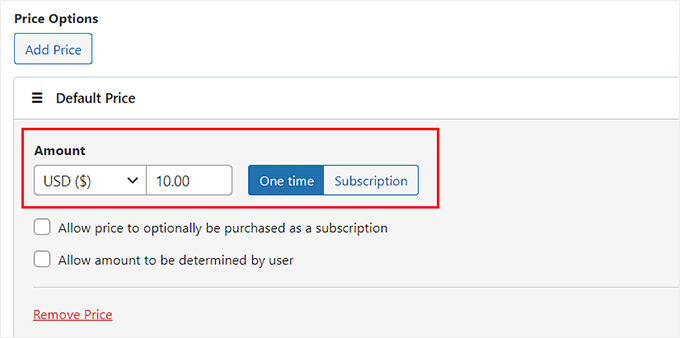
Within the 'Price Options' section, specify the amount for your product or service. You can configure this as either a one-time payment or recurring charge.
For multiple pricing tiers, click the 'Add Price' button located above this section.
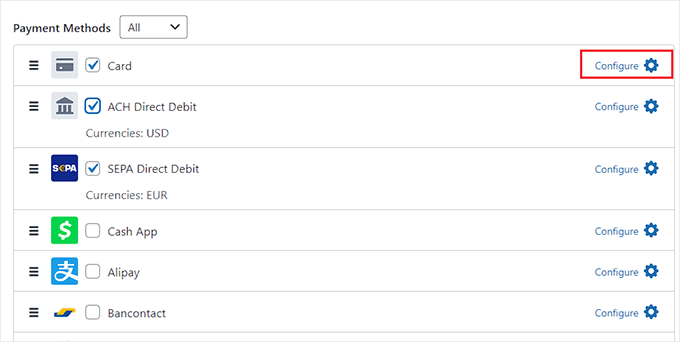
Scroll to the 'Payment Method' section and select the payment gateways you wish to include. The plugin supports numerous options including Klarna, Affirm, AliPay, credit/debit cards, and SEPA Debit.
After selecting your preferred methods, click the 'Configure' link adjacent to each payment option.
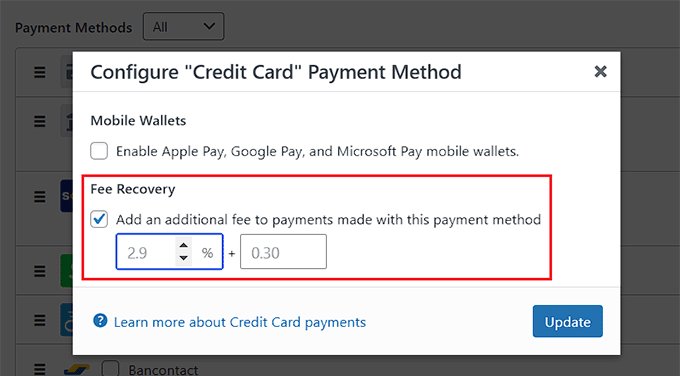
A configuration panel will appear. Enable the 'Add an additional fee to payments made with this payment method' option, then specify the transaction fee percentage for your product.
This setting transfers the standard Stripe processing fee from the merchant to the customer. Click 'Update' to save your configuration.
The payment processing fee will now be automatically included in customer transactions.