3 Effective Methods to Test Stripe Payments on Your WordPress Site
Ensuring a smooth payment process is critical for any online business. When customers encounter difficulties during checkout, it can lead to abandoned carts, lost revenue, and damage to your brand's reputation.
Thoroughly testing your Stripe payment integration before launching your WordPress site is an essential step. This verification process confirms that transactions process correctly, allowing you to focus on growing your business with confidence.
Many experienced developers recommend performing these tests after setting up any e-commerce functionality. This guide will walk you through several straightforward approaches to validate your Stripe setup.
Continue reading to discover practical techniques for testing Stripe payments within your WordPress environment.
The Importance of Testing Your Payment System
Validating Stripe payments on your WordPress site ensures all components function properly before your store goes live. Neglecting this verification can have significant consequences.
Consider a scenario where a customer attempts to complete a purchase, but the transaction fails due to a configuration error. This creates frustration for the user and directly results in lost sales opportunities.
Think of it like operating a physical retail location where the point-of-sale system malfunctions. Customers would have no choice but to leave and potentially shop elsewhere.
Such inconveniences rarely lead to repeat business. This illustrates how overlooking payment testing can negatively impact your online store's performance.
The advantage of testing your payment gateway beforehand is the ability to identify and resolve issues proactively. This preventive approach helps avoid revenue loss and protects your business reputation.
You can simulate various transaction scenarios, including successful payments, declined cards, and refund processes, to observe how your payment system responds under different conditions.
Being prepared for multiple outcomes provides assurance that your Stripe integration is secure and properly configured for live operations.
With that foundation, let's explore how to test Stripe payments within WordPress. This tutorial covers multiple approaches. Use the following links to navigate directly to your preferred method.
- Method 1: Testing Stripe Payments with WooCommerce
- Method 2: Testing Stripe Payments for Digital Products
- Method 3: Testing Stripe Payments on WordPress Payment Forms
- Additional Insights: Best Practices for Using Stripe in WordPress
- Common Questions About Testing Stripe Payments
Method 1: Testing Stripe Payments with WooCommerce
Stripe serves as a widely adopted payment gateway for processing credit card transactions in WooCommerce-based online stores. If you operate a WooCommerce store, this method applies directly to your situation.
Once your WooCommerce store is configured, you'll need to install and activate the official Stripe Payment Gateway for WooCommerce extension. This free plugin facilitates the integration process.
After activating the plugin, locate and click the 'Start Onboarding Wizard' button on your Plugins administration page.
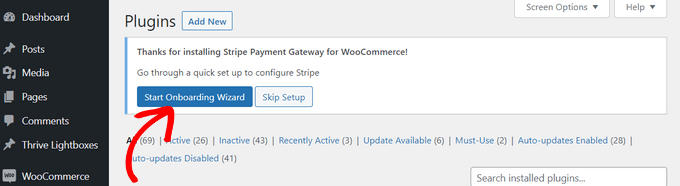
This action launches the setup wizard on your screen.
Proceed by clicking the 'Connect with Stripe' button to link your existing Stripe account with your WooCommerce installation.

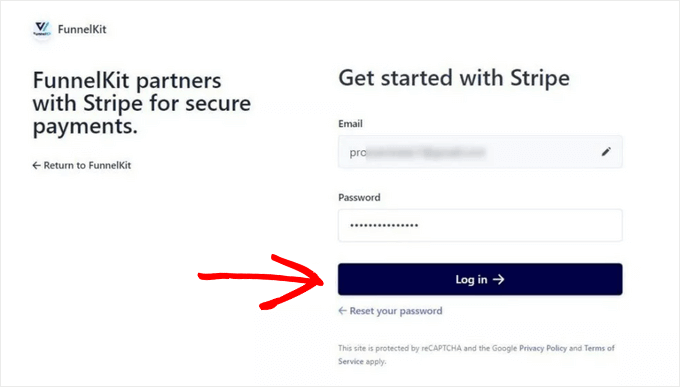
Next, enter the email address and password associated with your Stripe account credentials.
Then, select the 'Log in' button to continue.
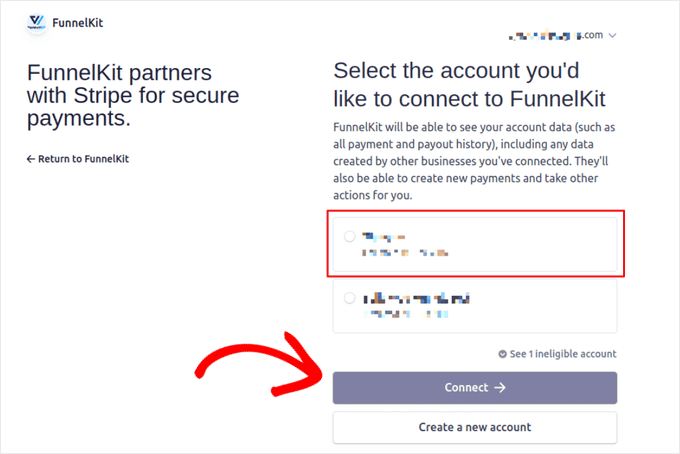
If you have multiple Stripe accounts associated with the same email address, select the specific account you wish to connect.
After making your selection, click the 'Connect' button.
The following screen displays available payment methods you can enable through Stripe, including Card payments, SEPA Direct Debit, iDEAL, and others.
Make your selections and click 'Save and Continue.'
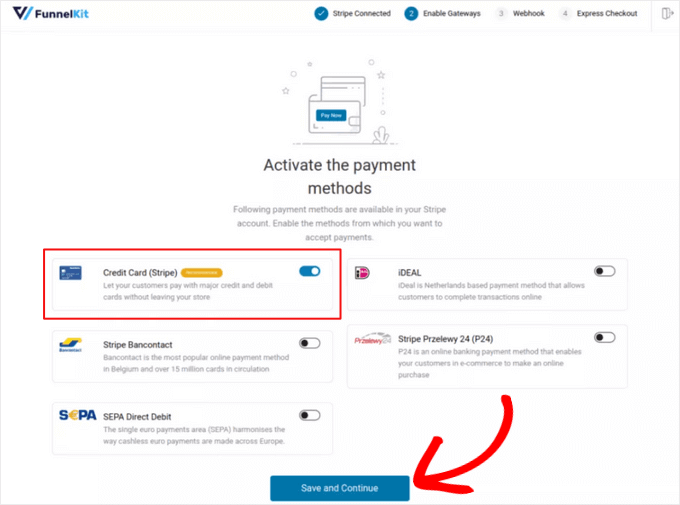
Next, configure webhooks for your store. Webhooks are automated notifications Stripe sends to your site to confirm events like successful payments, helping maintain accurate order statuses.
The plugin will then prompt you to choose between 'Test' mode and 'Live' mode. Select the 'Test' option and click 'Save and Review Settings.'
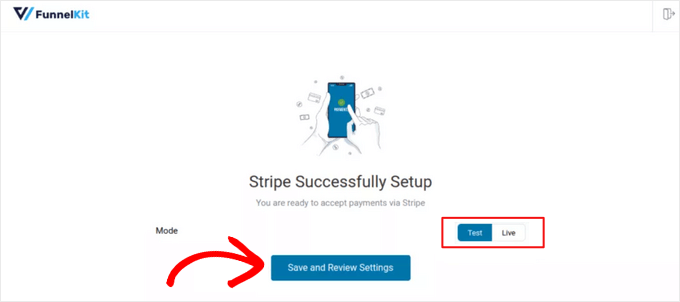
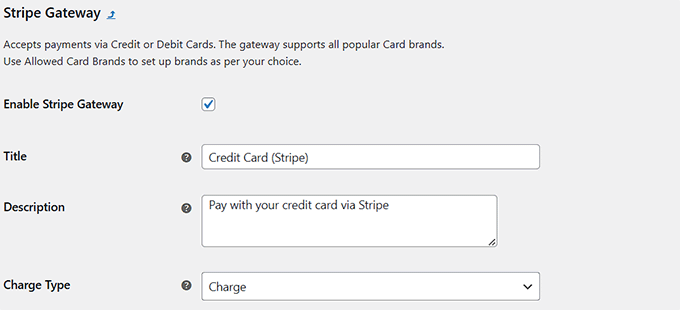
You will be redirected to the 'Stripe Settings' page within WooCommerce.
Here, enable the 'Enable Stripe Gateway' option and provide a title and description for the payment method.
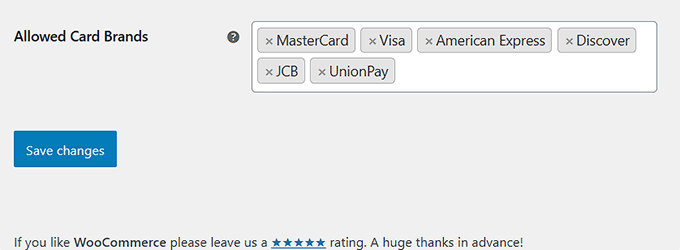
Scroll down and specify the credit card types you plan to accept in your store.
Finally, click 'Save changes' to store your configuration.
Now, visit your WooCommerce store's checkout page. You should see Stripe listed as a payment option.
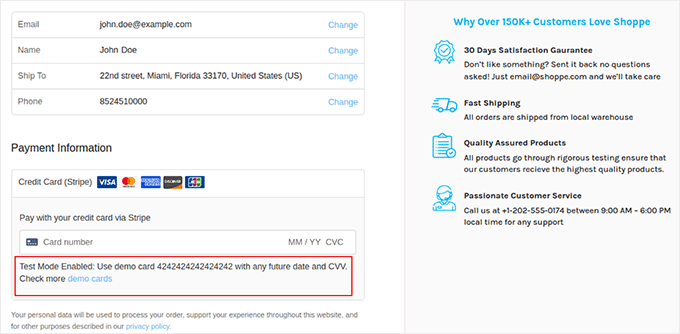
A notification will indicate that test mode is currently active on your site.
To test Stripe payments in your WooCommerce store, use the demonstration card details provided in the message, along with any future expiration date and CVV code.