Step-by-Step Guide to Creating Professional Recipe Cards in WordPress
By Editorial Team |
Are you interested in incorporating recipe cards into your WordPress website?
Every day, countless individuals search online for culinary inspiration. From simple weekday meals to elaborate desserts, well-structured recipe cards provide clear guidance for readers to recreate dishes successfully.
This comprehensive guide will walk you through the process of creating recipe cards within WordPress.
Understanding Recipe Cards and Their Benefits
Recipe cards present ingredient lists and preparation instructions in an organized format. These structured elements typically include:
- Recipe name
- Required ingredients
- Detailed preparation steps
- Helpful suggestions and variations
- Nutritional information
Essentially, they serve as detailed guides for preparing various dishes. Recipe cards benefit cooks at all skill levels, particularly those seeking efficient meal solutions. Their organized presentation enables readers to follow recipes with minimal confusion.

Additionally, these cards encourage social sharing, which can enhance your online visibility. Recipe cards utilize structured data markup, improving their potential to achieve higher search engine rankings through rich snippets.
Food bloggers, restaurant websites, and wellness professionals often find recipe cards particularly valuable for their content strategy.
The implementation process requires minimal technical expertise. Let's explore the practical steps involved.
Implementing Recipe Cards Using WP Tasty Recipes
The most efficient approach involves using a dedicated recipe plugin like WP Tasty Recipes. This solution offers extensive customization options for recipe presentation.
Step 1: Installing the WP Tasty Recipes Plugin
Begin by installing and activating the WP Tasty Recipes plugin. Many WordPress experts recommend consulting standard plugin installation guides if you need assistance with this process.
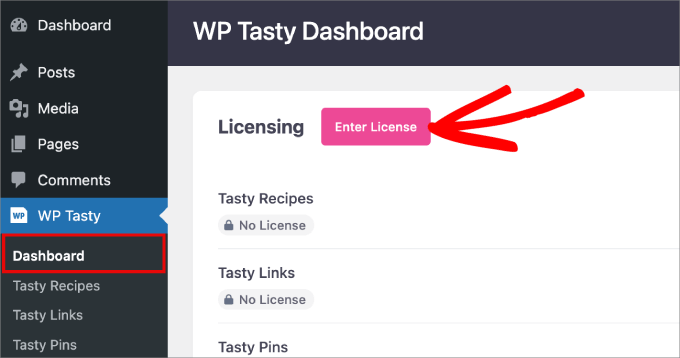
Navigate to WP Tasty » Dashboard within your WordPress administration panel. Select 'Enter License.'
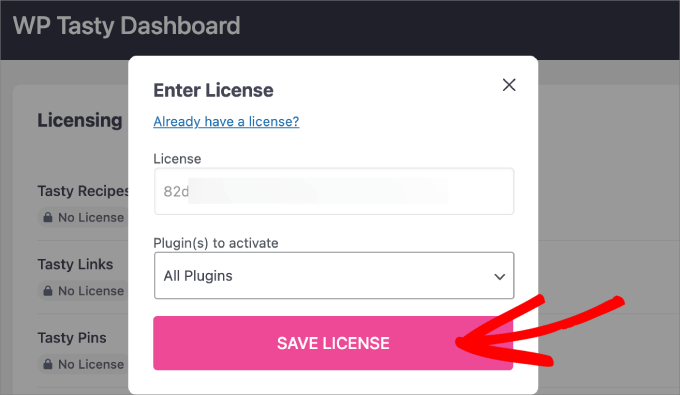
A dialog window will appear. Insert your license key from your WP Tasty account downloads section.
Choose 'All Plugins' and then click the 'Save License' button.
Step 2: Customizing Recipe Card Appearance
Next, customize the recipe card design to match your website's aesthetic.
Access the WP Tasty » Tasty Recipes section from your WordPress dashboard.
Under the Design tab, you can modify various visual elements of your recipe cards.
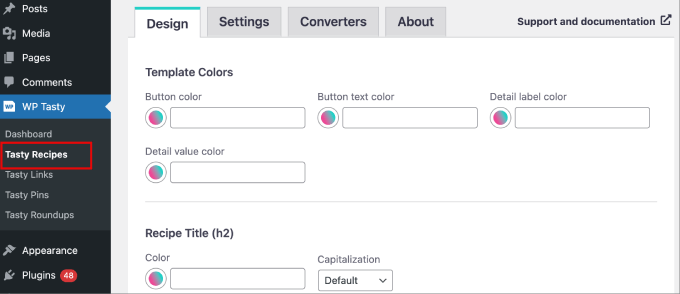
Customization options include button colors, title and subtitle colors, rating displays, and social sharing components.
Scroll to the bottom section where 'Default Template' is selected.
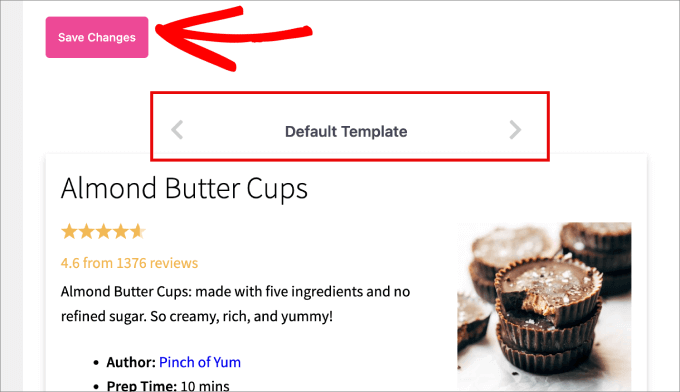
Use the navigation arrows to browse available templates, selecting one that complements your website design. Remember to click 'Save Changes' after making selections.
Step 3: Inserting Recipe Cards into WordPress Posts
Open the post where you want to add your recipe card. Click the '+' icon in the block editor's upper-left corner to add a new block.
Search for and select the 'Tasty Recipe' block.
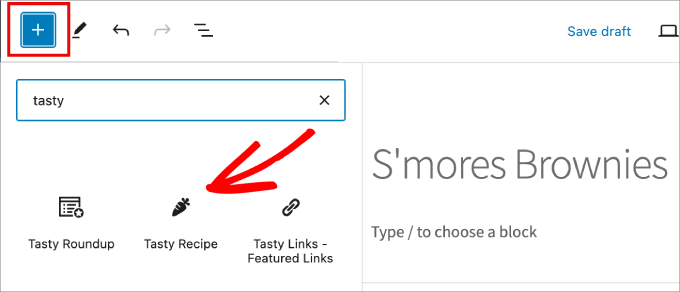
A configuration window will appear where you can input all recipe details.
Providing comprehensive information helps search engines properly identify content, increasing opportunities for rich snippet display.
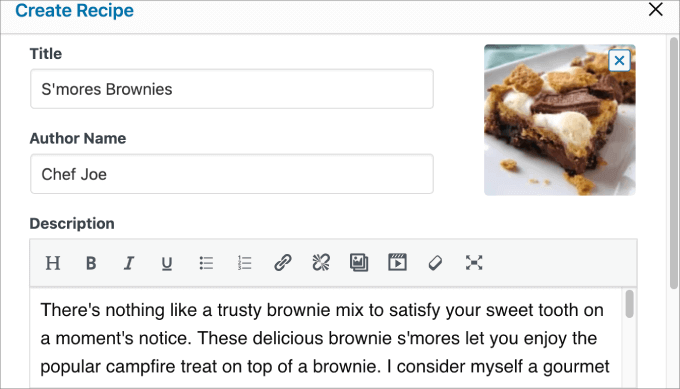
Available fields include:
- Recipe title
- Featured image
- Author information
- Description
- Ingredients list
- Preparation instructions
- Additional notes
- Details like preparation time, cooking duration, servings, and category
- Relevant keywords
- Video URL
- Required equipment
- Nutritional data
After completing all recipe information, click the 'Insert' button at the bottom.
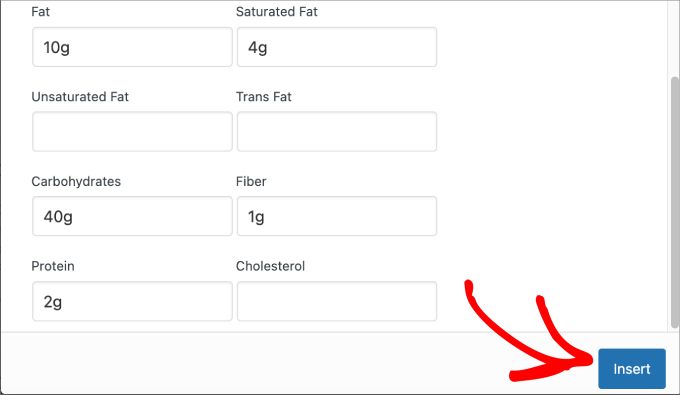
Your recipe card will now be ready for publication.
Step 4: Publishing Your Recipe Card
To make your recipe card publicly available, click the 'Publish' or 'Update' button at the top of the editor.
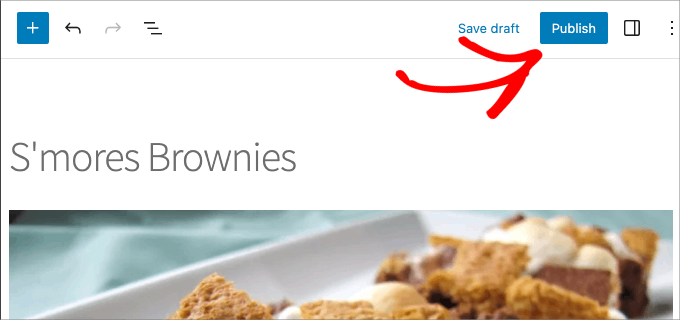
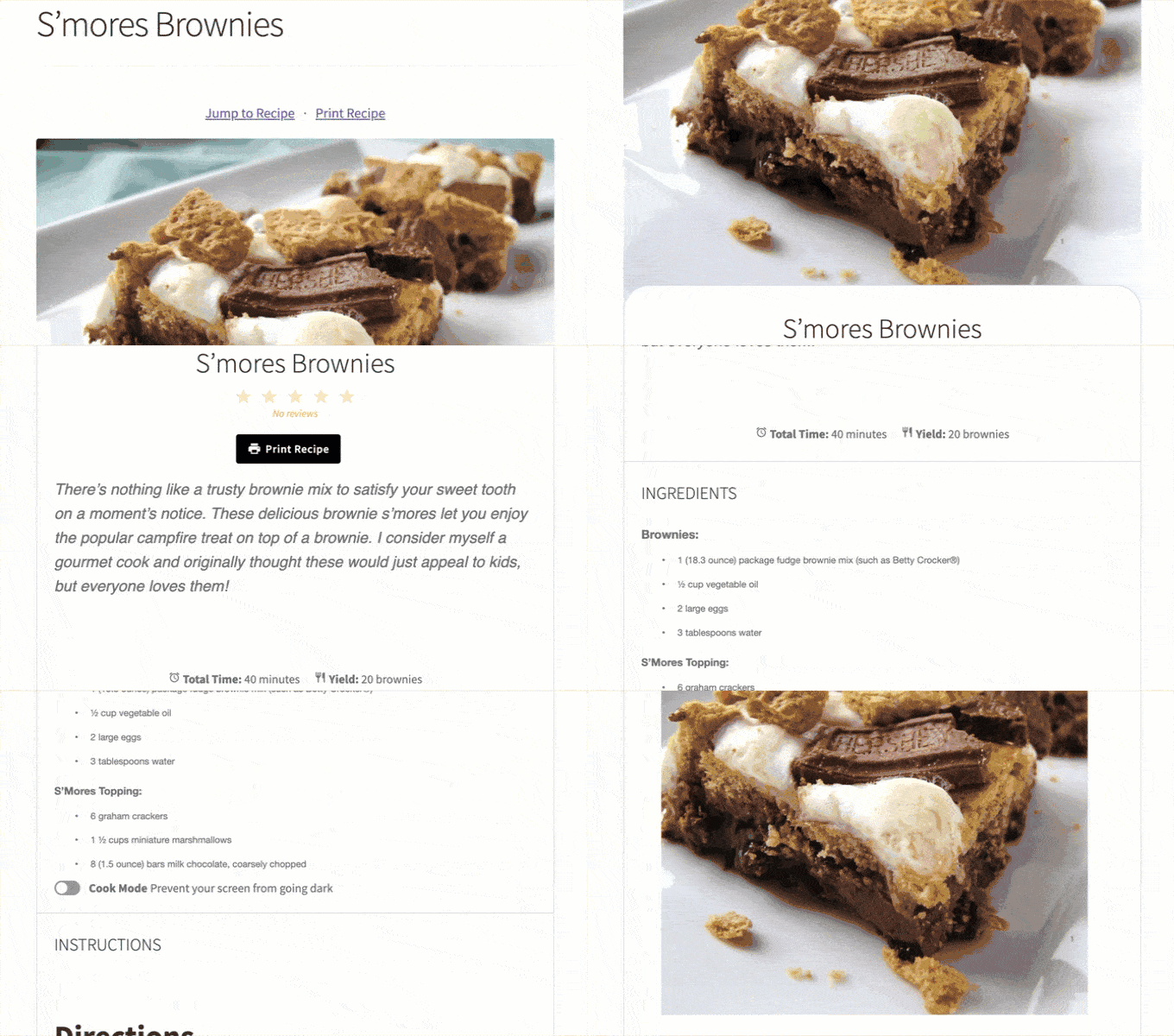
Visit your website's front end to view the published recipe card.
Here's an example recipe card displayed on a demonstration website.
Step 5: Adding Pinterest Integration (Optional)
If you have access to WP Tasty's premium features, you might consider adding Pinterest functionality to your recipe cards, allowing readers to save recipes to their boards.
When users pin your recipes, your content becomes visible to more Pinterest users, potentially increasing website traffic.
Scroll to the bottom of your block editor and add Pinterest-specific image details, titles, and descriptions to optimize content for both search engines and social platforms.
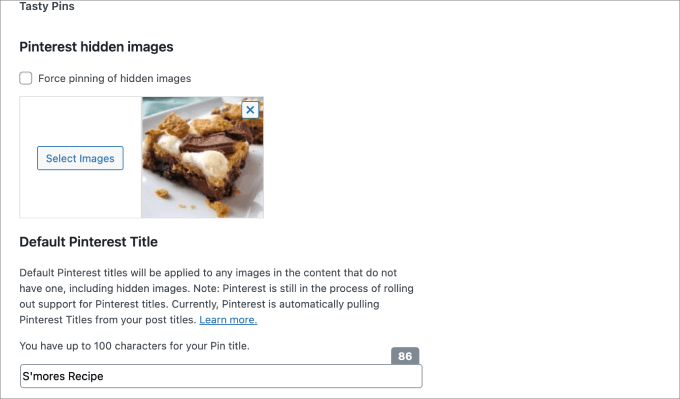
This integration adds 'Pin It' functionality to recipe images, simplifying content sharing for your audience.
Additional Considerations: Implementing SEO-Friendly Recipes with Schema Markup
Creating recipe cards represents just one aspect of effective recipe presentation. You


