A Comprehensive Guide to Managing Payment Methods in WooCommerce
By Editorial Team |
Numerous WooCommerce store operators frequently activate all available payment options, which can inadvertently overwhelm customers and contribute to cart abandonment. Strategic limitation of payment methods often enhances conversion rates and simplifies the checkout experience. This approach allows merchants to tailor payment options according to shipping destinations, product categories, or order values.
Fortunately, WooCommerce provides native settings and plugin solutions for controlling payment method availability. This guide presents multiple effective techniques for disabling payment methods in WooCommerce, covering complete removal as well as conditional restrictions based on specific criteria.
Strategic Considerations for Disabling Payment Methods
Effective payment gateway management extends beyond offering maximum payment options. Restricting certain payment methods can optimize business operations and minimize transaction expenses. Simplifying payment choices frequently improves customer experience by reducing checkout complexity.
Many experienced developers recommend implementing Stripe for card payments alongside PayPal for international store operations. However, stores serving specific regional markets may require more sophisticated control over payment method presentation.
Common scenarios warranting payment method restrictions include:
- Order Value– Implementing specific payment requirements for high-value orders can reduce percentage-based transaction fees. Cash on delivery might be disabled for premium orders.
- Geographic Location– Some payment processors operate exclusively within particular regions, necessitating their concealment from international customers. Regional fee variations may also justify selective availability.
- Customer Classification– Different user roles, such as wholesale clients versus regular consumers, may require distinct payment options to manage transaction risks and costs.
- Temporal Factors– Seasonal sales events might necessitate temporary payment method adjustments to maintain processing efficiency.
This guide explores five distinct approaches for managing payment gateway availability in WooCommerce stores.
- Method 1: Utilizing Native WooCommerce Settings (Universal Application)
- Method 2: Implementing Conditional Payment Gateways via Plugin (Flexible Configuration)
- Method 3: Employing Wholesale Solutions for Payment Method Restrictions
- Method 4: Utilizing Advanced Coupon Systems for Payment Method Limitations
- Method 5: Applying Custom Code for Payment Method Control (Advanced Implementation)
- Common Questions Regarding Payment Method Management
Method 1: Utilizing Native WooCommerce Settings (Universal Application)
WooCommerce incorporates built-in functionality for payment method management without requiring additional plugins. Implementation procedures vary slightly depending on specific requirements.
This section demonstrates techniques for deactivating primary payment methods, PayPal-specific alternatives, and Stripe-enabled options. These approaches completely disable payment methods for all customers without conditional parameters like user roles or product categories.
Deactivating Primary Payment Methods
Primary payment methods, including complete payment gateways and direct bank transfers, can be disabled through WooCommerce configuration settings.
Navigate to WooCommerce » Settings and select the 'Payments' tab to view all available payment gateways.
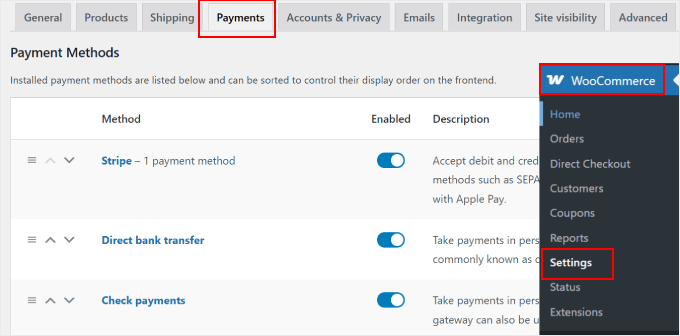
Typical enabled payment methods might include Stripe for card payments, direct bank transfer, check payments, cash on delivery, and PayPal.
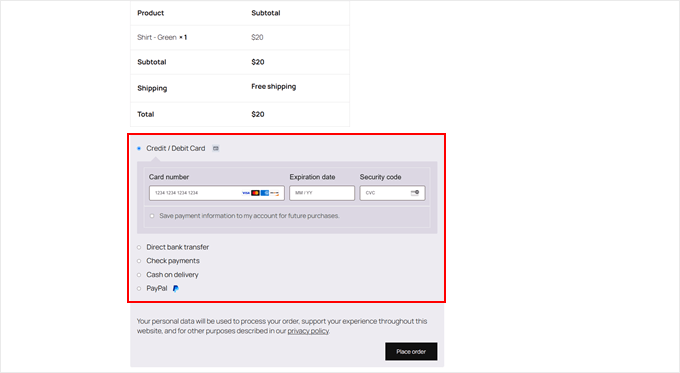
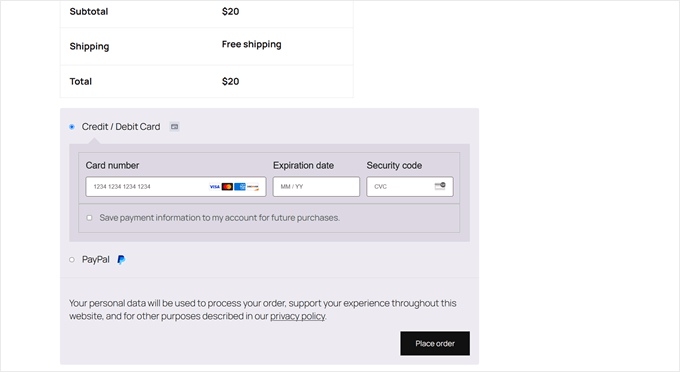
The checkout interface displays all active payment options to customers as follows:
To disable any payment method, toggle the switch in the 'Enabled' column corresponding to the desired option. The payment method will subsequently disappear from the checkout interface.
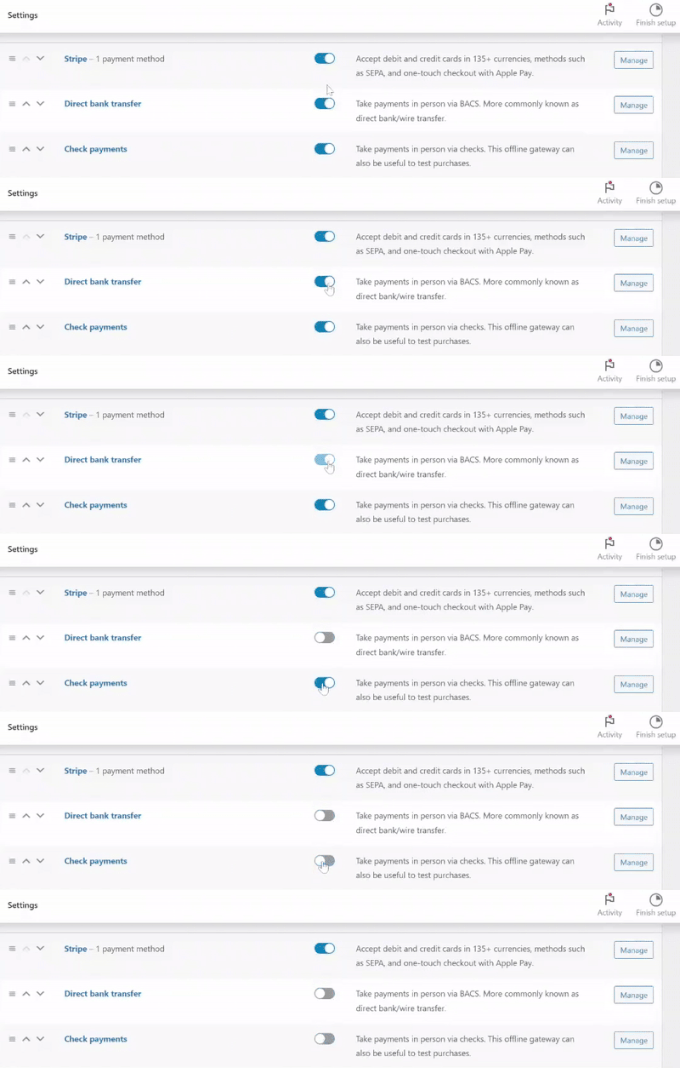
Disabled payment methods can be reactivated at any time by returning to this configuration page. The checkout page will reflect these changes immediately.
Managing PayPal's Supplementary Payment Options
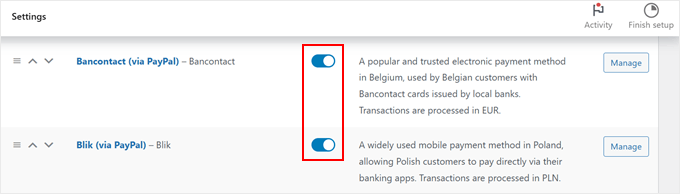
Multiple payment methods enabled through PayPal can be similarly restricted. For instance, businesses unable to accept Venmo payments may disable this option.
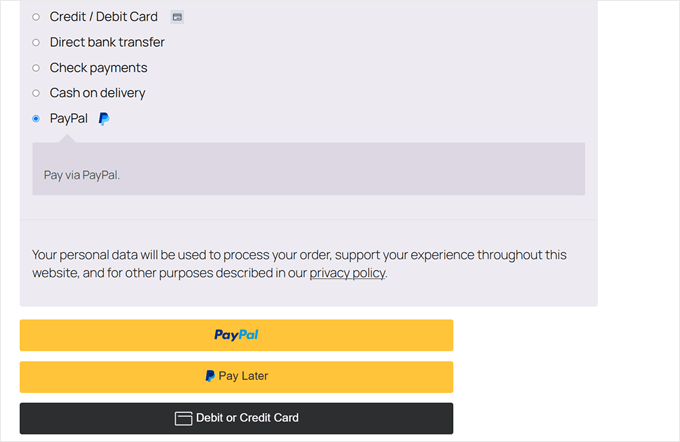
Access WooCommerce » Settings » Payments and toggle the switch for any payment method identified as '(via PayPal).'