
A Comprehensive Guide to Adding Hero Images in WordPress for Any Theme
By WordPress Experts |
Looking to enhance the visual appeal of your WordPress website? Implementing a hero image can significantly elevate your site's professional appearance.
A hero image serves as the initial visual element visitors encounter when arriving at your website. Research indicates you have approximately three seconds to capture user attention, making this design component crucial for engagement.
Many experienced WordPress developers recall when hero images first gained popularity in web design. Initially, implementation challenges were common—images often displayed incorrectly across different devices, appearing distorted on mobile screens or improperly scaled on desktop displays. Through years of refinement, effective techniques have been established for seamless integration.
This guide will demonstrate multiple approaches to incorporate hero images into your WordPress site. Whether you prefer using page builders, the block editor, or traditional methods, you'll find suitable solutions here.
Essential Preparation: Creating Your WordPress Hero Image
Before implementing a hero image on your WordPress site, careful preparation is necessary to ensure maximum impact. An effective hero section begins with a compelling visual that communicates your website's purpose.
Numerous graphic design tools are available for creating website graphics. Many designers appreciate user-friendly platforms with extensive template libraries for crafting hero images. If you prefer alternatives, various design applications offer similar functionality with different interfaces and features.
Several considerations should guide your hero image creation process.
First, dimensions matter significantly. Hero images typically maintain a wide aspect ratio while avoiding excessive height, often spanning the complete width of your homepage.
A standard WordPress hero image measures approximately 1920 pixels in width with a height ranging from 400 to 600 pixels, though dimensions may vary depending on your specific theme requirements.
Second, consider the message you wish to convey. Your hero image should immediately communicate your website's focus. This could showcase products, represent your brand identity through photography, or even incorporate full-screen video backgrounds for dynamic presentation.
For instance, some websites feature their founders or team members in homepage hero images to establish personal connections with visitors, demonstrating the human element behind their brand.

Additionally, allocate sufficient space for textual elements. Most hero sections incorporate headlines or call-to-action buttons. Ensure adequate negative space exists for these components while maintaining readability against your background.
Examining websites within your industry can provide valuable inspiration for hero section design. Many professionally designed WordPress sites offer excellent examples of effective hero image implementation.

With these fundamentals addressed, let's explore practical implementation methods.
Implementation Methods for WordPress Hero Images
During research for this guide, it became evident that adding hero images to traditional WordPress themes presents varying challenges. Implementation approaches differ substantially depending on your theme, as some include built-in hero sections while others require additional configuration.
Certain themes, for example, incorporate pre-designed hero sections that simplify the implementation process.

If your current theme lacks built-in hero functionality, implementation can become more complex.
For those beginning new projects without theme restrictions, selecting a theme with integrated hero sections can streamline development.
Numerous high-quality WordPress themes include hero section capabilities. Alternatively, you might consider page builders that work with themes featuring hero sections, as demonstrated in method three.
Before making significant theme changes, testing modifications on a staging environment is recommended. This approach allows thorough evaluation before implementing changes on your live site.
If you're unfamiliar with this process, various resources explain proper theme switching procedures for WordPress.
Prefer to maintain your current traditional theme? Proceed directly to method four, which demonstrates hero section implementation using plugins. This approach functions with virtually any theme, enabling impressive hero images without complete design overhauls.
Use these quick navigation links to access your preferred method:
- Method 1: Theme Customizer Implementation (Traditional Themes)
- Method 2: Full Site Editor Implementation (Block Themes)
- Method 3: Page Builder Implementation (Custom Landing Pages/Themes)
- Method 4: Plugin and Shortcode Implementation (Universal Compatibility)
- Common Questions Regarding Hero Images
Method 1: Theme Customizer Implementation (Traditional Themes)
If your traditional theme includes built-in hero section functionality, customization typically occurs through the Theme Customizer. Navigate to Appearance » Customize within your WordPress administration panel to begin.
Note: If the Theme Customizer option is unavailable in your dashboard, you're likely using a block theme and should proceed to method two.
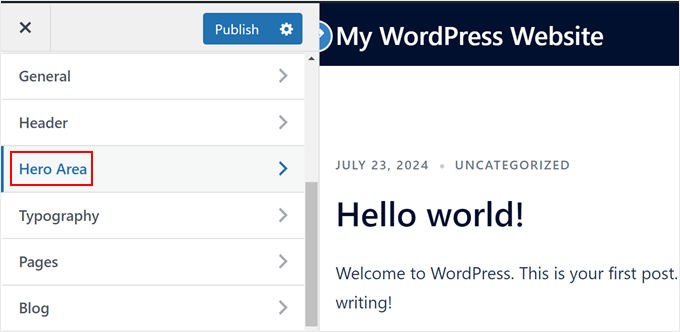
The customization sidebar typically presents multiple options for modifying your traditional theme.
In our example theme, the hero section customization setting appears as 'Hero Area,' though terminology varies between themes. Select this option to proceed.
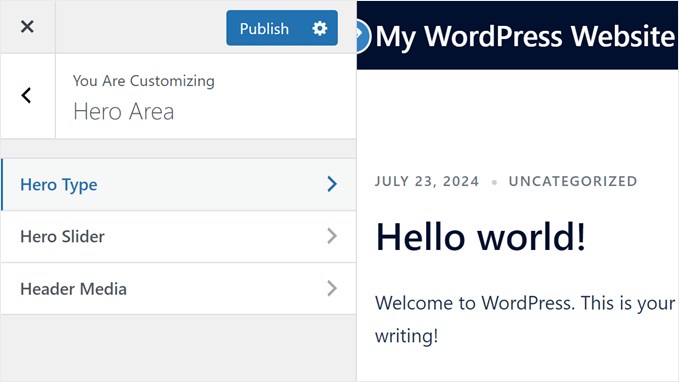
Our example theme provides three menus for hero section creation: Hero Type, Hero Slider, and Hero Media.
We'll utilize the first two menus, which sufficiently demonstrate hero section implementation for our purposes.
First, choose 'Hero Type.'
Within Hero Type, you'll select the media format for your hero section.
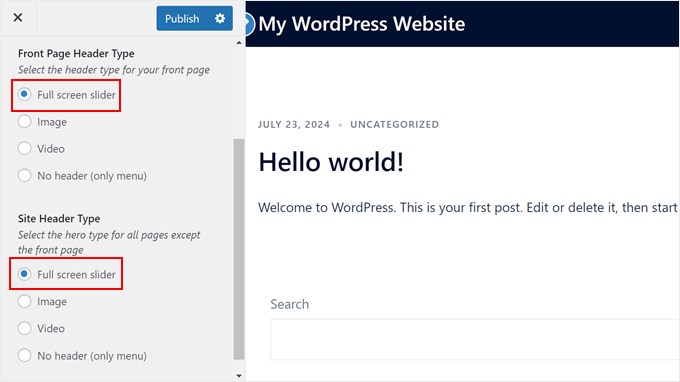
Options typically include full-screen slider, video background, static image, or no header.
We'll select full-screen slider for our homepage and site-wide hero section. This choice enables creation of image sliders with multiple visuals while supporting overlay text and button elements.
Return to the Hero Area menu and select 'Hero Slider.'
Here, open the 'First Slide' tab and


