A Comprehensive Guide to Implementing Matomo Analytics on Your WordPress Site
Many WordPress administrators express concern regarding Google Analytics due to its extensive data collection practices and third-party sharing. With increasingly stringent privacy regulations such as GDPR, exploring privacy-centric analytics solutions has become essential.
Matomo Analytics presents a viable alternative in this context.
Numerous site operators select Matomo because it delivers comparable analytical capabilities—tracking visitor traffic, conversion metrics, and user interactions—while securely storing all data on their own servers. This approach facilitates compliance with privacy legislation and fosters audience trust.
Fortunately, configuring Matomo within WordPress is more straightforward than many anticipate.
This tutorial provides a systematic walkthrough, enabling you to monitor website performance effectively while maintaining privacy standards.
Before proceeding with the installation steps, we will review fundamental concepts to ensure clarity.
If you have already decided to implement Matomo analytics, you may utilize the following navigation links to proceed directly to relevant sections:
- Understanding Matomo Analytics
- Configuring Matomo Analytics in WordPress
- Alternative Analytics Solutions for WordPress
- Frequently Asked Questions About Matomo Analytics
- Additional Resources on WordPress Analytics
Understanding Matomo Analytics
Matomo is an open-source analytics platform that monitors website traffic and user engagement patterns. While functionally similar to Google Analytics, it emphasizes privacy protection for both website operators and visitors.
With Matomo, you retain complete ownership of your data. This privacy-focused approach stores information on your personal server, providing full administrative control. However, this also means you assume responsibility for data security measures.
What analytical capabilities does Matomo offer? Below are several essential tracking features:
- Campaign Monitoring– Identify visitor sources through UTM parameters, ideal for evaluating advertising campaigns, social media engagement, and email marketing effectiveness.
- User Identification Tracking– Monitor registered users across multiple devices and browsing sessions to understand complete user journeys.
- E-commerce Analytics– Track sales performance, shopping cart behavior, and product page views to optimize online stores, including WooCommerce implementations.
- Form Interaction Analysis– Detect form completion difficulties to improve registration processes and conversion rates.
- Heatmap Visualization & Session Recording– Observe user interaction patterns through click tracking, scroll depth analysis, and session playback functionality.
Since Matomo delivers these analytical capabilities while ensuring data protection, many organizations are transitioning from conventional analytics platforms.
Comparing Matomo and Google Analytics
Selecting between Matomo and Google Analytics depends primarily on which platform aligns with your specific requirements.
If data privacy represents a primary concern, Matomo offers significant advantages. As an open-source solution with self-hosting capabilities, it provides complete data control and facilitates privacy regulation compliance.
Conversely, Google Analytics stores information on Google's infrastructure, which may raise privacy considerations for some organizations.
Regarding analytical functionality, both platforms deliver comprehensive tools including real-time reporting and visitor tracking.
Matomo includes additional features like heatmaps and session recordings, though these typically require premium subscription plans.

Google Analytics offers seamless integration with other Google services, including Google Ads, Search Console, and Tag Manager. This interoperability proves particularly valuable for organizations already utilizing Google's ecosystem.
Google's platform also excels in advanced analytical capabilities and reporting features, including custom funnel analysis and predictive analytics. Furthermore, its widespread adoption ensures extensive community support and documentation resources.
Concerning pricing structures, Google Analytics provides a feature-rich free version, while its enterprise-level Google Analytics 360 carries substantial costs.
Matomo offers deployment flexibility through both free self-hosted installations and paid cloud-hosted solutions.
Configuring Matomo Analytics in WordPress
Before implementing Matomo, verify your system meets minimum requirements.
Your WordPress installation should run version 4.8 or newer with PHP 7.2 or higher. Additionally, MySQL 5.5 or greater is necessary, with at least 128MB of memory recommended.
Understanding deployment options is beneficial. Matomo offers:
- On-Premise Installation– Software implementation on your personal server infrastructure.
- Cloud Service Version– Fully managed hosting through Matomo's infrastructure.
This guide utilizes Matomo for WordPress, an integrated solution operating directly within your WordPress environment. This approach eliminates the need for external accounts or separate server management.
This represents the most accessible implementation method, particularly for beginners. Since the Matomo development team maintains this solution directly, users receive reliable support and current feature updates.
The following sections demonstrate Matomo configuration within WordPress.
Step 1: Installing the Matomo for WordPress Plugin
Begin by installing and activating the Matomo for WordPress extension. Navigate to Plugins » Add New Plugin within your WordPress administration panel.

On the subsequent interface, utilize the search functionality to locate the plugin. Enter 'Matomo for WordPress' in the search field and initiate the search.
When the appropriate result appears, select the 'Install Now' option.
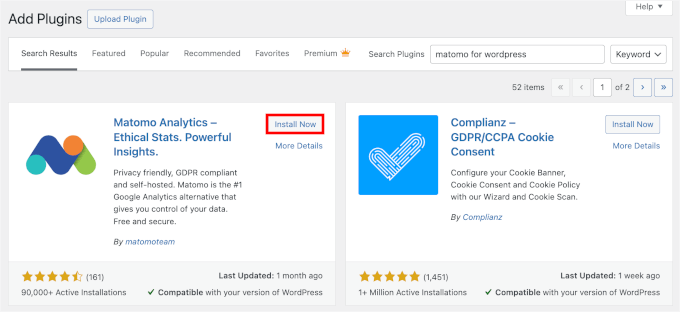
Following installation, activate the plugin by selecting the 'Activate' button.
Step 2: Activating Matomo Tracking on Your WordPress Site
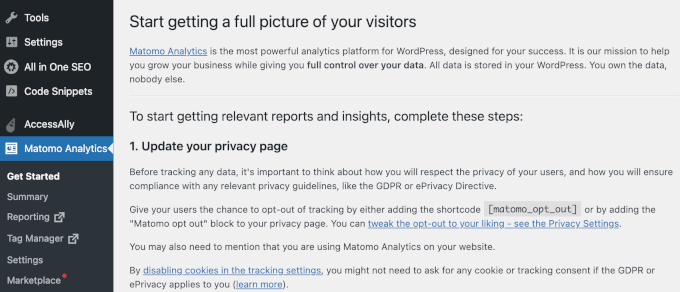
After activation, you will be redirected to the Matomo Analytics » Get Started interface.
Proceed through the setup wizard to configure fundamental settings. Two primary steps require completion: updating your privacy policy documentation and enabling Matomo Analytics tracking. The plugin will subsequently save and implement your configuration.
Let us examine each step individually.
Update Your Privacy Policy
The initial step involves updating your Privacy Policy documentation.
Matomo requires that your Privacy Policy reflects commitment to user privacy and compliance with regulations including GDPR and ePrivacy directives.
This necessitates providing visitors with tracking opt-out options, which can be implemented using the [matomo_opt_out] shortcode or the dedicated 'Matomo opt-out' content block.
If you have not yet established a Privacy Policy page, creation is necessary.
Access your WordPress administration panel and navigate to Settings » Privacy.
Within the dropdown menu, WordPress indicates whether a privacy policy template exists. You may select the 'Use This Page' option to publish it.


