A Beginner's Guide to Adjusting Margins in WordPress for Better Design
By WordPress Experts |
Adjusting margins in WordPress represents a straightforward approach to enhancing your website's visual appeal. Margins establish spacing between various elements, contributing to improved readability and a more polished appearance.
Many experienced developers consistently incorporate margins and spacing when designing WordPress sites. This practice has demonstrated positive effects on user engagement with web pages and content.
This introductory guide will demonstrate multiple techniques for adding and modifying margins throughout your WordPress website. We'll explore different approaches suitable for various areas of your site.
Understanding Margins in WordPress and Web Design
Margins refer to the empty space surrounding web pages or individual elements within those pages.
Imagine a standard web page as a blank sheet of paper. Margins correspond to the white space bordering the paper's edges.
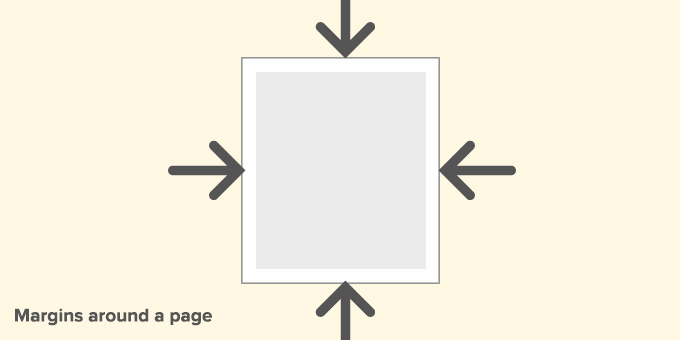
The primary function of margins is to prevent elements on a web page from appearing crowded together.
Similarly, margins can be applied around different components within the page layout.
For example, you might adjust margins around images to create separation from adjacent text, or add margin space between your main content area and sidebar.
This article covers substantial information. Use the links below to navigate directly to relevant sections.
- Distinguishing Between Margin and Padding
- Reasons for Modifying Margins in WordPress
- Methods for Adding Margins in WordPress
- Using the Full Site Editor for Margin Adjustments
- Adjusting Margins in the Block Editor
- Implementing Margins with SeedProd
- Modifying Margins Using Thrive Architect
- Applying CSS Code for Margin Changes
- Using Custom CSS in WordPress Themes
- Custom CSS Implementation in Site Editor
- CSS Adjustments via Theme Customizer
- Custom CSS Code with WPCode
- Common Questions About WordPress Margins
Distinguishing Between Margin and Padding
Both margin and padding create white space in web design, but they serve distinct purposes.
Margins create space outside an element, while padding generates space within an element's boundaries.
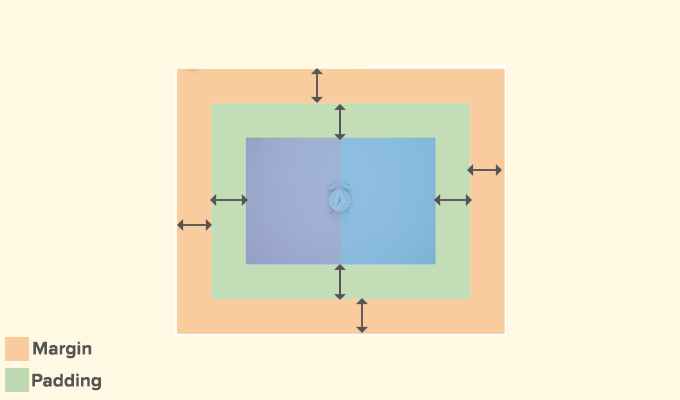
Margins establish separation between elements on a web page, ensuring adequate spacing between components.
Consider these practical applications of margins:
1. Increasing space between images and surrounding text in articles.
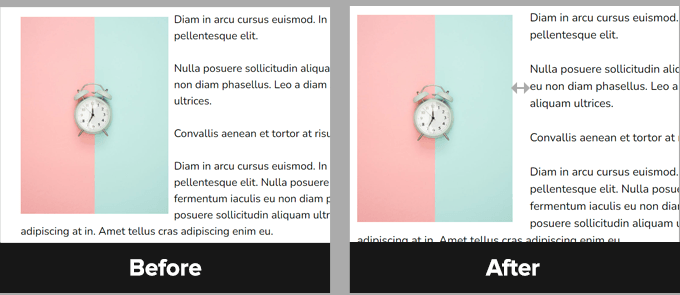
2. Creating separation between sections, such as headers and content areas.
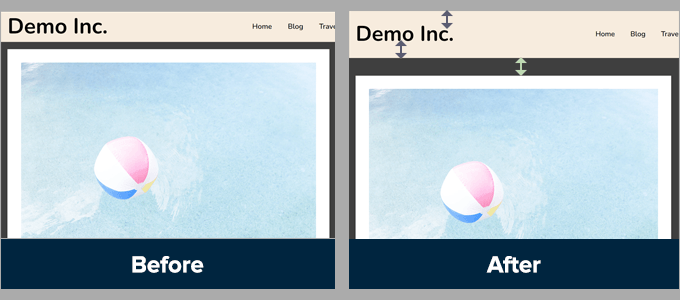
Padding, conversely, creates cushioning space between content and the edges of containing elements.
Here are typical scenarios where padding proves useful:
1. Enhancing cushion space within call-to-action buttons.

2. Expanding padding within text columns.
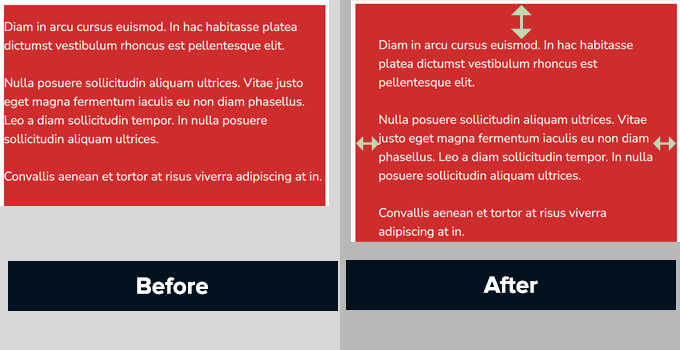
Both padding and margins are extensively utilized in contemporary web design.
Strategic implementation of white space introduces breathing room into designs, enhancing user experience and aesthetic appeal.
Reasons for Modifying Margins in WordPress
Margins constitute a fundamental component of effective web design, contributing significantly to visual appeal and usability.
Industry testing frequently demonstrates that thoughtful application of white space positively influences conversion rates.
Clean, organized designs typically encourage extended user engagement and increased completion of desired actions.
WordPress themes manage your website's design aspects. Most themes effectively implement CSS rules to ensure appropriate white space through margins across various layout elements.

Nevertheless, occasional margin adjustments may become necessary.
For instance, you might wish to modify margins around navigation menus or increase spacing around call-to-action buttons.
Similarly, you may encounter situations where elements appear either too closely packed or excessively separated.
In such cases, manual margin adjustments in WordPress become essential.
Methods for Adding Margins in WordPress
WordPress offers numerous approaches for implementing margins.
Your selection should depend on the specific area requiring margin adjustments and the capabilities of your chosen WordPress theme.
We'll begin with WordPress's default built-in options, which represent the most accessible methods for beginners.
Using the Full Site Editor for Margin Adjustments
If your theme supports full site editing capabilities, you can utilize the integrated site editor to modify margins throughout your WordPress website.
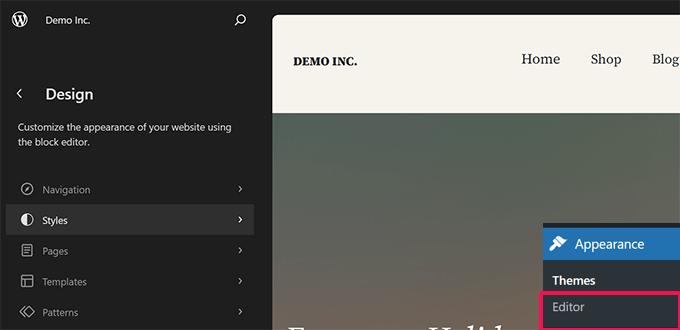
A simple verification method involves checking your WordPress dashboard. The presence of Appearance » Editor indicates a block-based theme. If you see Appearance » Customize instead, proceed to alternative methods below.
First, navigate to Appearance » Editor to launch the site editor.