Two Practical Methods for Accepting Deposit Payments on Your WordPress Site
Many service providers and product sellers face challenges when requesting upfront payments from clients. However, establishing a deposit system can significantly benefit your business operations and client relationships.
Implementing deposit payments provides financial protection while demonstrating professionalism. When clients invest in your services beforehand, they typically demonstrate greater commitment and engagement throughout the project lifecycle.
This guide presents two straightforward approaches to configure deposit payments on WordPress websites. Both methods maintain client-friendly interactions while providing the financial security needed to focus on delivering quality work.
Benefits of Implementing Deposit Payments
Accepting partial payments and deposits offers distinct advantages for businesses selling high-value products or customized services. Many experienced developers report that requiring upfront payments can dramatically reduce last-minute cancellations.
Key benefits include:
- Financial Protection: Deposits safeguard against cancellations and no-shows, ensuring compensation for initial time and resource investments.
- Enhanced Client Commitment: Clients who make financial commitments demonstrate greater reliability and engagement throughout the project.
- Professional Credibility: Offering structured payment options makes premium services more accessible while establishing business legitimacy.
For instance, event coordinators often request 25-50% deposits to secure dates and cover preliminary planning expenses while ensuring serious client engagement.
Below are two effective methods for implementing deposit systems. Use these navigation links to jump directly to your preferred approach.
Method 1: Accepting Deposits for Services
This approach demonstrates how to create payment forms specifically designed for partial payments. This method works effectively for subscription services, premium products, appointment bookings, and various service-based businesses.
Many WordPress experts recommend using specialized payment form plugins that integrate with payment processors. These tools typically offer pre-designed templates, intuitive builders, and multiple payment gateway connections.
To collect deposits, we'll utilize the setup fee functionality available in subscription form templates.
Step 1: Install and Configure Payment Plugin
Begin by installing and activating your preferred payment form plugin. Most plugins provide straightforward installation processes similar to standard WordPress extensions.
Step 2: Complete Initial Configuration
After activation, configuration wizards typically guide you through setup. Start the process by following the initial prompts.

Enter your license key if required, which you can obtain from the plugin provider's website.

Connect your payment processor account. Most payment form plugins require integration with specific payment gateways to function properly.
Initiate the connection process by selecting the appropriate option.
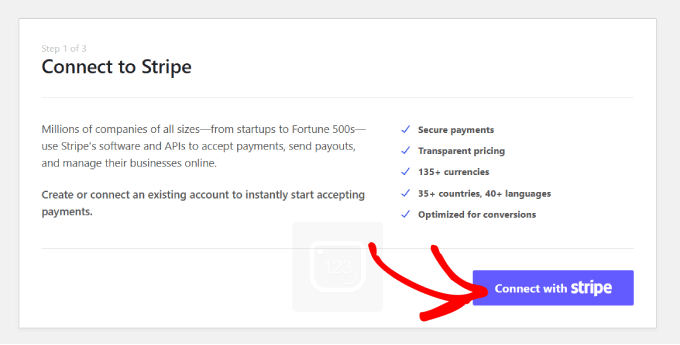
Complete the authentication process according to your payment processor's requirements.
Configure notification settings according to your preferences. Most plugins allow customization of payment receipts, invoice alerts, and payment notifications.
Specify the email address where you want to receive these communications, then save your configuration.

Step 3: Design Your Payment Form
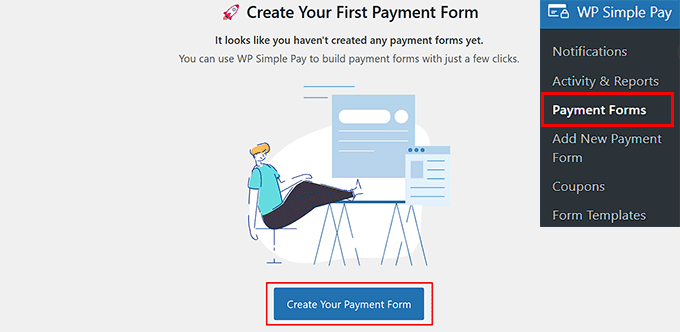
Navigate to the payment forms section in your WordPress dashboard.
Select the option to create a new payment form.
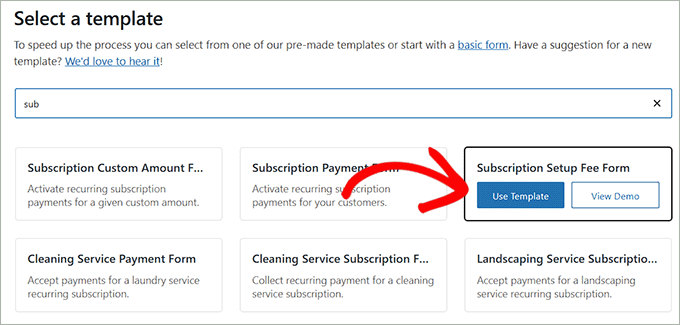
The template selection screen displays various pre-designed form options.
Locate and select the subscription setup fee template, then apply it to your form.
The form builder interface will open, allowing customization of form elements.
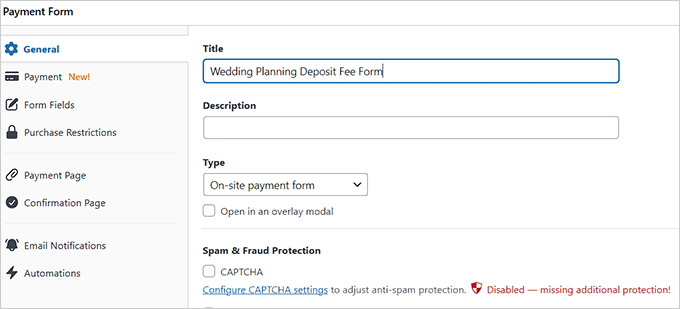
Modify the form title and description to reflect your specific service. For example, wedding planners might title their form "Event Planning Deposit."
Select the on-site payment form type and enable spam protection features as needed.
Step 4: Configure Pricing Structure
Switch to the payment configuration section and specify tax collection preferences.
Establish pricing for your products or services. For subscription-based offerings, select the subscription option and add different pricing tiers.
Create multiple service packages with varying pricing levels to accommodate different client needs.


