
Two Effective Methods for Setting Up URL Redirects in WordPress
Few things are more frustrating for website visitors than encountering broken links and "Page Not Found" errors. These seemingly minor issues can lead to significant problems, including visitor confusion and negative impacts on search engine rankings.
Many WordPress experts have managed numerous website migrations and content updates over the years. While setting up redirects might appear technical and intimidating initially, the process can be straightforward with the right approach.
This guide will demonstrate two practical methods for handling redirects in WordPress. These are the same simplified techniques that experienced developers use to maintain smooth website operation and positive user experiences.
Understanding the Importance of URL Redirects in WordPress
Numerous websites experience traffic loss and ranking declines due to broken links and missing pages. This makes proper URL redirects essential for any WordPress site.
Redirects become necessary during various scenarios, including domain migrations, URL structure changes, content consolidation, removal of outdated material that still receives traffic, navigation restructuring, and temporary promotional landing page creation.
These situations occur more frequently than many website owners anticipate, making a solid redirect strategy crucial for preventing future complications.
Broken links can significantly harm website performance. Beyond damaging search engine rankings, they erode user trust, reduce conversion rates, waste advertising budgets, and increase bounce rates.
This creates a poor user experience and may negatively affect SEO performance.
Fortunately, tracking 404 errors and redirecting problematic URLs to existing pages can be accomplished with relative ease.
Let's explore how to redirect pages and URLs in WordPress using two distinct approaches:
- Creating Redirects Using an SEO Plugin
- Creating Redirects Manually by Editing .htaccess
- Frequently Asked Questions About WordPress Redirects
Method 1: Creating Redirects Using an SEO Plugin
The simplest approach to redirecting pages and URLs in WordPress involves using a comprehensive SEO plugin. Many popular SEO solutions include redirection management features that simplify the setup process.
The initial step requires installing and configuring your chosen SEO plugin. After installation, you'll need to activate the redirect management functionality. Typically, this involves navigating to the plugin's redirect section and enabling the feature.
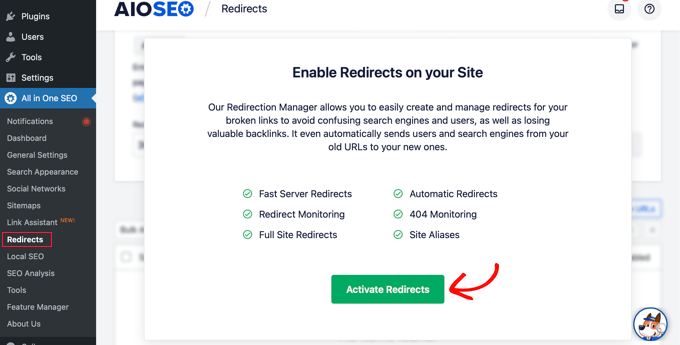
Next, access the settings section to select your preferred redirect method. The PHP option is often recommended for its simplicity, as it doesn't require technical server configuration.
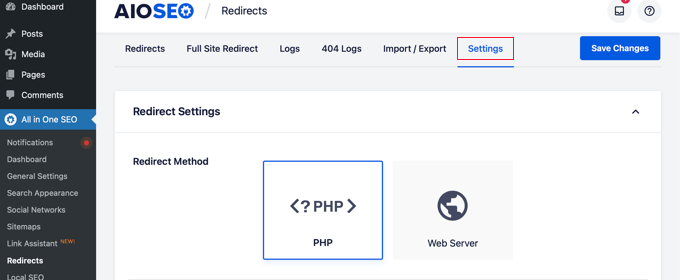
Once configured, you can begin redirecting WordPress pages through either the plugin's redirection manager or the WordPress content editor.
Creating Redirects Through the Plugin Interface
Navigate to your plugin's redirect management section. This area allows you to manage existing redirects and create new ones.
To establish a new redirect, enter the post slug of the non-functional URL in the 'Source URL' field. The slug represents the portion of the URL following your domain name.
Consider this example URL:
https://example.com/old-coffee-link-is-broken/
In this instance, the post slug is:
/old-coffee-link-is-broken/
Enter or paste this broken link's post slug into the 'Source URL' field as demonstrated:
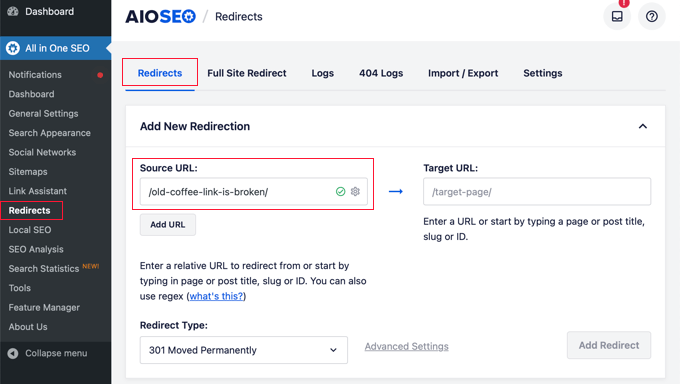
Next, input the post slug of the destination page into the 'Target URL' field.
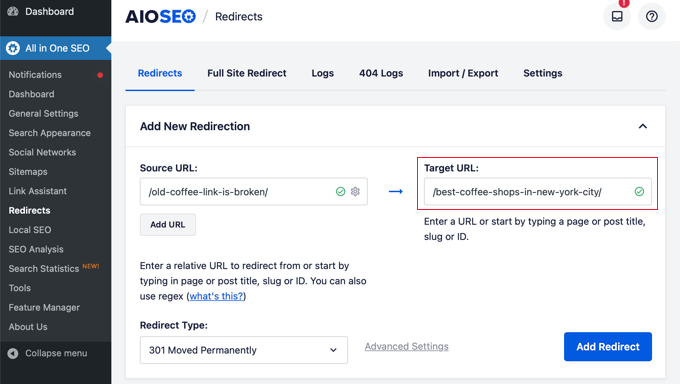
Alternatively, you can type part of the destination page's title, and the plugin will display matching posts and pages for selection.

The final step involves selecting a redirect type. Ensure '301 Moved Permanently' is selected, then click the 'Add Redirect' button.

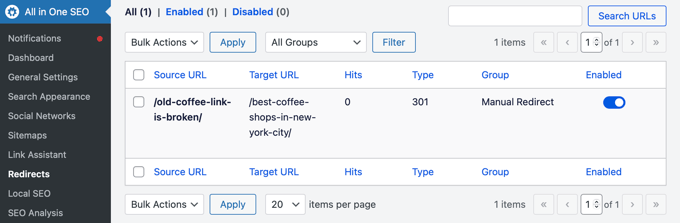
You can review your created redirects in the log section. The 'Hits' column displays visitor counts for redirected links, and toggle options allow individual redirect management.
Creating Redirects From the WordPress Content Editor
Many SEO plugins also enable redirect creation directly from the WordPress editor. When editing a published post or page, scroll to the plugin's settings section and select the 'Redirects' tab.
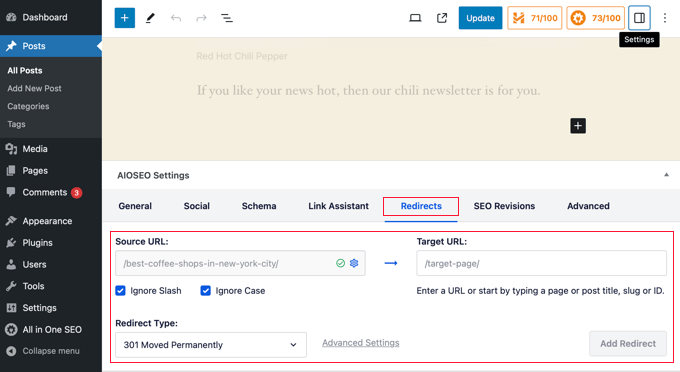
This interface provides the same redirection options discussed previously. The source URL is typically pre-filled, requiring only the target URL input. Select '301 Moved Permanently' as the redirect type, then click 'Add Redirect' to complete the process.
Method 2: Creating Redirects Manually by Editing .htaccess
An alternative approach involves redirecting pages and URLs without plugin assistance by manually adding code to your website's .htaccess file. This method is generally not recommended for beginners, as minor errors can potentially disrupt website functionality.
Before attempting this method, creating a backup of your .htaccess file is strongly advised. Changes can be made using file editing tools within some SEO plugins or directly via FTP or your hosting provider's file manager.


