
Two Effective Methods for Building Lead Magnet Opt-In Forms in WordPress
By WordPress Experts |
Research indicates that approximately 70% of first-time website visitors never return. This statistic highlights the importance of capturing visitor information to maintain ongoing communication.
For website administrators, collecting email addresses represents a valuable strategy for staying connected with audiences and encouraging repeat visits. However, visitors typically require compelling incentives to share their personal details. Offering valuable resources like ebooks, checklists, or PDF guides serves as effective motivation for information exchange.
Whether you've already developed lead magnets or plan to create them soon, you'll need an optimized opt-in form to capture leads, grow your email list, and provide immediate access to your valuable content.
This comprehensive guide presents two distinct approaches for creating high-converting lead magnet opt-in forms within the WordPress environment.
Advantages of WordPress-Based Opt-In Forms
While numerous platforms exist for creating opt-in forms, many don't integrate seamlessly with WordPress websites or maintain visual consistency with your site's design.
This guide focuses specifically on tools designed for WordPress with dedicated plugins. These solutions ensure your opt-in forms blend naturally with your website's appearance while simplifying lead generation processes.
Additionally, WordPress-compatible tools typically offer straightforward integration with existing services, particularly email marketing platforms. This connectivity enables you to nurture leads effectively, incorporate them into automated workflows, track their site interactions, and perform various other essential marketing functions.
You'll also benefit from WordPress's inherent advantages, including extensive customization capabilities and complete data ownership.
Although alternative solutions exist, creating opt-in forms within WordPress provides unparalleled benefits regarding control, customization options, and integration possibilities.
Use the following navigation to proceed directly to your preferred method:
- Method 1: Using OptinMonster (Advanced Opt-In Creation)
- Method 2: Using Beacon (Comprehensive Solution)
- Lead Magnet Creation Frequently Asked Questions
- Additional Lead Generation Resources
Let's begin exploring these effective approaches.
Method 1: Using OptinMonster (Advanced Opt-In Creation)
If you already possess lead magnets ready for campaign deployment, OptinMonster represents an excellent solution for your needs.
This platform enables creation of diverse advanced opt-in formats, including floating notification bars, pop-up windows, and interactive gamified designs. The system features a library containing over 400 professionally designed templates that you can customize using an intuitive drag-and-drop interface.
Many experienced WordPress professionals utilize this tool extensively for various opt-in formats, confirming its versatility and effectiveness for creating diverse lead capture solutions.

OptinMonster provides flexible delivery options for lead magnets, allowing distribution via email, direct download, or both methods simultaneously. This flexibility accommodates subscriber preferences effectively.
While the platform includes gated content functionality for transforming blog posts into lead magnets, its primary strength lies in creating highly effective opt-in forms for lead capture.
This solution is particularly recommended when you possess existing lead magnets and require sophisticated methods for maximizing lead acquisition.
Step 1: Configure OptinMonster
Begin by registering for an OptinMonster account through their official website. Select the appropriate plan based on your requirements and complete the registration process.
Next, install and activate the complimentary OptinMonster WordPress plugin, which establishes connection between your website and your OptinMonster account.
Following plugin activation, you'll encounter the OptinMonster welcome interface and setup assistant. Select the option to connect your existing account.
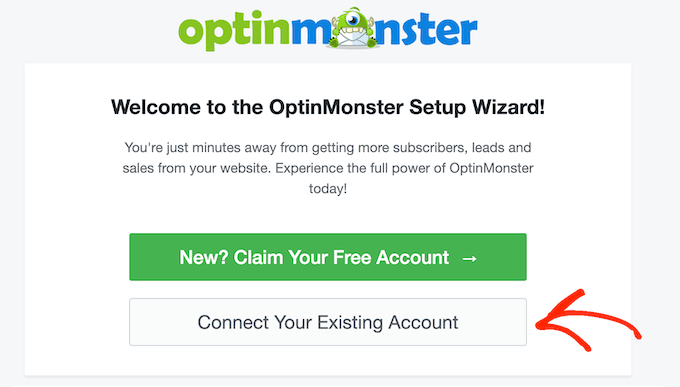
A connection window will appear where you can authenticate with your OptinMonster credentials.
Within this interface, select the option to establish connection between WordPress and your OptinMonster account.

Step 2: Select Campaign Type
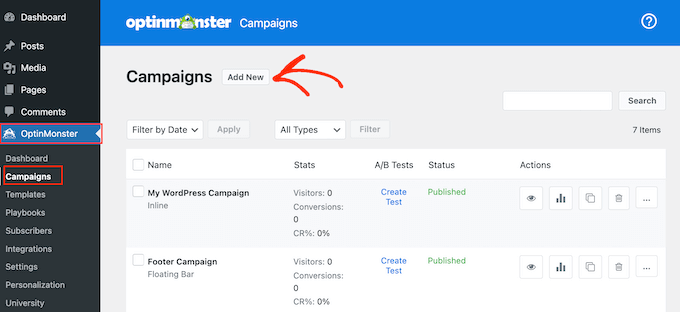
Proceed to create your lead magnet campaign by navigating to the OptinMonster campaigns section within your WordPress administration panel.
Click the option to create a new campaign.
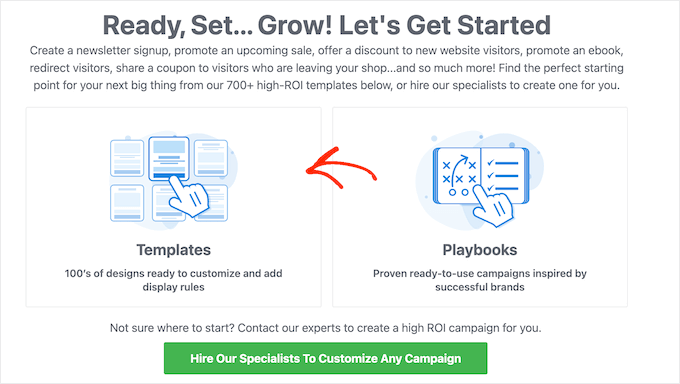
The platform will present options to utilize pre-designed templates or strategic playbooks.
Playbooks represent pre-configured campaigns based on proven strategies from successful organizations, offering efficient methods for creating effective campaigns quickly.
For this demonstration, we'll select the template option.
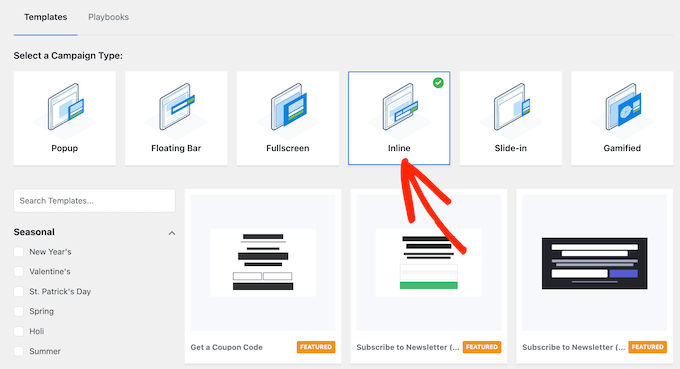
At this stage, OptinMonster displays various campaign format options, including slide-in notifications, floating bars, and interactive pop-ups.
The configuration process remains similar regardless of your selected format. This guide focuses on inline forms, which integrate seamlessly into pages, posts, or widget areas. Select the inline form option to continue.
Step 3: Choose Template Design
Select your preferred template design. All OptinMonster templates offer complete customization capabilities, but choosing a design that closely matches your intended form appearance can save configuration time.
To examine a template more closely, hover over the design and select the preview option.
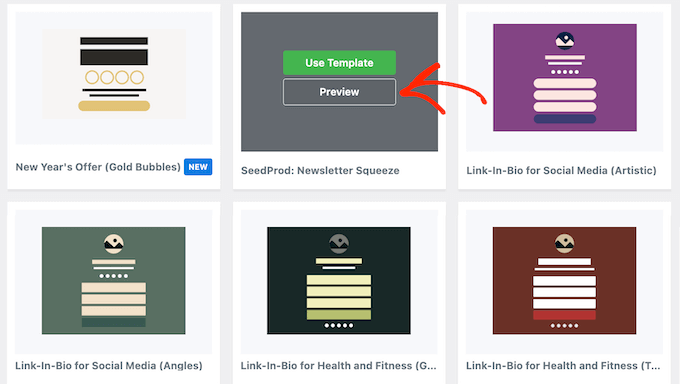
This action opens the template in a preview window.
When you identify a suitable design, select the option to apply that template. The demonstration utilizes the gated content template, but you may choose any design that meets your requirements.
After template selection, assign a descriptive name to your campaign in the provided field, then proceed to the building interface.


