Targeted CSS Styling for WordPress User Roles: A Practical Guide
Many WordPress developers encounter situations where different user groups require distinct visual experiences. Premium members might benefit from simplified layouts, content creators often need fewer interface distractions, and customers typically shouldn't see administrative elements.
WordPress doesn't include native functionality for applying styles based on user roles. When you need to hide elements, modify layouts, or adjust designs for specific user types, the default approach involves editing theme files or implementing custom code.
This approach carries significant risk. Numerous website owners have experienced site disruptions from minor CSS modifications placed incorrectly, particularly when working directly within theme or child theme files.
The most secure and straightforward method for implementing role-based CSS involves using a dedicated code management plugin with conditional logic capabilities. This approach allows targeting roles such as Administrators, Editors, or Subscribers without modifying theme files directly.
This guide demonstrates how to apply custom CSS for specific user roles using an accessible tool. This methodology represents the standard approach many experienced developers employ when requiring efficient, safe solutions that maintain long-term stability.
This guide covers the following essential topics:
- Practical Applications for Role-Based CSS Implementation
- Implementing Custom CSS for Specific User Roles
- Applying Custom CSS in Different Site Areas
- Common Implementation Questions
- Additional Implementation Resources
Practical Applications for Role-Based CSS Implementation
Developers managing websites with user authentication frequently encounter scenarios requiring visual customization for different role categories.
Testing across various platforms reveals that personalized interfaces significantly enhance user engagement. Industry research indicates tailored web experiences can improve conversion metrics by 10-15%, establishing role-specific styling as a valuable optimization strategy.
Enhanced user experiences typically result in increased satisfaction and improved performance metrics.
Whether managing a personal site, developing client projects, or designing user interfaces, controlling visual presentation for different user types provides substantial benefits.
Common implementation scenarios include:
- Membership Platforms: Custom CSS enables differentiated experiences for premium membership tiers.
- Online Stores: Visual emphasis on shopping carts, loyalty discounts, and customer-specific features for authenticated shoppers.
- Multi-Contributor Publications: Managing publications with multiple authors becomes more efficient with customized CSS, allowing streamlined interfaces for editors while maintaining simplicity for contributors and subscribers.
- Client Management: Simplified administrative interfaces for clients through strategic element hiding with custom CSS. This approach proves particularly valuable for reducing complexity by concealing advanced dashboard components or plugin notifications that might overwhelm non-technical users.
The primary challenge involves instructing WordPress to load specific CSS rules for designated user roles.
Implementing Custom CSS for Specific User Roles
The most efficient method for managing custom code, including CSS modifications, involves utilizing a dedicated code management plugin. This approach provides secure management of custom CSS within a centralized location.
Note: Both free and premium versions of suitable plugins exist, with enhanced features typically available in premium offerings.
Benefits of dedicated code management plugins:
- Safe implementation of custom code, including CSS modifications, without risking site functionality. Non-functional snippets can be easily deactivated.
- Advanced code insertion and conditional logic capabilities, enabling snippet execution only under specified conditions.
- Access to extensive code libraries containing practical snippets, reducing dependency on multiple separate plugins.
Now let's examine the process for adding custom CSS targeting specific user roles.
Creating Custom CSS Snippets
This demonstration customizes the WordPress Administration Dashboard for a specific role (such as Editor). We'll implement code that emphasizes the 'Posts' menu in the backend to illustrate the methodology.
- First, install and activate your chosen code management plugin.
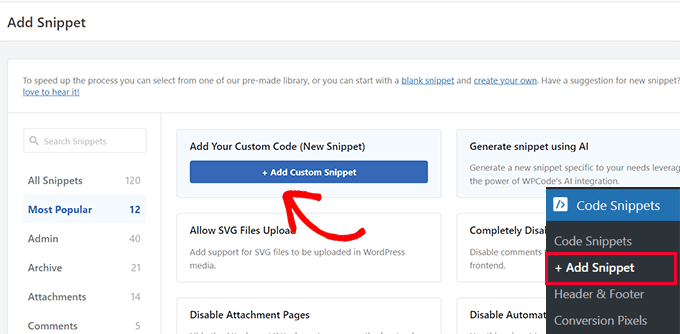
- After activation, navigate to the Code Management » Add New Snippet section.
- Select 'Add Custom Code' or equivalent option.
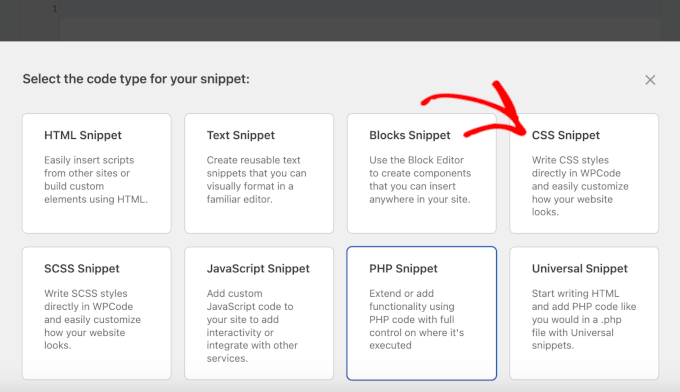
- On the configuration screen, choose 'CSS Snippet' as the code type from the selection menu (typically defaults to HTML).
- Assign a descriptive title, such as "Administration Menu Highlight for Editors."
- Insert your custom CSS into the code editor area.
Sample implementation code for this administration area example:
li#menu-posts { background-color: #bf0505; }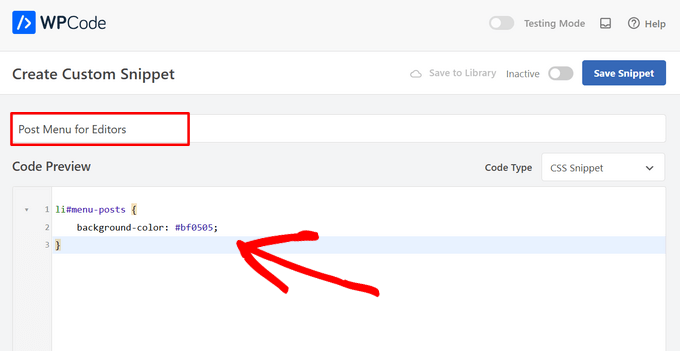
Important Location Selection
Since this specific code targets the Administration Dashboard, navigate to the insertion settings and select 'Admin Header' as the appropriate location.
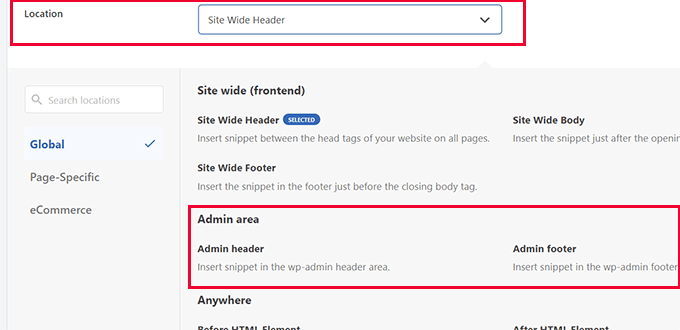
For front-end CSS implementations (such as member pages), maintain the default 'Site Wide Header' location setting.
Configuring Conditional Logic
Now implement restrictions to ensure code execution only for targeted user roles.
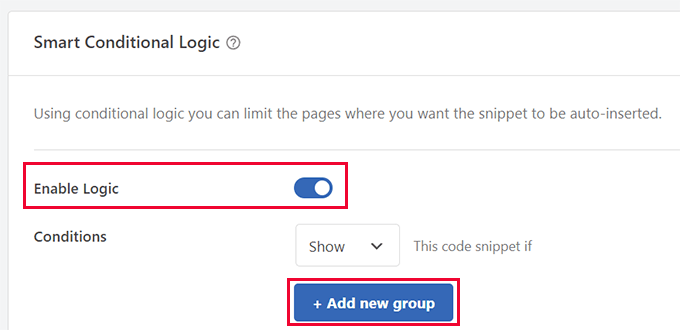
- Navigate to conditional logic settings and enable the logic functionality.
- Configure the condition to 'Show' and add a new condition group.
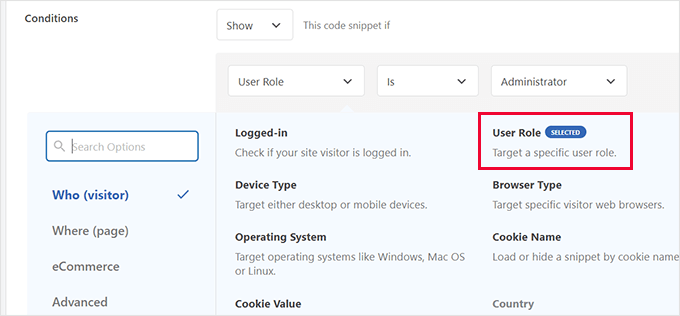
- Choose 'User Role' from the available condition options.
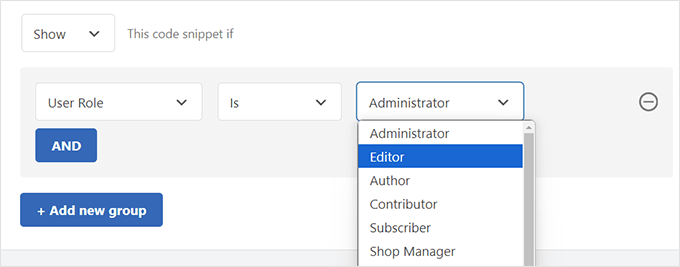
- Select the specific role for targeting (examples: Editor, Subscriber).
- Finally, save the snippet configuration and activate it from inactive status.


