Step-by-Step Guide to Accepting Bancontact Payments on Your WordPress Site
For businesses targeting customers in Belgium, integrating Bancontact as a payment option is essential rather than optional. This payment method is widely recognized and trusted by Belgian consumers.
When shoppers don't see their preferred payment method available, they often abandon their purchases. Many WordPress site owners have successfully increased their conversion rates by offering localized payment solutions, with Bancontact proving particularly effective for the Belgian market.
Bancontact's strength lies in its direct connection to local banking institutions. This familiarity provides customers with confidence during transactions, ultimately leading to more completed orders for merchants.
This comprehensive guide will walk you through two straightforward methods for enabling Bancontact payments on your WordPress website, requiring no specialized technical knowledge.
Why Enable Bancontact Payments on Your WordPress Site?
If your business aims to attract customers from Belgium or surrounding regions, implementing Bancontact payments becomes a critical requirement.
Several compelling reasons support offering this payment method:
- Enhanced User Experience: Bancontact enables real-time payments directly from bank accounts, accessible through physical cards or the dedicated mobile application.
- Improved Security Measures: The system supports contactless payments and incorporates two-factor authentication, providing protection for both buyers and sellers during transactions.
- Reduced Transaction Costs: Typically more cost-effective than standard credit card processing fees, this payment method offers an affordable solution for businesses of various sizes.
Now let's explore how to implement Bancontact payments on your WordPress site. This tutorial covers two distinct approaches. Use the following links to navigate directly to your preferred method:
- Method 1: Implementing a Bancontact Payment Form in WordPress
- Method 2: Adding Bancontact as a Payment Option in WooCommerce
- Common Questions About Bancontact Payments
Method 1: Implementing a Bancontact Payment Form in WordPress
This approach is ideal for websites that need to accept Bancontact payments without establishing a complete e-commerce store. It works particularly well for accepting donations, professional service payments, or single product purchases.
Many WordPress professionals recommend using a specialized payment form plugin for this purpose. After evaluating several options, a popular choice emerges for its user-friendly interface, built-in spam protection, and compatibility with multiple payment gateways. This solution includes a pre-designed Bancontact payment template for immediate implementation.
Step 1: Install and Activate the Payment Plugin
Begin by installing and activating your chosen payment form plugin. Standard WordPress plugin installation procedures apply here.
Step 2: Connect Your Website to a Payment Gateway
Upon activation, the plugin's setup wizard will appear. Click the initiation button to proceed.

The wizard will prompt you to enter your plugin license key, which you can obtain from the plugin provider's website.

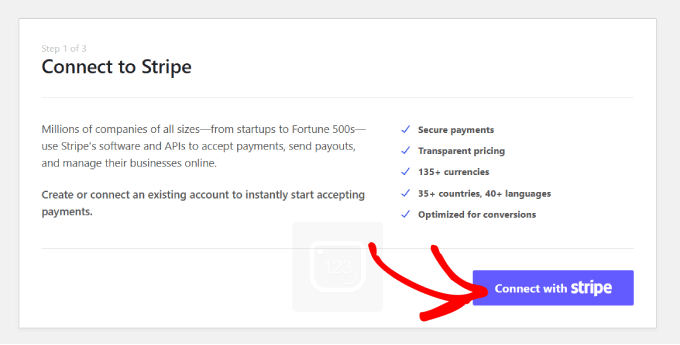
Next, connect the plugin to a payment gateway. Many payment form plugins integrate with popular gateways to facilitate online transactions. Since this particular plugin functions as a gateway extension, establishing this connection is essential for proper functionality.
Click the connection button to link your plugin with your payment gateway account.
After establishing the gateway connection, configure your email notification preferences. You can enable notifications for payment receipts, upcoming invoices, and transaction alerts.

Enter the email address where you want to receive these notifications, then save your settings and continue through the remaining setup steps according to your preferences.
Step 3: Create a Bancontact Payment Form
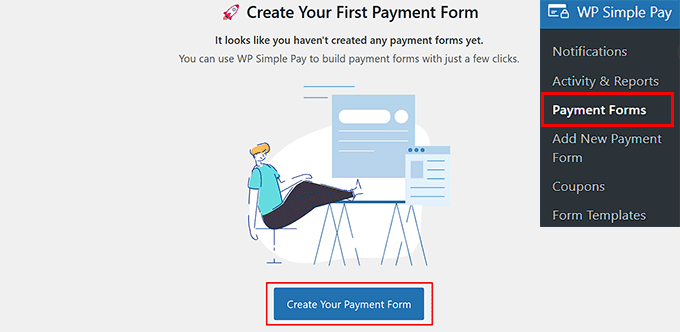
Navigate to the payment forms section in your WordPress dashboard and click the button to create a new payment form.
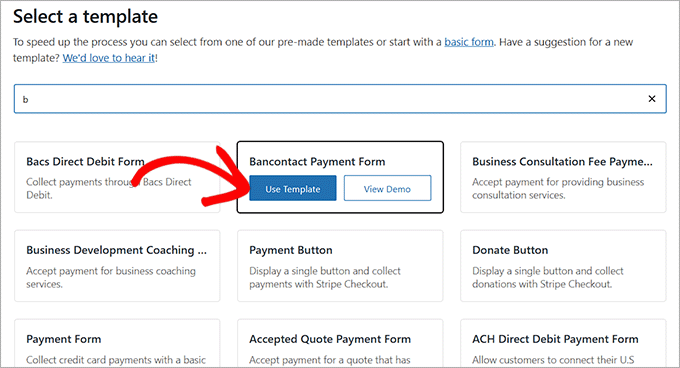
You'll be directed to a template selection page displaying various pre-designed form templates. Locate the Bancontact payment form template and click the button to apply it.
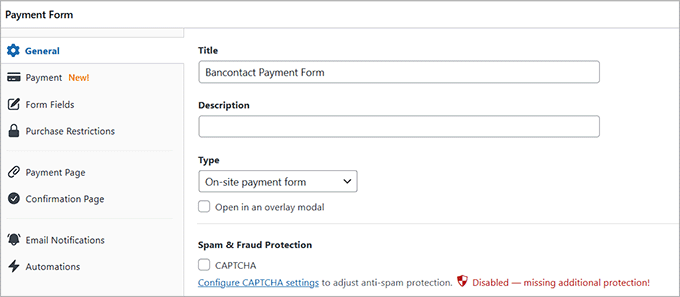
The form creation page will appear, allowing you to customize the form title and description. Select the on-site payment form option and consider enabling the spam protection feature.
Step 4: Configure Pricing and Currency
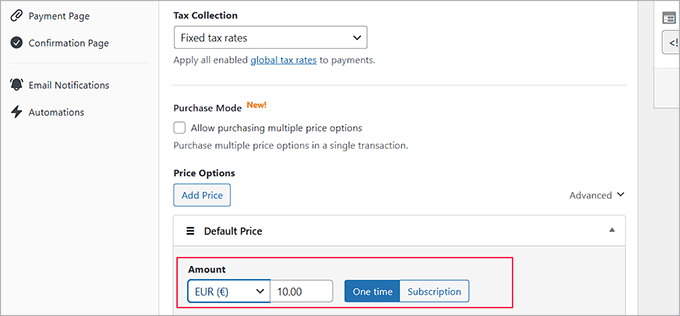
Switch to the payment configuration tab and select your preferred tax collection settings. Set the price for your product or service, choosing between one-time payment or subscription options. For subscription services, click the appropriate button to create multiple pricing tiers.
Step 5: Add Bancontact to the Payment Methods
Scroll to the payment methods section and select the option to display all available payment methods. The Bancontact option should already be selected. You can also enable additional payment methods according to your business needs.


