Restoring the Missing Theme File Editor in WordPress: A Complete Guide
Many experienced developers advise against using WordPress's built-in theme file editor for modifying theme files. This approach can be risky and inefficient, potentially leading to website issues.
However, numerous WordPress users appreciate the convenience of this tool for making quick adjustments.
Recently, some users have reported difficulty locating the theme file editor within their WordPress admin interface.
This guide will clarify why the theme file editor might not appear where expected and demonstrate how to restore access. We'll also explore safer methods for editing theme files that protect your site's security.
This guide covers the following key areas:
- Understanding the Disappearance of the Theme File Editor
- Locating the Theme File Editor in Modern Block Themes
- Addressing a Disabled Theme File Editor
- The Risks of Direct Theme File Editing
- Additional Resources
Understanding the Disappearance of the Theme File Editor
Many WordPress administrators become confused when the theme file editor is no longer visible in its traditional location. The functionality hasn't been eliminated—it has simply been relocated.
When using contemporary block themes, selecting the Editor option under the Appearance menu typically opens the site editor rather than the classic theme file editor.
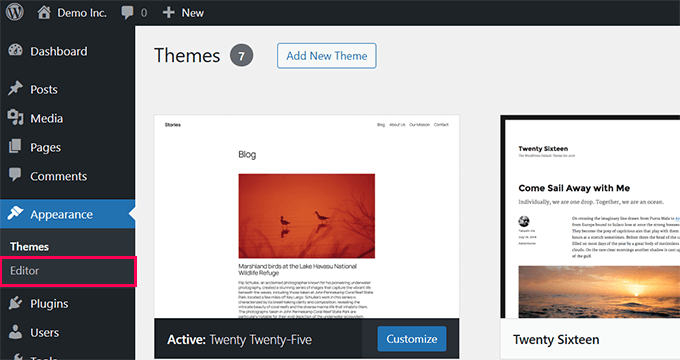
The WordPress development team determined that having two distinct menu items both labeled as editors would create unnecessary confusion.
Consequently, they relocated the theme file editor to the Tools menu to provide clearer navigation.
In certain situations, the theme file editor may not appear anywhere in the admin interface.
This typically occurs when security plugins or specific configurations in the wp-config.php file have deliberately disabled the feature.
These measures are often implemented to prevent accidental modifications or protect against potential security vulnerabilities.
Once you identify why the editor is missing, resolving the issue becomes straightforward. Let's examine how to locate or reactivate this functionality.
Locating the Theme File Editor in Modern Block Themes
Many users transitioning to modern block themes notice significant changes in the WordPress admin interface layout.
Block themes utilize the block editor extensively for various functions, from page construction to site-wide styling. While offering substantial flexibility, these themes can make familiar tools like the theme file editor less accessible.
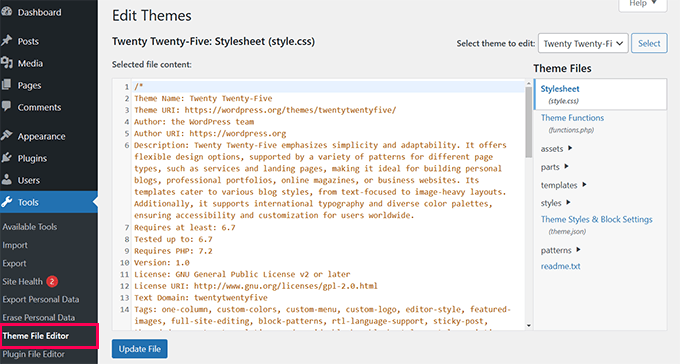
When using a block theme, the theme file editor no longer resides under the Appearance menu. WordPress has moved this functionality to the Tools menu to align with the organizational structure of block themes.
Access your WordPress admin dashboard and navigate to the Tools section, then select Theme File Editor from the left sidebar menu.
The editor interface will appear identical to its presentation in classic themes.
Professional recommendation: Creating a backup of your website before implementing changes represents the safest approach to prevent potential issues.
If the editor remains absent from the Tools menu, continue reading for additional troubleshooting methods.
Addressing a Disabled Theme File Editor
Occasionally, the theme file editor may be intentionally disabled by WordPress security plugins or manual configuration settings.
This practice helps protect websites from unintended modifications or security vulnerabilities. This situation occurs frequently and typically has straightforward solutions.
If you utilize a security plugin such as Sucuri, access the Sucuri Security settings page within your WordPress admin dashboard.
Select the Hardening tab and locate the option labeled Disable Plugin and Theme Editor. If this setting is active, deactivate it by selecting the Revert Hardening button.
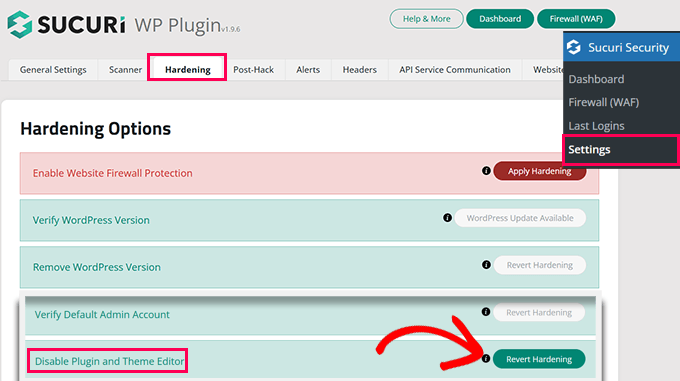
Refresh your WordPress admin dashboard, and the theme file editor should become visible.
If the editor remains unavailable, the wp-config.php file might be responsible.
Access your website files using FTP software or your hosting provider's file management system.
Open the wp-config.php file in a text editor and search for this specific line:
define('DISALLOW_FILE_EDIT', true);If you locate this line, either remove it entirely or change the value from true to false.
Remember to save your modifications and upload the updated file to your server.
After completing these steps, refresh your WordPress admin dashboard to verify whether the editor has been restored.
The Risks of Direct Theme File Editing
While the theme file editor offers convenience, many users have experienced website disruptions when editing theme files directly. Minor coding errors can generate critical failures that render websites inaccessible.
Another significant concern involves theme updates overwriting custom modifications. If you've invested time customizing your theme, these changes will disappear during updates, requiring time-consuming reconstruction.
Security considerations also play a crucial role—maintaining an enabled editor could allow unauthorized individuals to modify files if they gain administrative access.
For these reasons, many WordPress professionals recommend utilizing safer alternatives for managing custom code, such as dedicated code snippet plugins.
Specialized plugins enable you to add and manage custom code segments without compromising website stability. You can easily activate or deactivate code snippets while avoiding direct interaction with theme or plugin files.
Benefits of Using Code Snippet Plugins:
- Simplified management of code snippets and custom CSS
- Automatic error handling that disables problematic code
- Access to comprehensive libraries of practical code snippets
Many development teams employ code snippet plugins to manage custom code across their websites.
Implementation typically involves these steps:
First, install and activate your chosen code snippet plugin on your website.
Note: Many plugins offer free versions with limited functionality alongside premium options.
After activation, navigate to the plugin's management interface within your WordPress admin dashboard. From this location, you can create custom code segments or select from existing snippet libraries.
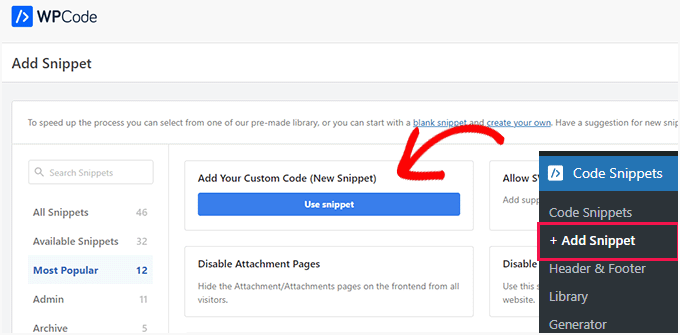
Utilizing code snippet plugins helps maintain website security, organization, and manageability. This approach represents the most effective method for implementing customizations without the risks associated with direct file editing.


