Resolving WordPress Maintenance Mode Issues: A Comprehensive Guide
When routine updates unexpectedly freeze your website and trigger maintenance mode, it can create significant disruption. Many site administrators experience concern when they lose access to their dashboard, particularly during critical business hours or important update cycles.
The encouraging news is that this situation typically has a straightforward resolution. In most instances, removing a single small file will restore your site to normal operation.
Numerous WordPress professionals have assisted countless users in resolving this common problem. This guide will demonstrate how to efficiently address WordPress maintenance mode issues and restore your website's functionality.
Understanding What Triggers Maintenance Mode in WordPress
WordPress generates a temporary .maintenance file during update processes. When updates fail to complete properly, this file may remain on your server. Its continued presence signals to WordPress that updates are still in progress, resulting in persistent maintenance mode.
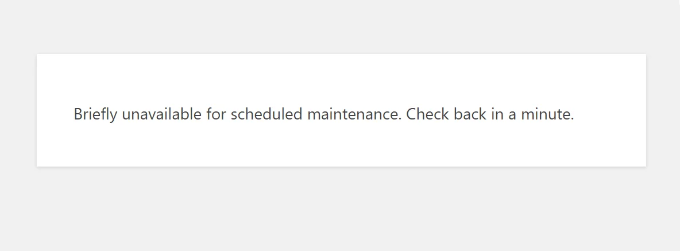
This explains why users often encounter the message: 'Briefly unavailable for scheduled maintenance. Check back in a minute.'
Several factors can contribute to this error and leave the .maintenance file active on your server. Common causes include:
- Interrupted Updates: Update processes that terminate prematurely due to server timeouts or plugin conflicts can leave the .maintenance file in place, keeping your site inaccessible.
- Problematic Plugins: Outdated or incompatible plugins may interfere with WordPress core functions, potentially triggering maintenance mode complications.
- Theme Incompatibility: Similar to plugins, themes that conflict with your WordPress installation can inadvertently activate maintenance mode.
- Server Difficulties: Web hosting server issues can sometimes produce unexpected behaviors, including maintenance mode entrapment.
This guide will explore multiple approaches to resolve WordPress maintenance mode problems. The following sections provide direct navigation to specific solutions:
- Addressing WordPress Maintenance Mode Issues
- Strategies to Prevent WordPress Maintenance Mode Problems
- Common Questions About WordPress Maintenance Mode
- Supplementary Resources: Additional WordPress Maintenance Information
Let's begin the resolution process.
Addressing WordPress Maintenance Mode Issues
Understanding the underlying causes of this error simplifies the resolution process. The most direct solution involves deleting the .maintenance file.
The .maintenance file typically resides in your website's root directory. You can access it using an FTP client or through the File Manager available in your hosting provider's control panel.
Accessing .maintenance File Through FTP
Multiple FTP services are available for managing WordPress files. This tutorial will reference FileZilla for demonstration purposes.
If you're unfamiliar with FTP client setup and usage, consult general guides on using FTP for WordPress file management.
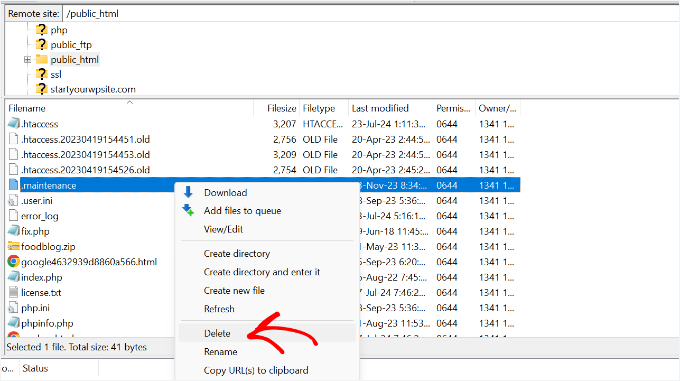
After establishing connection to your site, navigate to the website's root folder (commonly labeled public_html) in the right-hand panel.

You should now observe various WordPress core files within the folder. If the .maintenance file isn't visible, you may need to configure your FTP client to display hidden files. In FileZilla, select 'Server' from the top menu bar and choose 'Force showing hidden files.'
Locate the .maintenance file, right-click it, and select the 'Delete' option.
Eliminating .maintenance File via File Manager
For users uncomfortable with FTP clients, WordPress files can also be accessed through cPanel.
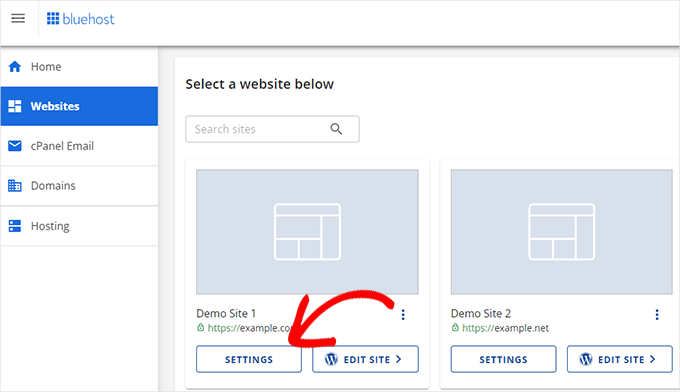
Begin by logging into your WordPress hosting provider account. This demonstration will reference a generic hosting interface.
Within the dashboard, navigate to the 'Websites' section in the left menu, then select the 'Settings' option corresponding to your website.
Proceed to the 'Advanced' tab.
Scroll to the cPanel section and click the 'Manage' button.
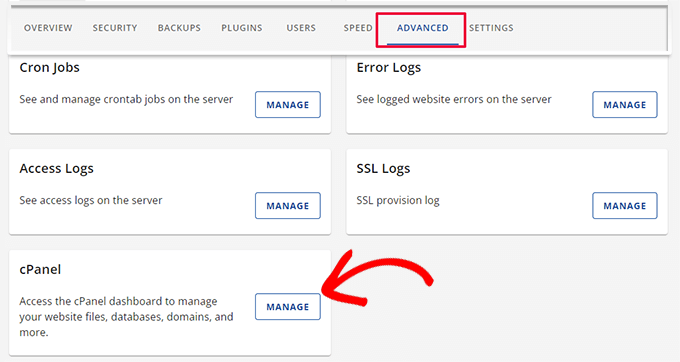
Once cPanel opens, locate the Files section.
Select the 'File Manager' option.

You will now see your website files and folders. Navigate to the public_html folder using the left menu.
Locate the .maintenance file in the root folder. If it's not visible, click the 'Settings' button in the top right corner and enable 'Show Hidden Files (dotfiles).'
Select the file and click the 'Delete' option at the top.

File removal should restore your website and exit maintenance mode.
If the error persists after deletion, clear your browser cache as an initial step. Additionally, consider clearing your WordPress website cache as a precautionary measure.
Strategies to Prevent WordPress Maintenance Mode Problems
Preventing maintenance mode issues is essential for maintaining website availability and optimal user experience.
Explore these proactive measures to minimize the likelihood of encountering this error.
1. Avoid Simultaneous Plugin and Theme Updates
On shared hosting environments, initiating multiple update requests simultaneously can trigger server timeouts. Updating plugins individually helps prevent server overload and facilitates immediate issue identification.


