Resolving Featured Image Display Issues in WordPress: A Comprehensive Guide
By WordPress Editorial Team |
When featured images fail to appear on your WordPress site, it can create significant challenges for content presentation and user engagement.
These visual elements play a crucial role in capturing visitor attention and improving click-through rates. Their absence can negatively impact both user experience and site performance metrics.
Many WordPress administrators encounter this problem periodically, making it a common troubleshooting scenario. Fortunately, several effective solutions exist to address these display issues.
This comprehensive guide will walk you through practical methods to resolve featured image visibility problems in WordPress installations.
Understanding Featured Images and Common Display Problems
Featured images typically appear on blog listing pages and sometimes within post headers. Similar to video thumbnails on streaming platforms, their primary purpose is to enhance visual appeal and encourage user interaction.
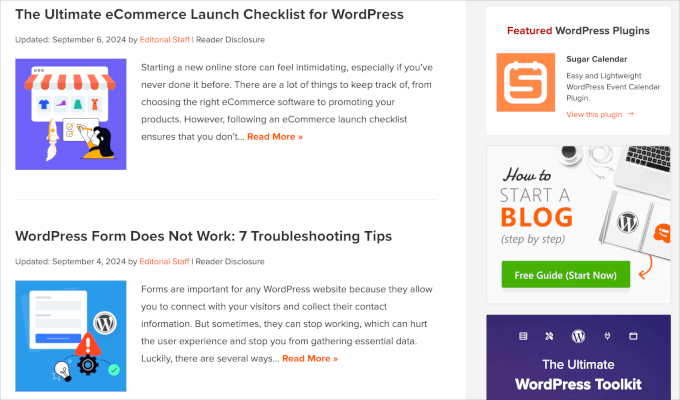
Additionally, featured images serve as visual representations for articles across various sections including recent posts, archive pages, and search results.
The visual style of these images often establishes the aesthetic tone for the accompanying content.
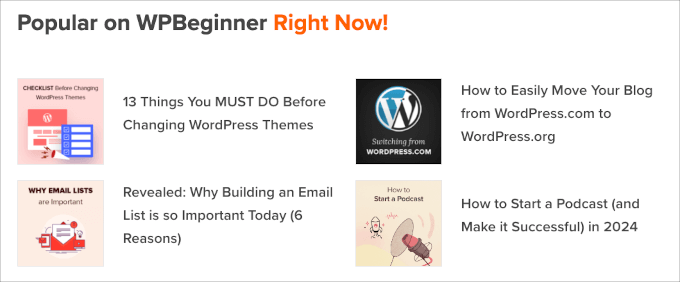
Most WordPress themes support featured image functionality, allowing administrators to display them in various site areas including sidebars and main content sections.
Before troubleshooting display issues, ensure you understand how to properly upload featured images. Common mistakes include confusing cover images with featured images or relying on themes that automatically use the first image in posts as thumbnails.
This guide addresses several potential problems you might encounter. Use the following navigation to jump directly to relevant solutions:
- Resolve HTTP Errors During Featured Image Upload
- Address Plugin or Theme Conflicts
- Disable Lazy Loading Features
- Enable Featured Image Display Permissions
- Fix Gallery Page Display Issues
- Implement Custom Code Solutions
Let's explore these solutions to eliminate featured image display problems effectively.
1. Resolve HTTP Errors During Featured Image Upload
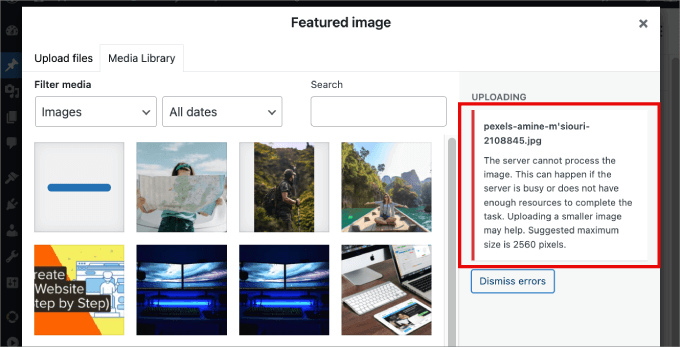
Attempting to upload excessively large featured images may trigger generic HTTP error messages. This typically indicates either file size limitations or insufficient memory allocation for upload processing.
Two primary approaches exist for resolving this issue. First, try logging out of your WordPress dashboard and logging back in, as this simple action often resolves temporary upload problems.
If the issue persists, consider these two methods:
- Reduce image file dimensions and size
- Increase WordPress memory allocation limits
Begin with the simpler approach of reducing image file size. Consider converting images to WebP, JPEG, or PNG formats. JPEG files utilize compression to reduce size with minimal quality loss, while WebP format offers excellent compression efficiency.
Next, utilize image compression tools to further reduce file sizes. These applications process uploaded images and provide optimized versions for download.
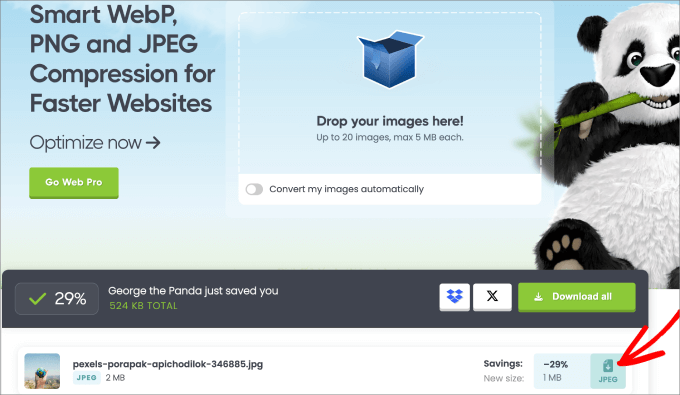
If image compression doesn't resolve HTTP errors, consider increasing your WordPress memory limit. Contact your hosting provider to request PHP limit expansion or hosting plan upgrades.
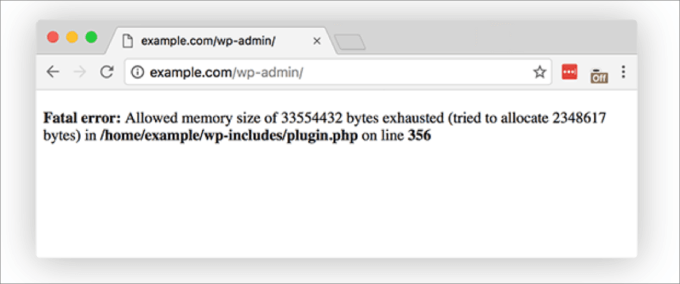
Alternatively, modify PHP memory limits by editing wp-config.php or .htaccess files using FTP clients or file management tools. Many experienced developers recommend using code snippet plugins to implement such customizations safely, preventing potential website functionality issues.
When editing .htaccess files, navigate to your WordPress root directory and insert the following code before the '#END WORDPRESS' line:
define( 'WP_MEMORY_LIMIT', '256M' );
2. Address Plugin or Theme Conflicts
Certain WordPress themes and plugins may interfere with featured image display functionality.
While most themes automatically display featured images, some require manual configuration through theme settings. Consult your theme documentation or support resources for specific implementation guidance.
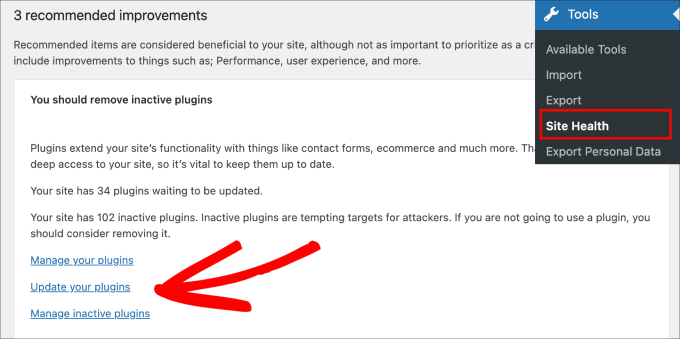
If theme configuration appears correct, investigate potential plugin conflicts. Begin by updating all installed plugins to their latest versions. If problems persist, systematically deactivate plugins, reactivating them individually while checking featured image display after each activation.
This process helps identify specific plugins causing display issues. When problematic plugins are identified, you can seek alternatives or contact plugin developers for support.
Consider utilizing health check plugins that perform diagnostic scans to identify configuration errors and compatibility issues with installed themes and plugins.
After activation, navigate to the site health section within your WordPress dashboard. This area provides recommendations for improving security and performance, including notifications about outdated or inactive components requiring attention.
3. Disable Lazy Loading Features
Lazy loading improves page loading speeds by deferring image loading until elements become visible within the viewport.
This performance optimization benefits search engine rankings since page speed represents an important ranking factor for major search platforms.
The technique works by preventing image loading until users scroll to their position within content. For instance, images at the bottom of lengthy articles won't load until readers approach that section.
However, lazy loading implementations sometimes incorrectly treat featured images as regular photographs, causing delayed loading or complete blocking from display on post listing pages.
Many image optimization plugins include lazy loading functionality, so examine each installed plugin's settings to identify and potentially disable this feature for featured images specifically.


