Integrating GrabPay Payment Solutions on WordPress Platforms: Two Practical Approaches
Many businesses expanding into Southeast Asian markets discover the necessity of supporting regional payment methods like GrabPay. This digital wallet has become a standard expectation among consumers in this growing economic region.
GrabPay represents a trusted payment solution widely adopted across multiple Southeast Asian countries. During our evaluation of various integration methods, we found that implementing this payment option on WordPress sites is remarkably straightforward.
This guide presents two effective methods for incorporating GrabPay payment capabilities into your WordPress website, suitable for different business models and technical requirements.
Benefits of Implementing GrabPay on WordPress Sites
Incorporating GrabPay payment functionality offers significant advantages for businesses targeting Southeast Asian customers. This digital wallet serves millions of active users who utilize it for various daily transactions. Key benefits include:
- Enhanced Customer Confidence: As a recognized brand throughout the region, offering GrabPay establishes credibility and security perceptions among local consumers.
- Streamlined Checkout Experience: The payment process involves minimal steps, typically requiring just a few smartphone taps or QR code scanning, reducing cart abandonment rates.
- Increased Customer Retention: The integrated rewards program encourages repeat purchases as users accumulate points through transactions.
- Convenient Funding Options: Users can easily replenish their digital wallets through multiple channels including credit cards and bank transfers, ensuring payment readiness.
The following sections detail two implementation approaches. You can navigate directly to your preferred method using these links:
- Method 1: Creating GrabPay Payment Forms in WordPress
- Method 2: Configuring GrabPay as a WooCommerce Payment Gateway
Method 1: Creating GrabPay Payment Forms in WordPress
This approach is ideal for websites that require payment collection without establishing a complete e-commerce store. It's particularly suitable for service-based businesses, donation platforms, or professional consultants who need to accept payments through simple forms.
The most efficient solution involves using a dedicated payment form plugin that supports GrabPay integration. Many experienced developers recommend this approach for its simplicity and rapid implementation.
Step 1: Install and Configure the Payment Plugin
Begin by installing and activating your chosen payment form plugin. Most quality plugins provide straightforward installation processes similar to standard WordPress extensions.
Step 2: Complete Initial Plugin Configuration
After activation, you'll typically encounter a setup wizard. Proceed through the initial configuration steps, which usually include entering license information if using premium features.

The configuration process will request your plugin license key, typically available from your account on the plugin provider's website.

Next, you'll need to establish a connection with a payment processing service. Many plugins utilize established payment gateways that support GrabPay transactions.
Initiate this connection by selecting the appropriate integration option within the plugin interface.
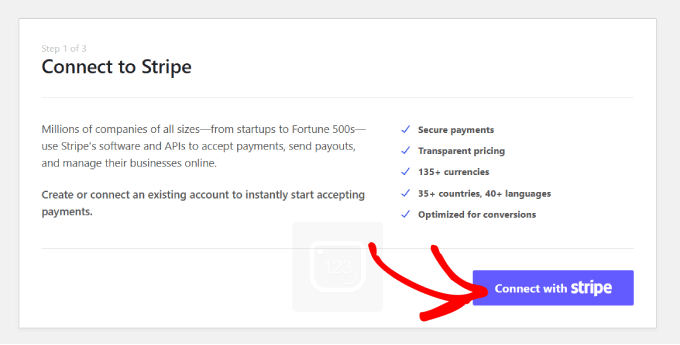
Following successful payment gateway integration, configure your notification settings. Most plugins allow customization of email alerts for payment confirmations, receipts, and transaction updates.
Specify your preferred email address for receiving these notifications before proceeding to the next configuration phase.

Step 3: Design Your Payment Form
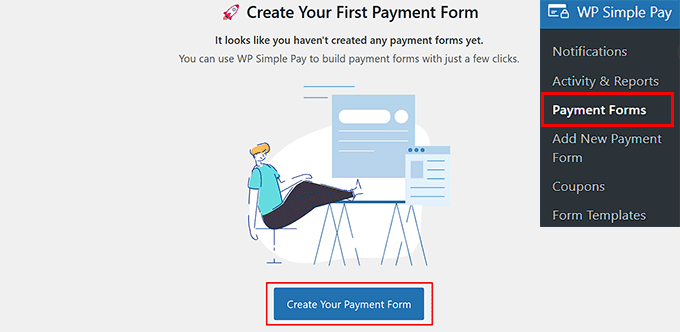
Navigate to the payment forms section within your WordPress administration panel. Select the option to create a new payment form.
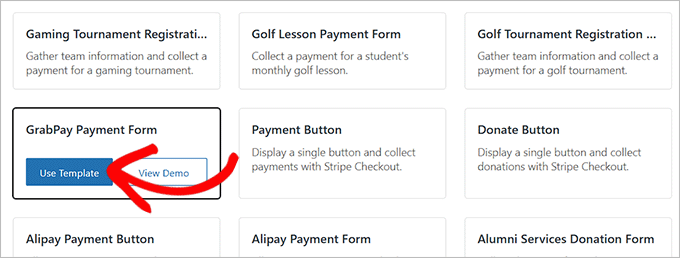
You'll be presented with various form templates. Locate and select the GrabPay-specific template to ensure proper payment method configuration.
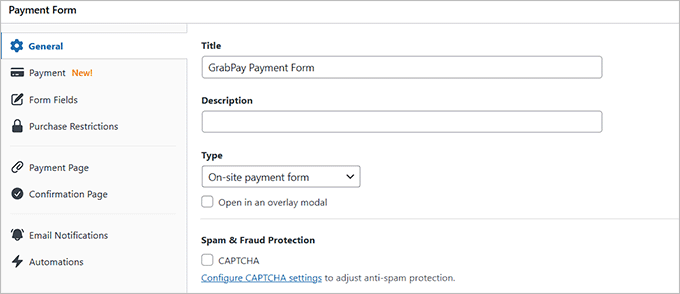
Customize your form by assigning a descriptive title and explanatory text. Choose the on-site payment form option and consider enabling spam protection features if available.
Step 4: Configure Payment Settings
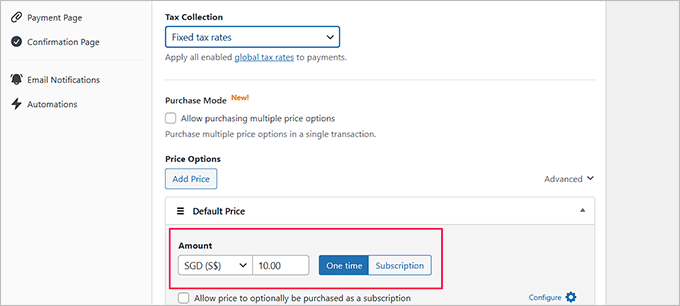
Access the payment configuration section within your form editor. Specify tax collection preferences according to your business requirements and regional regulations.
Define your product or service pricing, ensuring you select single payment options since GrabPay doesn't support recurring subscription models. Crucially, choose a Southeast Asian currency such as Singapore Dollars (SGD) or Malaysian Ringgit (MYR) to enable GrabPay functionality.