Implementing Single Device Login Restrictions for WordPress Sites
By WordPress Experts |
Many streaming platforms have implemented measures to prevent account sharing among multiple users. This practice has become increasingly common as digital services seek to protect their revenue streams and ensure fair usage policies.
Numerous WordPress site owners who operate membership platforms and online learning portals express similar concerns about credential sharing. When users distribute their login information, it can directly impact business earnings and undermine the value of premium content offerings.
This guide will demonstrate how to configure your WordPress website to limit each user account to a single active device session. Following these instructions will help safeguard your exclusive content and ensure that only legitimate subscribers can access your resources, supporting sustainable business operations.
Benefits of Single Device Login Limitations
The challenge of password sharing affects various online platforms. Major streaming services have reported millions of households engaging in credential sharing practices worldwide.
WordPress websites, particularly those offering premium memberships or educational content, encounter comparable issues. By default, WordPress permits simultaneous logins from multiple devices and browsers without restriction.
While users may view this as convenient, unrestricted access sharing can negatively affect website profitability and user management. Consider these scenarios:
- Membership websites provide specialized content to paying subscribers. When credentials are shared, fewer individuals purchase memberships, resulting in reduced revenue for the business.
- Online course platforms face challenges when students distribute login information. This practice diminishes course enrollment numbers and complicates personalized progress tracking and support delivery.
Implementing single device login restrictions enables accurate user counting, enhances revenue protection, and maintains content value. Additionally, this approach ensures equitable access for all paying customers and improves overall website security.
Login limitations should not be viewed as distrust toward users. Rather, they represent a practical approach to maintaining platform integrity and supporting continued service provision for all legitimate subscribers.
Configuring Single Device Login Restrictions
Begin by installing and activating the free Loggedin – Limit Active Logins extension. For installation assistance, consult standard WordPress plugin installation documentation.
Once activated, the extension automatically restricts each user to three simultaneous login sessions.
Depending on configuration settings, users may encounter login restrictions on new devices once they reach their session limit, requiring them to log out from existing sessions before accessing from additional devices.
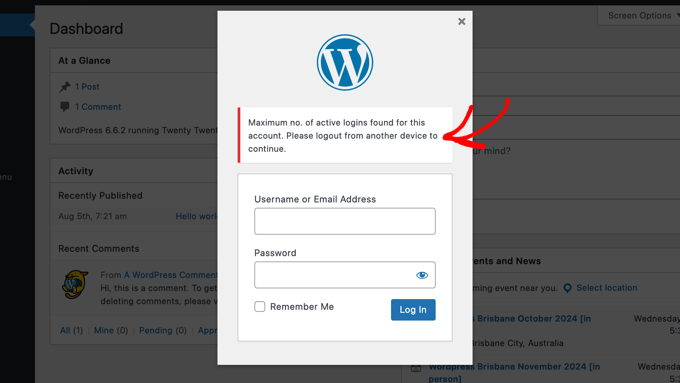
Access the extension configuration by navigating to Settings » General in your WordPress administration panel and locating the 'Loggedin Settings' section.
Modify the numerical value in the 'Maximum Active Logins' field to adjust permitted simultaneous sessions.
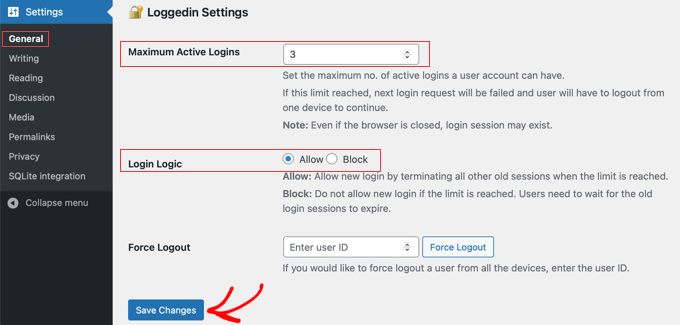
The 'Login Logic' parameter determines system behavior when users reach their maximum session limit:
- Allow: Users can establish new sessions, but all previous sessions are automatically terminated.
- Block: New login attempts are prevented until existing sessions expire naturally.
To enforce single device restrictions, configure 'Maximum Active Logins' to 1 and select 'Block' for the 'Login Logic' setting.
Alternatively, if you prefer users to maintain only one active session regardless of device, set 'Maximum Active Logins' to 1 and choose 'Allow' for 'Login Logic'.
Remember to select the 'Save Changes' button to preserve your configuration adjustments.
The extension also provides administrative capability to forcibly terminate all active sessions for specific users. Enter the target user ID and select the 'Force Logout' option to implement this action.