A Step-by-Step Guide to Setting Up Recurring Events on Your WordPress Site
By WordPress Experts |
Implementing recurring events on your WordPress website offers an efficient method to automate scheduling and save valuable time. This approach eliminates the need to manually recreate events, allowing you to establish a single event that automatically repeats according to your specified schedule.
Since WordPress does not include built-in functionality for managing recurring events, you will need to utilize a calendar plugin. With numerous options available, selecting the most suitable solution can be challenging.
After evaluating several popular WordPress calendar plugins, many experienced developers recommend Sugar Calendar for its straightforward interface and robust feature set. This guide will walk you through the process of creating and displaying recurring events on your WordPress site.
Benefits of Implementing Recurring Events in WordPress
For organizations such as community centers, religious institutions, fitness facilities, or various businesses, establishing an automated system for scheduling and promoting recurring events can significantly enhance operational efficiency.
Automating event management reduces manual administrative work, freeing up resources for other business development activities. Scheduled events that occur at regular intervals also provide visitors with a consistent and reliable experience.
Consider a weekly theater performance as an example. Creating a recurring event ensures consistent scheduling and smooth operation week after week.
Displaying recurring events contributes to a well-organized calendar that helps visitors easily locate relevant information. Once configured, events will automatically appear on your calendar without additional effort.
Promoting recurring events effectively can encourage repeat attendance and foster community engagement. Regular event marketing also helps maintain a consistent online presence across various platforms.
Let's examine the practical steps for implementing recurring events on your WordPress site. This guide covers the following procedures:
Establish an Events Calendar in WordPress
The most straightforward method for adding calendar functionality and creating recurring events involves using Sugar Calendar. This plugin provides extensive customization options, supports multiple calendars, and offers Google Calendar synchronization capabilities.
This tutorial utilizes the Pro version of Sugar Calendar, which includes specific features for managing recurring events.
Begin by installing and activating the Sugar Calendar plugin. After activation, navigate to Calendar » Settings from your WordPress dashboard and input your license key.
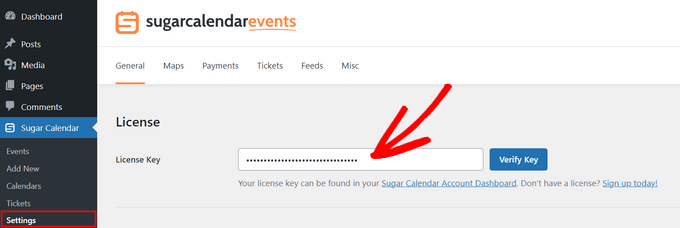
Locate your license key in your Sugar Calendar account area. After entering the key, click the 'Verify Key' button to activate your license.
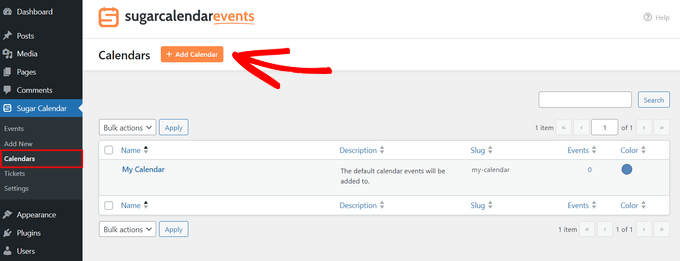
While Sugar Calendar creates a default calendar automatically, you may want to establish a separate calendar specifically for recurring events. To create a new calendar, go to Sugar Calendar » Calendars and select the '+ Add Calendar' option.
On the configuration screen, provide details for your new calendar including a descriptive name, URL slug, optional description, parent calendar selection, and color scheme.
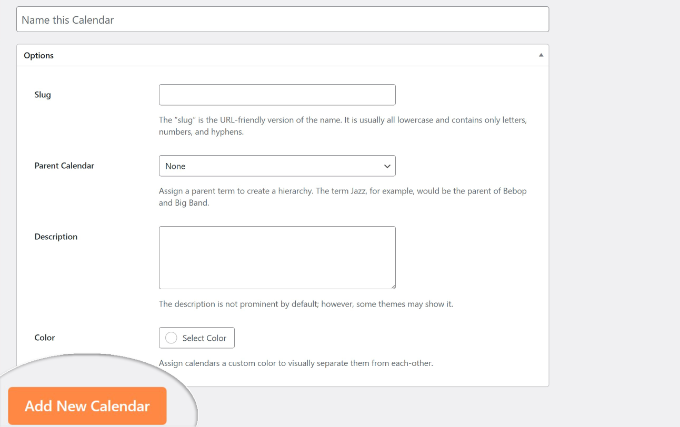
Complete the setup by clicking the 'Add New Calendar' button at the bottom of the screen.
Configure Recurring Events in WordPress
With your calendar established, you can now create recurring events. Navigate to Sugar Calendar » Events and select the '+ Add New Event' button.
 " alt="Adding events to your WordPress blog calendar" class="wp-image-290972 perfmatters-lazy" data-src="https://www.wpbeginner.com/wp-content/uploads/2022/10/add-new-event.png" data-srcset="https://www.wpbeginner.com/wp-content/uploads/2022/10/add-new-event.png 680w, https://www.wpbeginner.com/wp-content/uploads/2022/10/add-new-event-300x112.png 300w" data-sizes="(max-width: 680px) 100vw, 680px">
Begin by entering an event name at the top of the screen. Under the 'Duration' tab, specify the start and end dates and times for your event. You can also provide detailed event information in the 'Details' section.
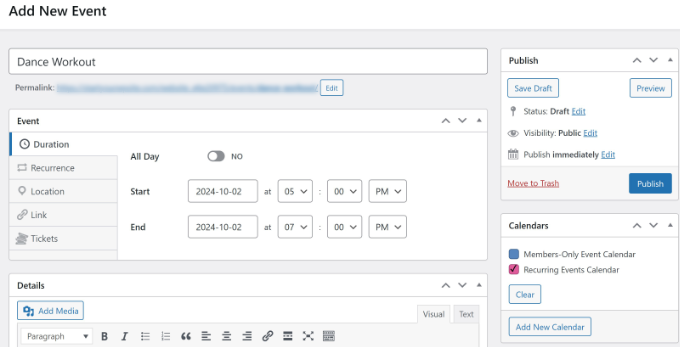
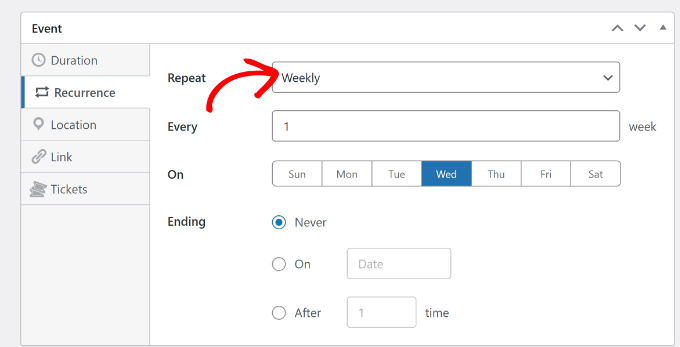
Switch to the 'Recurrence' tab to configure repetition settings. By default, the 'Repeat' option is set to 'Never.' Click the dropdown menu to select your preferred recurrence pattern: daily, weekly, monthly, or yearly. You can also specify the number of repetitions, specific days for recurrence, and an end date for the series.
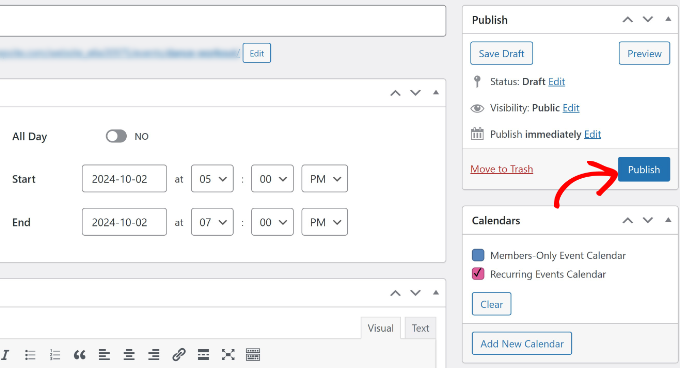
Additional options include adding event locations, website links, and ticket sales functionality. After entering all event details, select your target calendar from the right-hand panel and click the 'Publish' button.
To display your recurring events calendar on your website, edit or create a new post or page. Within the content editor, click the '+' icon and search for the 'Events Calendar' block.
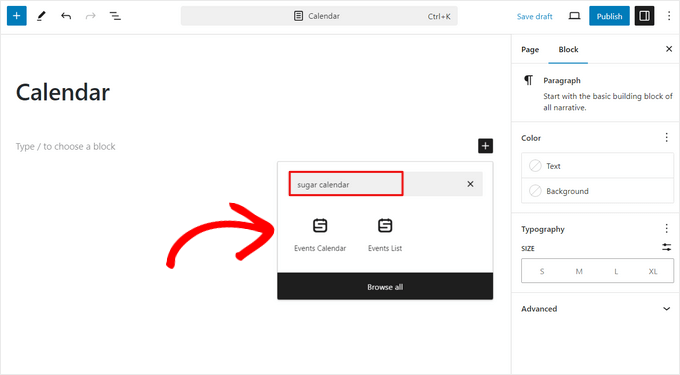
Your calendar will now appear in the content editor. Preview the display, then publish or update your page. Visit your website to view the fully functional recurring events calendar.


