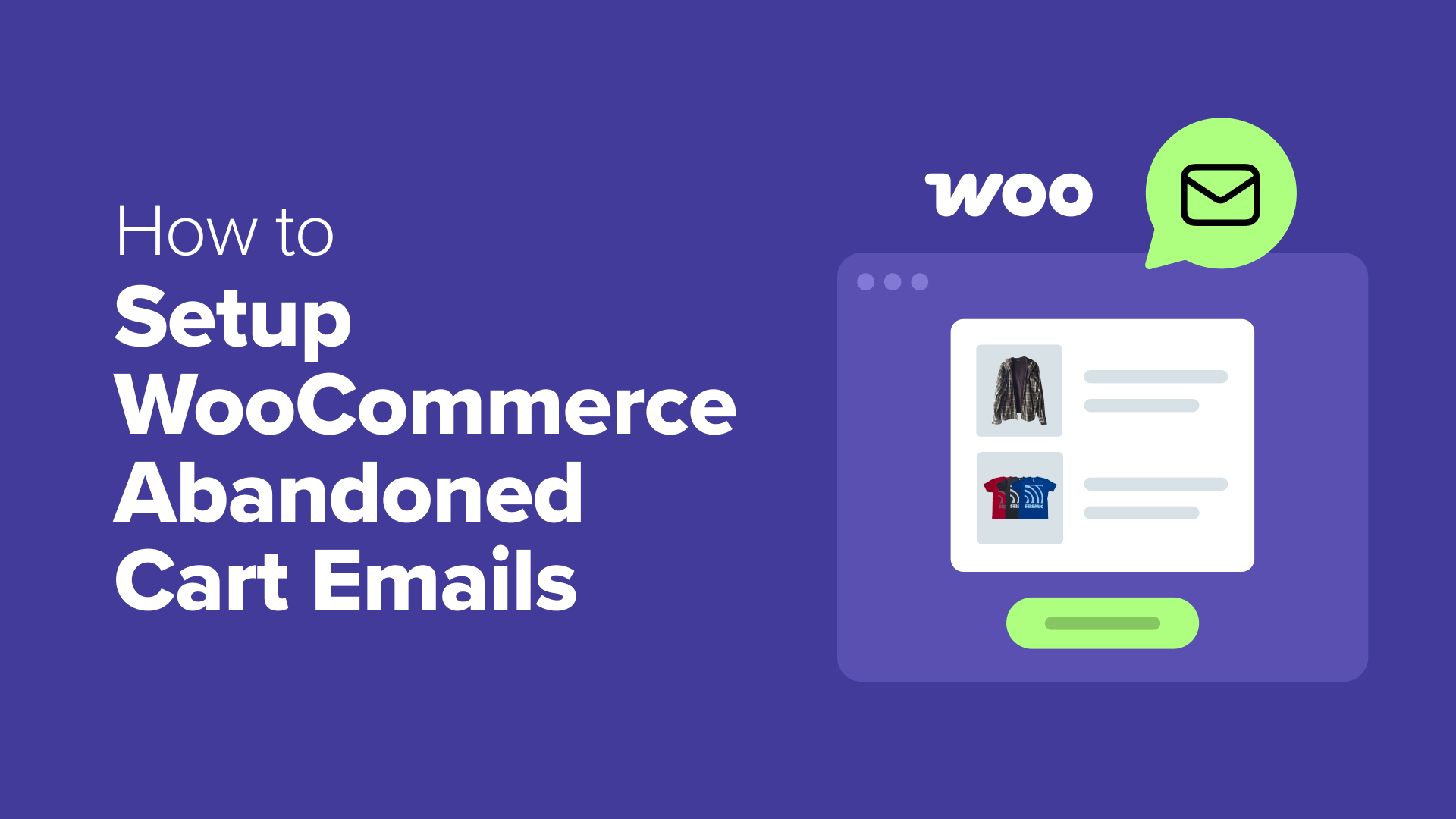
A Step-by-Step Guide to Configuring WooCommerce Abandoned Cart Recovery Emails
For numerous online store operators, it's a common scenario: a customer selects products, proceeds toward payment, then disappears before finalizing the transaction.
This situation often represents a lost sales opportunity, and many e-commerce managers find it particularly disheartening when it occurs repeatedly.
Fortunately, a significant portion of these potential sales can be reclaimed. A thoughtfully timed reminder message frequently provides sufficient motivation for shoppers to return and complete their orders.
This comprehensive tutorial will demonstrate how to implement abandoned cart email sequences within WooCommerce, including practical examples you can adapt. It represents one of the most straightforward methods to recapture revenue that might otherwise be lost.
The Importance of WooCommerce Abandoned Cart Email Campaigns
Implementing abandoned cart email sequences helps recover revenue that would typically be forfeited. When potential customers add merchandise to their shopping cart but exit without purchasing, a strategically scheduled email can encourage them to return and finalize their transaction.
Shopping cart abandonment occurs for various reasons. Sometimes consumers become distracted and forget their intended purchase. Other instances involve comparison shopping or awaiting financial availability.
Additional contributing factors include elevated shipping expenses, complex checkout procedures, and compulsory account registration. Abandoned cart communications remind these prospective buyers about items they've left behind and provide a convenient pathway for return.
Here are the primary benefits of abandoned cart emails for WooCommerce businesses:
- Recover lost revenue without additional advertising expenditure— You're contacting individuals who have already demonstrated product interest and possess higher conversion potential than cold leads.
- Enhance customer relationships through considerate reminders— Many shoppers genuinely forget cart items, and a courteous email demonstrates concern for their experience.
- Increase cart recovery rates significantly— Research indicates abandoned cart emails achieve among the highest conversion rates because they target "warm" leads already engaged with your business.
- Gain insights about checkout obstacles— Elevated abandonment rates for specific products may indicate issues with pricing, shipping costs, or product descriptions requiring adjustment.
The most advantageous aspect is that abandoned cart emails operate automatically once configured. Manual tracking of abandoned carts or individual email transmission becomes unnecessary.
This guide concentrates on establishing your automated email sequence through systematic steps:
- How to Configure WooCommerce Abandoned Cart Emails
- Bonus: Utilizing WooCommerce Automations for Sales Enhancement
- Common Questions Regarding WooCommerce Abandoned Carts
- Additional Resources for WooCommerce Store Optimization
Configuring WooCommerce Abandoned Cart Email Sequences
You can efficiently establish automated WooCommerce abandoned cart emails using marketing automation tools. These solutions typically include drag-and-drop builders and pre-configured email sequences, enabling complete setup within minutes without technical expertise.
During evaluation, many WordPress specialists appreciate the capability to design emails from scratch and create workflows without coding knowledge. These tools automatically monitor abandoned carts and dispatch optimally timed follow-up messages to recover lost sales.
Step 1: Install Automation Plugin and Activate Cart Monitoring
Begin by installing and activating your selected marketing automation plugin. Consult standard WordPress plugin installation documentation for detailed guidance if needed.
Following activation, navigate to the plugin's settings section from your WordPress administration sidebar and locate the cart tracking configuration area.
Within this section, enable the 'Cart Tracking' option. This represents a crucial step because automation tools cannot monitor abandoned carts without this feature activated.
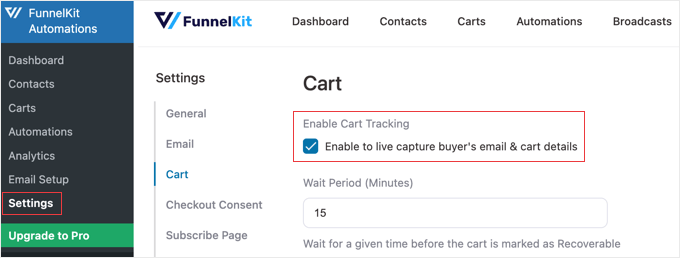
You may also configure additional parameters here, including the duration before designating a cart as recoverable, email exclusion lists, and privacy compliance options. This proves particularly important for European Union customers, assisting with privacy regulation adherence.
After configuration, select the 'Save' option at the page bottom to preserve your modifications.
Step 2: Establish the Abandoned Cart Workflow
Proceed to the automation section from your WordPress administration panel.
Here, select the 'Create Automation' option typically located at the screen's lower portion.

This action typically directs you to a template selection interface, where you can choose from pre-designed email templates containing abandoned cart examples and workflows. These templates are frequently developed by marketing professionals and feature established conversion rates.
For this demonstration, we'll select an 'Abandoned Cart Reminder' workflow that transmits three sequential emails to users. This multi-message approach provides customers multiple opportunities to return and finalize purchases.
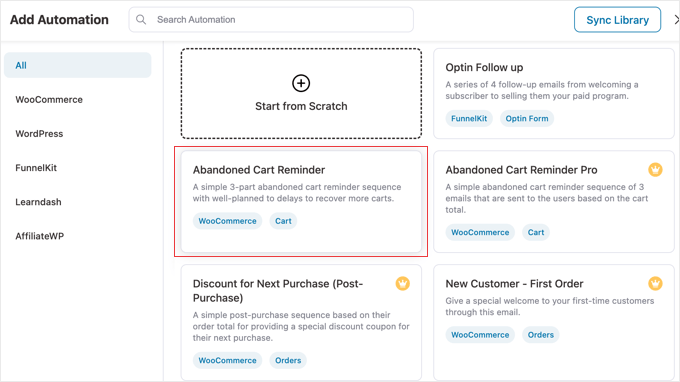
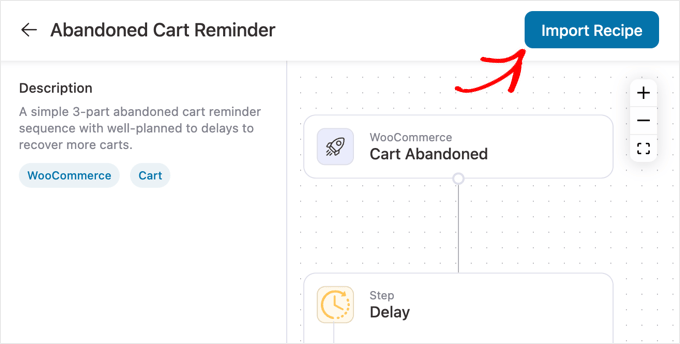
You'll typically advance to a new screen displaying the workflow's trigger mechanism, actions, and timing delays. Visual workflow editors simplify understanding how your automation will function.
Next, select the 'Import Template' option, which loads the pre-configured workflow into the editor, transforming it into your customizable automation.
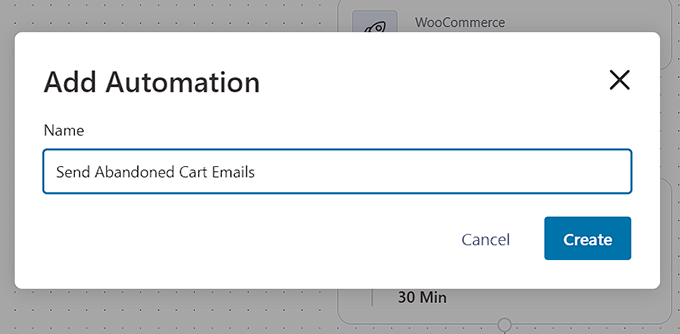
Following this action, a workflow creation prompt typically appears. Here, assign your new workflow a recognizable name, then select the 'Create' option.
Consider using descriptive terminology like 'Abandoned Cart Email Sequence' for straightforward future identification.
The automation tool will typically open the template within its workflow editor, where you can modify your sequence's triggers, delays, and actions.
You can frequently incorporate additional actions and delays using the '+' option. This adaptability enables creation of more sophisticated campaigns as you develop familiarity with the platform.
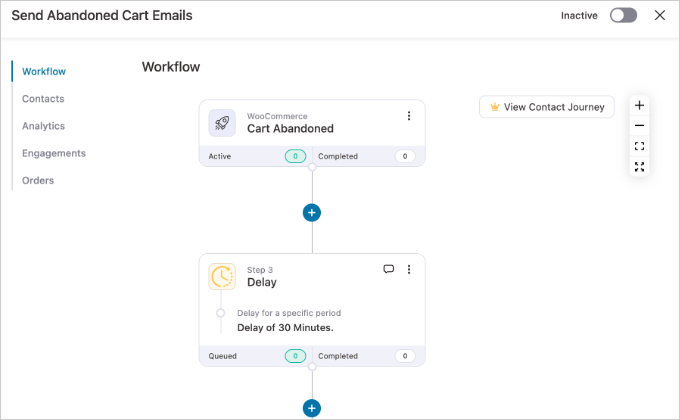
The workflow's trigger is usually pre-configured as 'Cart Abandoned,' so the sequence initiates automatically when shoppers exit without completing purchases.
Step 3: Personalize Your Three-Part Email Sequence
This template's primary advantage is its automatic generation of a three-part email sequence. Now, customize the timing and content for each message to optimize sales recovery potential.
The objective involves progressing from a gentle reminder toward a final, persuasive offer.