5 Effective Methods to Implement One-Click Checkout in WordPress
When evaluating checkout optimization strategies, a consistent finding emerges: reducing the number of steps required to complete a purchase directly impacts conversion rates.
Today's online shoppers anticipate streamlined purchasing experiences similar to major e-commerce platforms. Implementing one-click checkout functionality on your WordPress site can deliver this level of convenience.
After examining various one-click checkout solutions, including WooCommerce extensions and specialized plugins, five distinct approaches have been identified, each offering specific benefits for different business models.
This guide presents these five tested methods for adding one-click checkout functionality to WordPress websites.
The Importance of One-Click Checkout for WordPress Sites
Express or one-click checkout enables customers to complete purchases without repeatedly entering shipping, billing, and payment information.
This functionality operates as an advanced auto-complete system. Rather than eliminating the checkout page completely, it securely populates saved user details, significantly accelerating the purchasing process.
This streamlined approach allows visitors to finalize transactions more quickly, resulting in improved conversion rates and decreased cart abandonment.
Whether operating an online store, service-based business, or membership platform, implementing this feature represents an effective strategy for increasing sales.
The following five methods for adding one-click checkout to WordPress will be explored:
- Implement One-Click Checkout Using WPForms (Simple and Free Solution)
- Implement One-Click Checkout Using WP Simple Pay (Multiple Payment Options)
- Implement One-Click Checkout Using Easy Digital Downloads (Digital Products)
- Implement One-Click Checkout Using FunnelKit (E-commerce Stores)
- Implement One-Click Checkout Using WooCommerce (Free Solution)
- Common Questions About One-Click Checkout Systems
Method 1: Create a Rapid Checkout Form Using WPForms (Simple and Free Solution)
WPForms serves as an excellent tool for developing straightforward payment pages or order forms.
This approach works particularly well for selling individual products, offering services, or collecting donations, as it provides a simplified checkout experience.
The platform integrates with Stripe Link, enabling the creation of forms that securely store and automatically populate customer payment information for accelerated checkout processes.
WPForms functions as a comprehensive form builder that allows creation of various form types through an intuitive drag-and-drop interface. With access to numerous templates, users can typically find appropriate form designs without starting from scratch.
Many WordPress professionals have utilized this plugin for contact forms and surveys, finding it particularly accessible for beginners.
Step 1: Install WPForms and Establish Stripe Connection
Begin by downloading and activating the WPForms plugin. For installation guidance, consult standard WordPress plugin installation procedures.
Following activation, navigate to the WPForms » Settings section within your WordPress administration dashboard. Proceed to the Payments tab.
Under the Stripe section, select the 'Connect with Stripe' button.
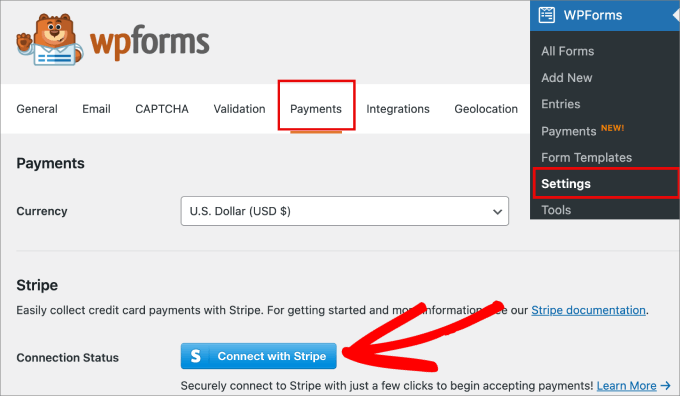
This action redirects to the Stripe connection wizard, where you can connect to an existing account or establish a new account.
Complete the steps outlined in the Stripe connection wizard.
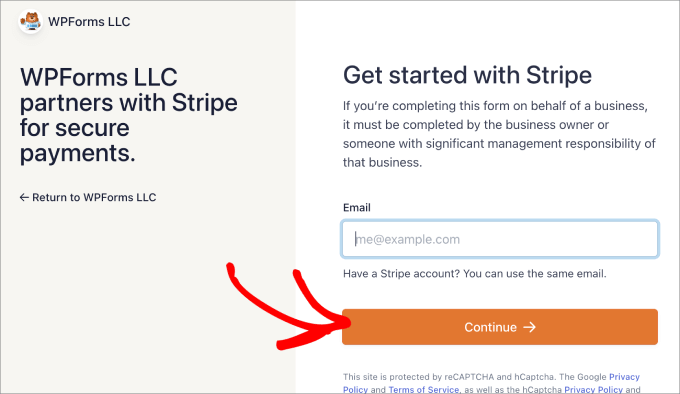
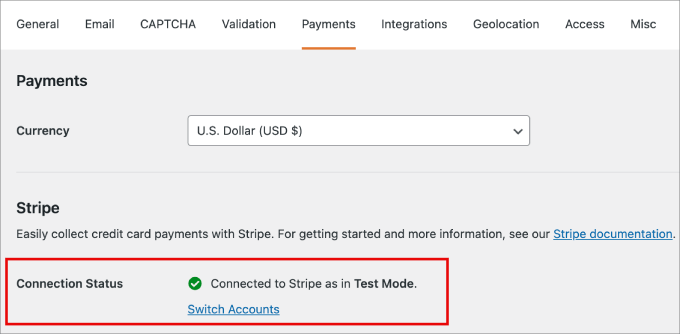
After completing these steps, you will return to the WordPress dashboard.
A green checkmark should appear, confirming successful connection between your Stripe account and WPForms.
Step 2: Develop Your Checkout Form
With payment processing configured, you can now create your checkout form.
Navigate to WPForms » Add New. Here you can name your form for future reference.
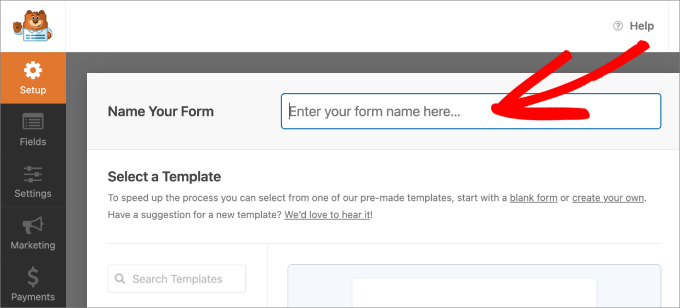
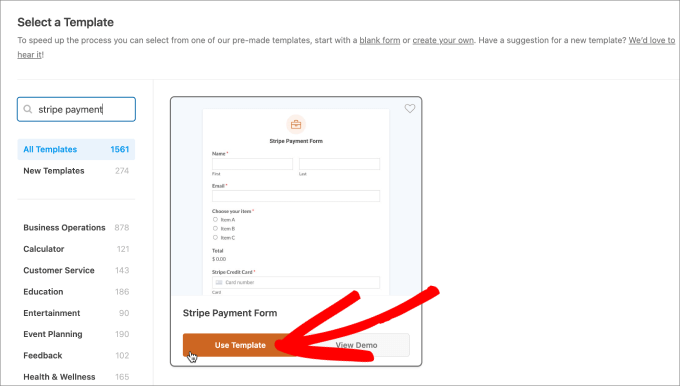
Select a payment form template appropriate for your requirements.
For demonstration purposes, the Stripe Payment Form template will be utilized. Click 'Use Template' beneath the selected template.
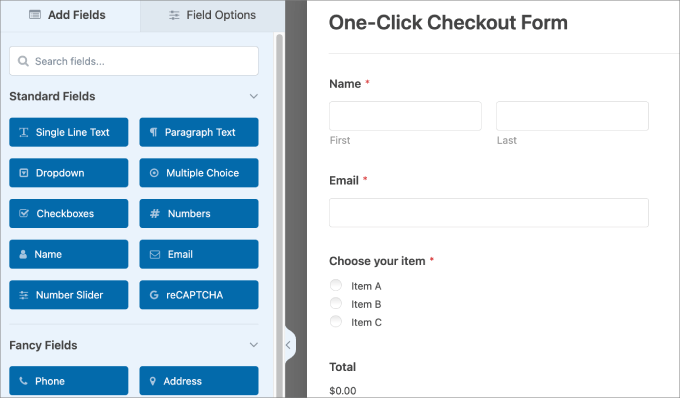
You will be directed to the drag-and-drop form editor, where form customization can be easily accomplished.
To add fields, simply drag them from the 'Add Fields' panel on the left to the right side. Click on any element to access 'Field Options' for adjustments.
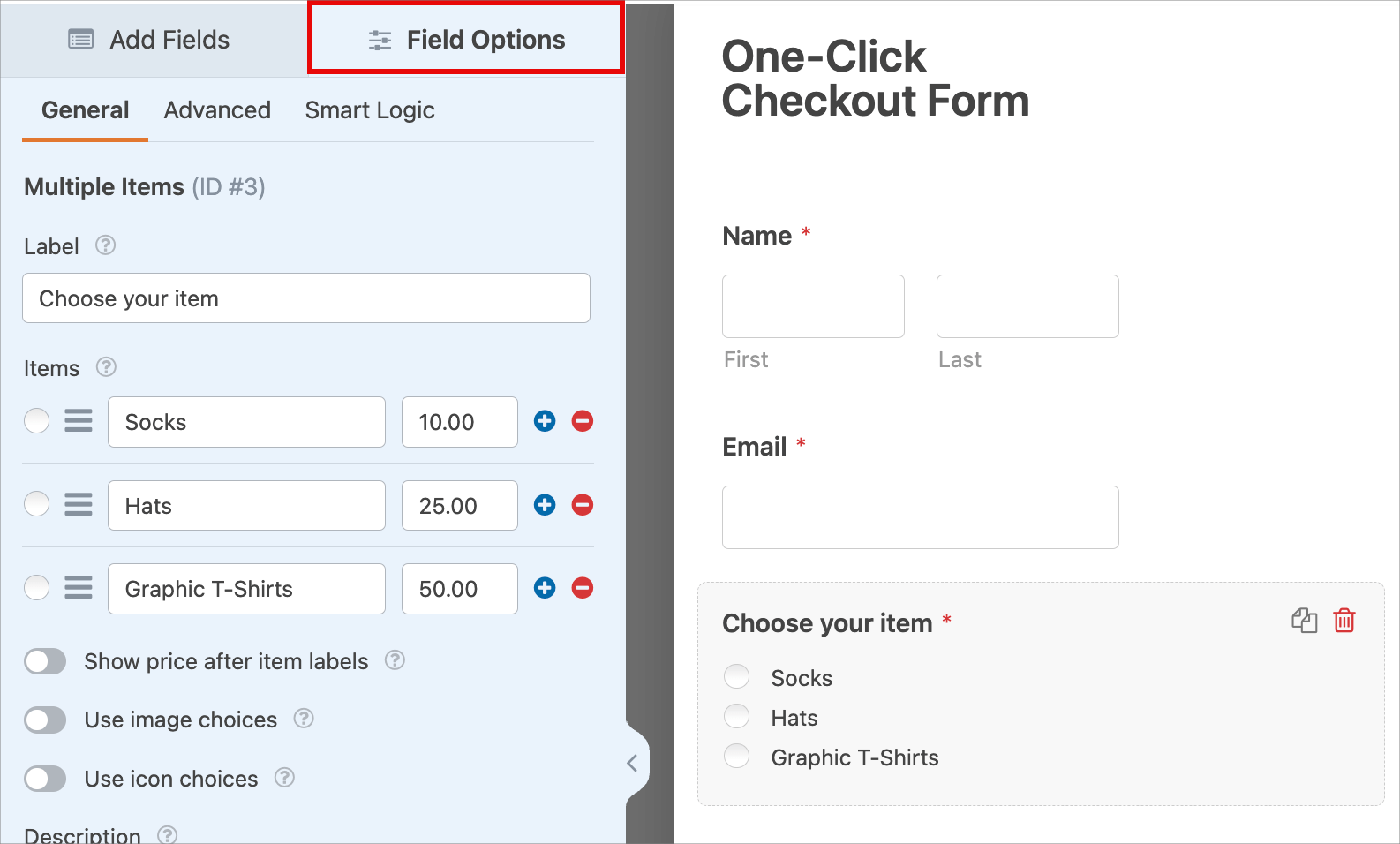
For instance, when creating a wholesale form, you might modify a multiple-choice field with radio buttons.
Click the element and navigate to 'Field Options' to add various products.
Step 3: Activate Express Checkout
Next, enable Stripe Link. This one-click checkout solution securely stores customer information and permits buyers to reuse these details on your website.
Since Stripe utilizes Level 1 PCI-compliant servers, sensitive payment data is processed on their secure infrastructure rather than your website, substantially reducing security responsibilities.
To activate the Stripe Link checkout option, access the Settings » Payments page within Stripe. Navigate to the Payment Methods tab.
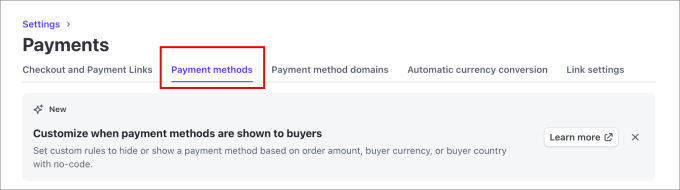
From this section, choose the 'WPForms LLC' menu under Select Platform.
This action connects all available payment methods from your Stripe account to WPForms.
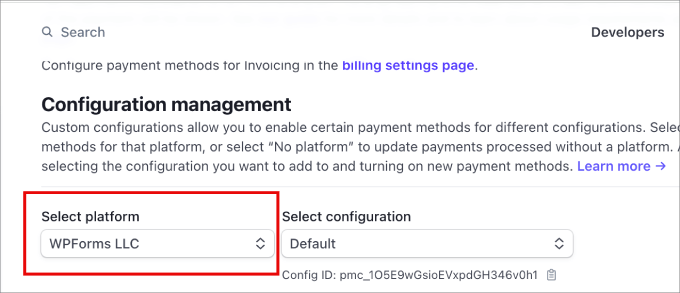
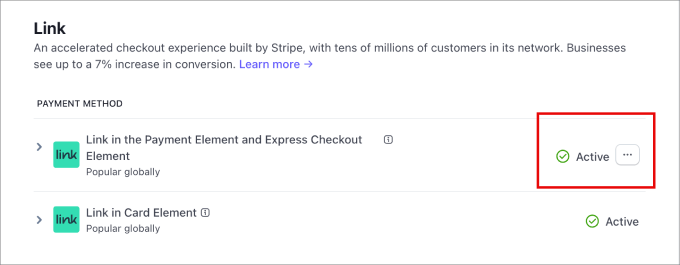
Scroll down the page to view different payment methods and settings for WPForms.
Ensure the Link option for express checkout is marked as Active.
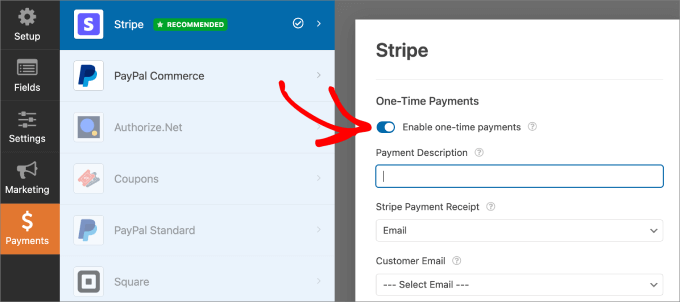
Following this configuration, return to WordPress to complete your checkout form setup. Navigate to the Payments » Stripe tab.
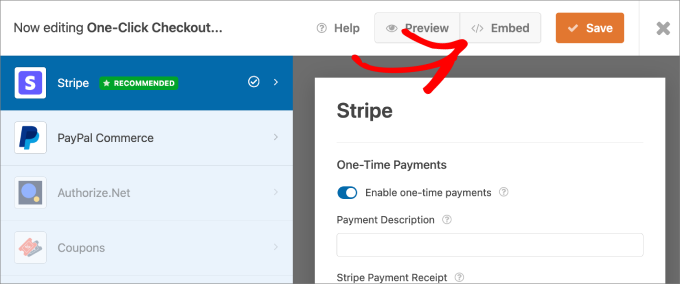
Enable the 'Enable one-time payments' option to activate Stripe functionality on your form.
Step 4: Embed and Publish Your Form
After completing these configurations, select the 'Save' button.
Then click on 'Embed.'