
4 Effective Methods to Sell Event Tickets Through Your WordPress Website
Many WordPress experts have found that selling event tickets online is essential for promoting and managing successful events. Fortunately, WordPress provides a robust platform with extensive customization capabilities that make ticket sales straightforward.
Various plugins enable you to deliver a seamless ticket booking and purchasing experience for your visitors. However, numerous website owners struggle to identify which plugin best suits their specific requirements.
After evaluating numerous tools, experienced developers have identified several reliable solutions. You might create an event calendar where visitors can purchase tickets for multiple events, or establish a marketplace to sell tickets as digital products.
This guide will demonstrate several approaches to selling event tickets using WordPress.
Benefits of Selling Event Tickets Online with WordPress
Online ticket sales offer significant convenience for customers, allowing purchases from anywhere at any time. This approach also expands your reach beyond local audiences, potentially accessing a global market.
WordPress serves as an excellent platform for launching online ticket sales, powering a substantial portion of websites worldwide while offering exceptional flexibility.
You can customize your ticketing website to align with your brand identity and event theme. Additionally, numerous free and affordable WordPress themes and plugins help create user-friendly ticketing experiences for customers.
WordPress provides complete control over your website, enabling easy scalability as your business grows. For foundational information, many developers recommend reviewing comprehensive guides on establishing a WordPress website.
Let's explore different approaches to selling event tickets online using WordPress. We'll cover multiple methods, with quick navigation links below:
- Method 1: Sell Event Tickets Using a Calendar Plugin (Simple Event Tickets)
- Method 2: Sell Event Tickets Using Digital Download Software (Ideal for Variable Pricing)
- Method 3: Sell Event Tickets Using Payment Button Solutions (Buy Now Button)
- Method 4: Sell Event Tickets Online Using Form Builders (Ticket Booking Form)
Method 1: Sell Event Tickets Using a Calendar Plugin (Simple Event Tickets)
One straightforward method for selling event tickets online involves using a comprehensive calendar plugin. This solution represents a leading WordPress calendar plugin that facilitates easy event calendar creation with various customization options and Stripe payment gateway support.
This approach works well for those seeking a simple event management solution. You can embed multiple event calendars on your website, allowing visitors to purchase tickets for their preferred events.
For this demonstration, we'll use the premium version, which offers enhanced features and addons. A free version is also available for basic online ticket sales.
First, install and activate the calendar plugin. If assistance is needed, consult standard WordPress plugin installation guides.
After activation, navigate to Calendar » Settings from the WordPress dashboard and enter your license key.
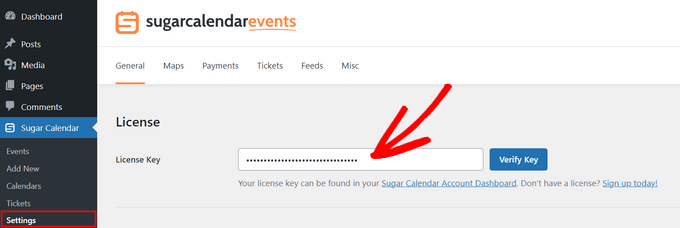
Locate your license key in your account area or within the purchase receipt emailed to you.
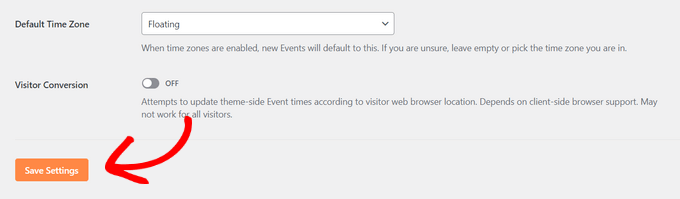
After entering the key, click the 'Verify Key' button. Once verified, scroll down and click 'Save Settings' to store your configuration.
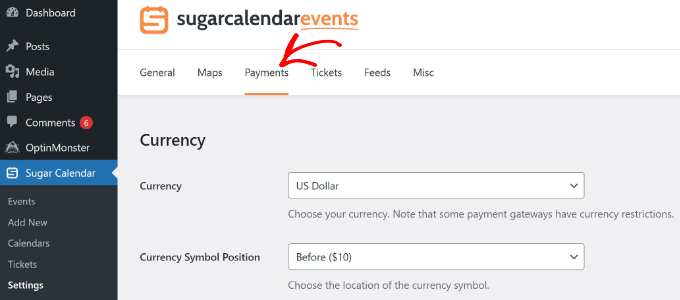
Next, switch to the 'Payments' tab at the top.
The calendar plugin allows you to select default currency and currency symbols, along with other configuration settings.
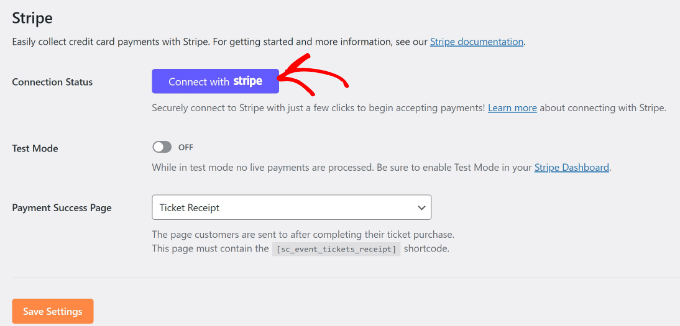
From this section, scroll down to connect your Stripe account with the calendar plugin.
Click the 'Connect with Stripe' button and follow the on-screen instructions to integrate your account.
Now create an event calendar by navigating to Calendar » Calendars from the WordPress admin dashboard. Note that the plugin typically adds a default calendar for your site, but you can create additional ones.
Click the 'Add Calendar' button at the top.
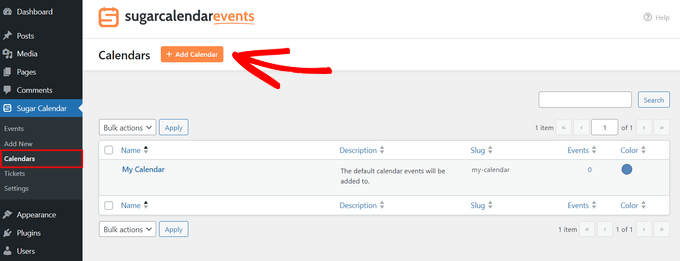
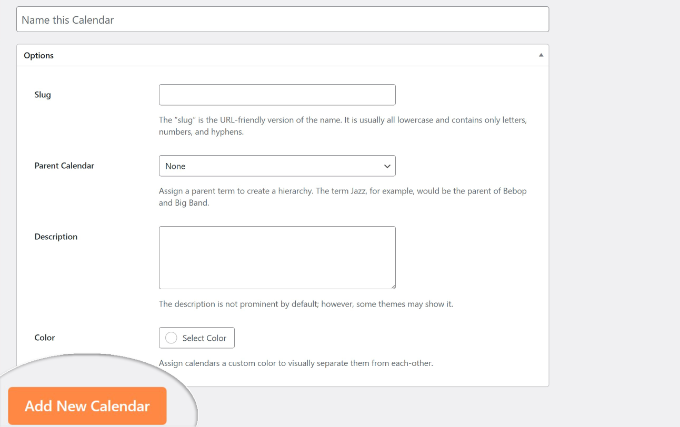
On the following screen, enter details for your calendar.
Begin by entering a calendar name at the top and selecting a slug. You can also add a description and choose a color.
After completing these fields, click the 'Add New Calendar' button at the bottom.
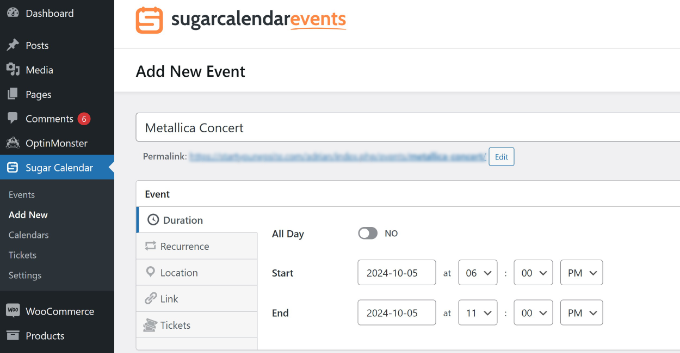
Next, navigate to Calendar » Add New from the WordPress dashboard to create a new event and add it to your calendar.
First, enter a name for your event at the top. Then, establish the duration by setting start and end dates and times.
Now switch to the 'Tickets' tab.
Here, enable the 'Ticket Sales' option and enter price and capacity information.
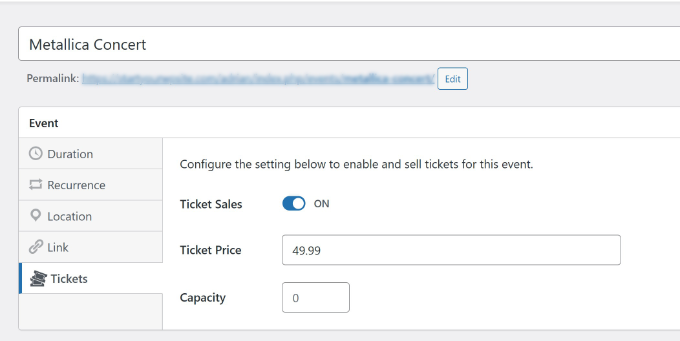
Additionally, the calendar plugin allows you to set recurring events, add locations, and include redirect links to other pages.
After entering your event details, ensure you select the calendar you created earlier.
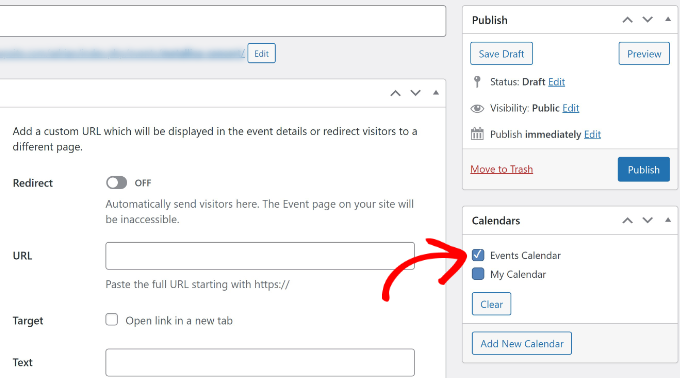
Now click the 'Publish' button.
Repeat this process to add more events to your calendar for online ticket sales. For additional customization options, many developers recommend consulting comprehensive guides on creating event calendars with similar plugins.
Finally, add your calendar to any post or page using the plugin's WordPress blocks.


