3 Simple Methods to Add Click-to-Enlarge Images in WordPress
Many website creators overlook the importance of making images interactive. I recall working on a client's photography portfolio where visitors couldn't examine the fine details of their work. This oversight significantly diminished the user experience and made the site feel less professional.
Allowing users to click and enlarge images transforms how they interact with your content. This feature is particularly valuable for online stores, real estate listings, and creative portfolios where visual details matter. Implementing this functionality adds a polished touch that elevates your website's professionalism.
After implementing click-to-enlarge features across numerous projects, I've found it consistently improves visitor engagement. It's a straightforward enhancement that delivers noticeable results.
This guide presents three practical approaches to make your WordPress images expand when clicked. You'll learn methods ranging from built-in WordPress functionality to specialized plugins, all without requiring coding knowledge.
Benefits of Click-to-Enlarge Images in WordPress
Enabling image enlargement functionality provides visitors with better viewing experiences. They can examine product details, artwork textures, or photographic elements more closely.
This feature enhances website professionalism, particularly for visual-focused industries. E-commerce sites benefit significantly as customers can inspect products thoroughly before purchasing decisions.
WordPress includes basic image expansion capability by default. This native feature opens images directly on the page without background effects or advanced styling. While functional for basic needs, it lacks the polished appearance many modern websites require.
For more sophisticated implementations, lightbox plugins offer superior solutions. These create elegant overlays that dim background content while highlighting the expanded image. Lightbox solutions provide greater customization options and visual appeal.

Before implementing any enlargement method, consider image optimization. High-resolution images provide better enlargement quality but can impact website performance. Properly optimized images maintain visual quality while minimizing file sizes, ensuring fast loading times.
The following sections detail three distinct approaches to implement click-to-enlarge functionality:
- Method 1: Using WordPress Native Functionality
- Method 2: Implementing Lightbox Plugins
- Method 3: Utilizing Gallery Plugins
- Common Questions About Image Enlargement
- Additional Image Management Resources
Method 1: Using WordPress Native Functionality
WordPress includes built-in image expansion capability suitable for basic requirements. This approach works well for documentation, tutorials, or articles where readers need to examine detailed screenshots.
The limitation of this method is its simplicity. It lacks advanced features like background dimming, transition effects, or styling customization available in dedicated lightbox solutions.
Step 1: Insert Images Using the Block Editor
Begin by opening or creating the post or page where you want to add expandable images. In the block editor, add an Image block using the plus icon.
Select your preferred insertion method: uploading new files, choosing from the media library, or entering external URLs. Many experienced developers recommend using the media library approach, as it maintains consistent metadata across your website.

Step 2: Enable Expansion Functionality
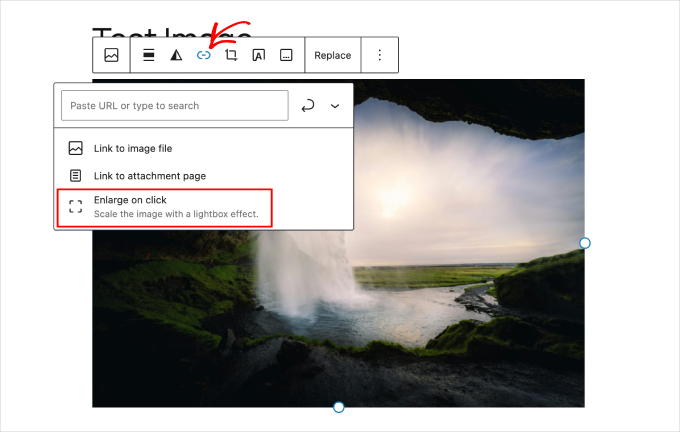
After inserting your image, select it to reveal editing options. Click the link icon in the block toolbar, then activate the 'Enlarge on click' toggle switch.
Step 3: Configure Display Settings
With the expansion feature enabled, adjust image presentation settings. Select your image and navigate to the block settings panel on the right side of your editor.
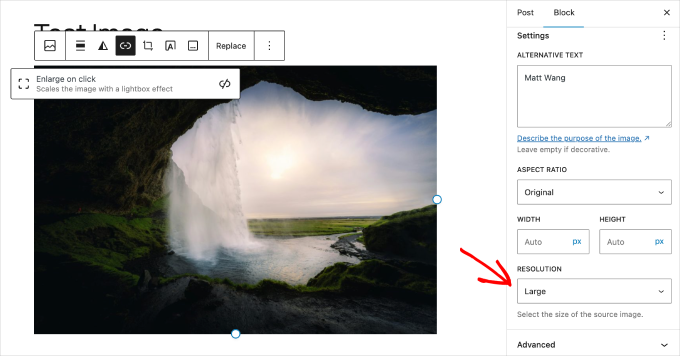
Modify display dimensions to control how images appear within your content. Remember that these settings affect only the initial presentation. When visitors click to enlarge, they view the original full-resolution version from your media library.
For optimal results, upload high-quality images with minimum widths of 1500 pixels. Ensure these images are properly optimized to maintain website performance.
Step 4: Test and Publish
Before publishing, thoroughly test the enlargement functionality. Use the preview option in the editor's upper-right corner to examine how images behave.
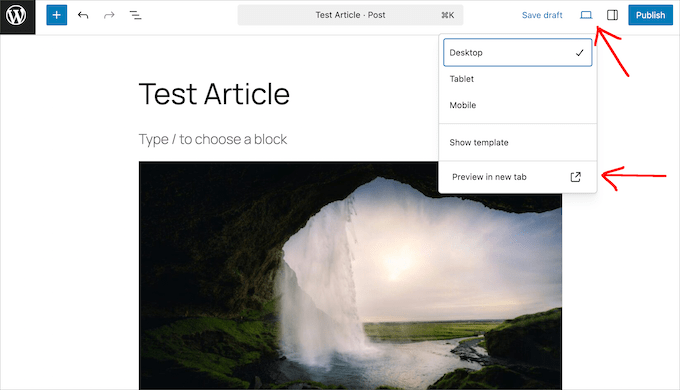
Test across different device views, particularly mobile displays, since many users access websites through smartphones. When functioning correctly, clicking images expands them on the current page. The expansion size depends on your original image dimensions.

Click the expanded image again to return to normal viewing. While this built-in method provides basic functionality, it lacks the sophisticated presentation of lightbox solutions. For more professional visual effects, consider the following plugin-based approach.
Method 2: Implementing Lightbox Plugins
Lightbox plugins create professional image viewing experiences by displaying expanded content in styled overlays. These solutions dim background page elements, directing focus entirely to your images.
Many developers recommend Simple Lightbox as a reliable free option. This plugin offers animation effects, customizable themes, and slideshow capabilities while maintaining lightweight performance. Once activated, it automatically applies to most images throughout your website.
Step 1: Install and Activate Your Chosen Plugin
Begin by installing your selected lightbox plugin through the WordPress dashboard. Navigate to the plugins section, search for your preferred solution, and activate it after installation.


